What's new in NeetoCal


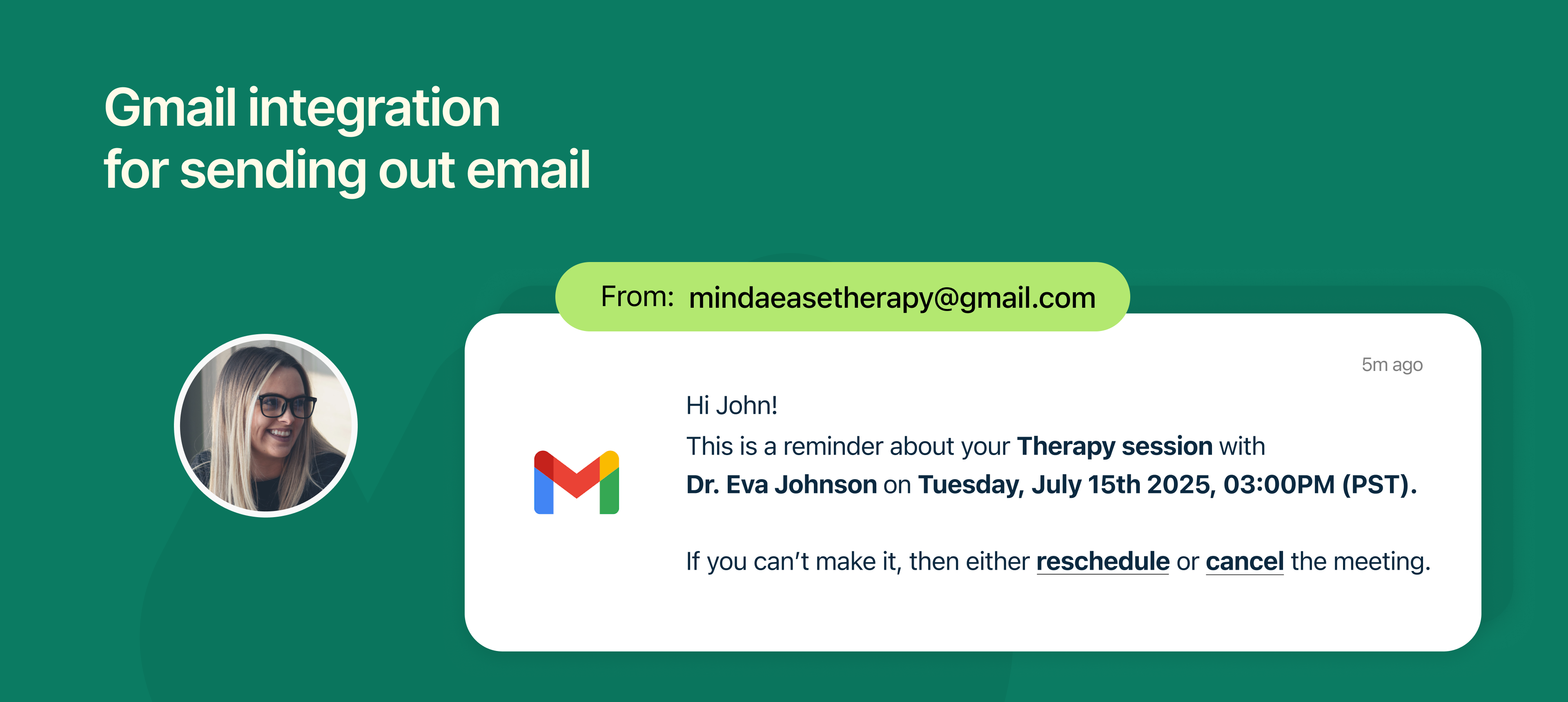
Gmail integration-cover.png

To help you maintain a consistent brand experience, we’ve added support for Gmail integration in NeetoCal.

By default, all booking-related emails like confirmations, reminders, and updates are sent from neetocal.outbound@neeto.com. This generic sender can feel impersonal to your clients and may not reflect your brand.

With this new feature, you can now:

  • Connect your Gmail account to NeetoCal.

  • Send all emails, to both you and your clients from your domain via Gmail.

  • Improve email deliverability and build trust with a recognisable sender address.

This integration helps you create a more professional experience, especially for client-facing roles like consultants, coaches, service providers, and sales teams.

To learn more about this feature, read our help article.
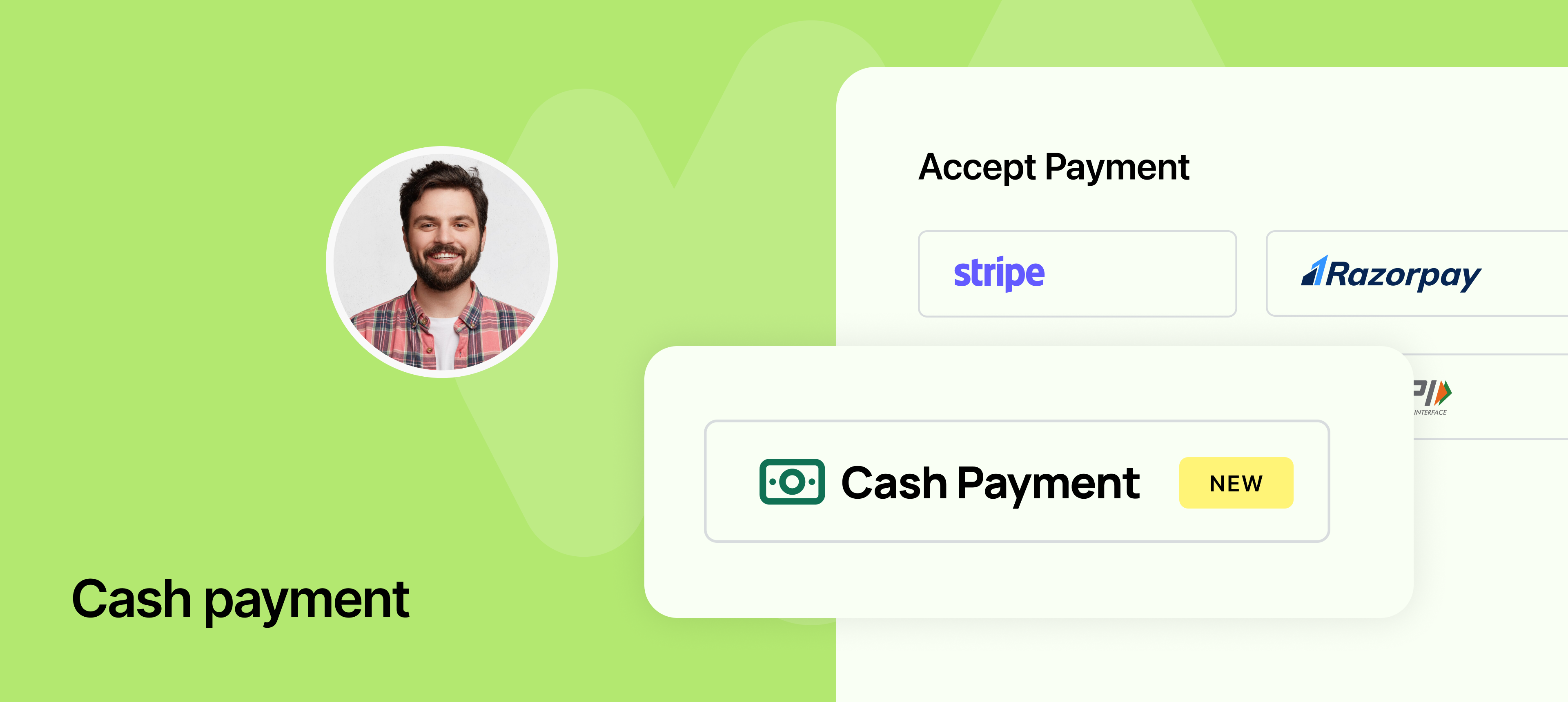

Cash payment-cover.png

Not every transaction needs to happen online. With this update, you can now enable Cash as a payment method when setting up your scheduling links in NeetoCal.

This is perfect for businesses or professionals who collect payments in person but still want to use NeetoCal to manage appointments and maintain a record of bookings.

How it works

  • When creating or editing a scheduling link, you can now select Cash under payment methods.

  • On the booking page, your clients will see "Cash" as an option and can proceed with the booking without making an online payment.

  • The booking will still be tracked in NeetoCal, giving you full visibility into both paid and unpaid appointments.

This feature is especially useful for therapists, consultants, salons, or anyone who collects offline payments but wants to streamline their scheduling experience.

To learn more about this feature, read our help article.
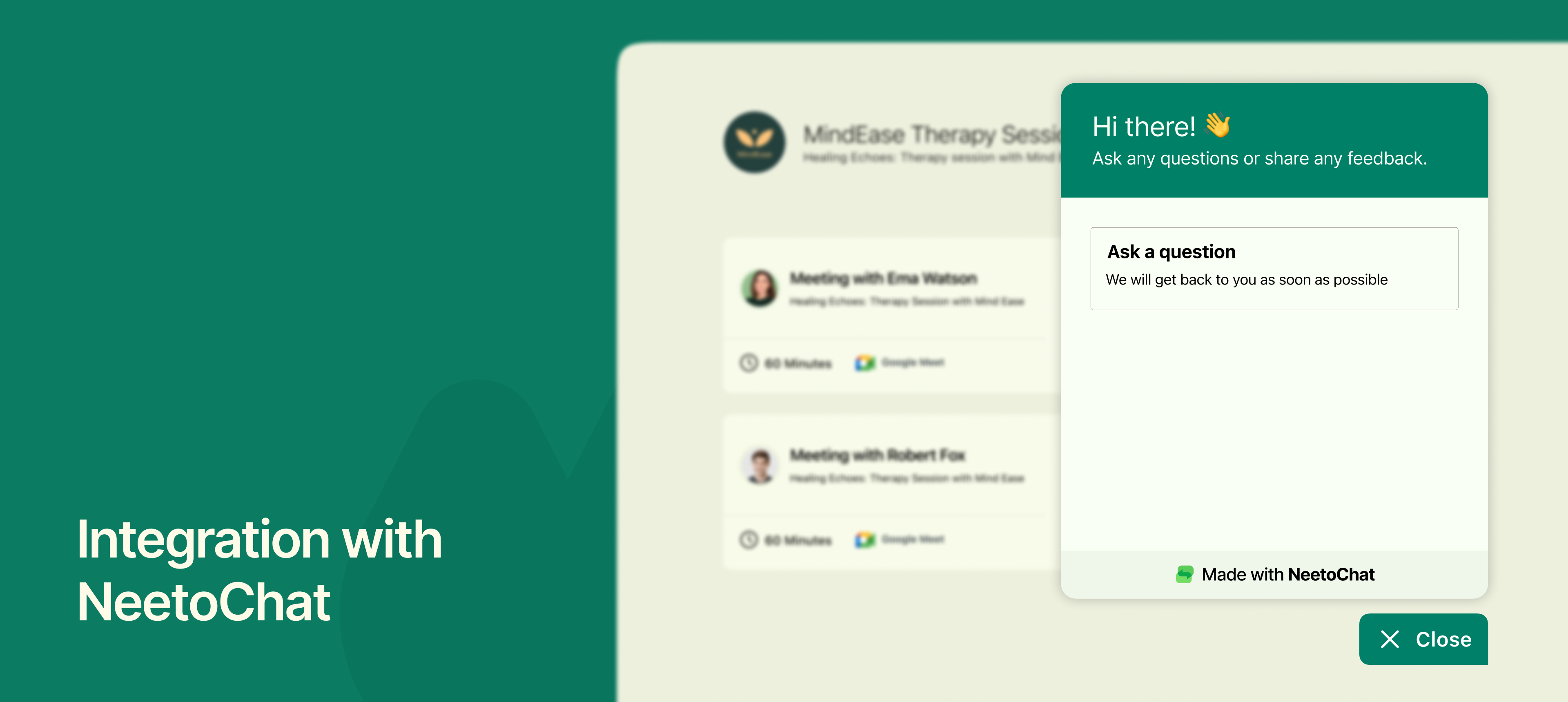

NeetoChat Integration-Banner.png

We’ve rolled out a powerful new integration that brings NeetoChat directly into the NeetoCal experience.

You can now add the NeetoChat widget on both your scheduling link pages and intro pages, allowing visitors to instantly connect with you or your team while they’re in the process of booking a meeting.

Why this matters

  • Sometimes, visitors may have last-minute questions or doubts before booking. Now they don’t have to leave the page or send an email, they can just start a chat instantly.

  • It adds a personal touch to your scheduling flow and can help boost conversion rates.

  • Perfect for use cases like sales demos, consultations, support bookings, or customer onboarding.

To learn more about how to use this feature, read our help article.

RefID- Banner.png

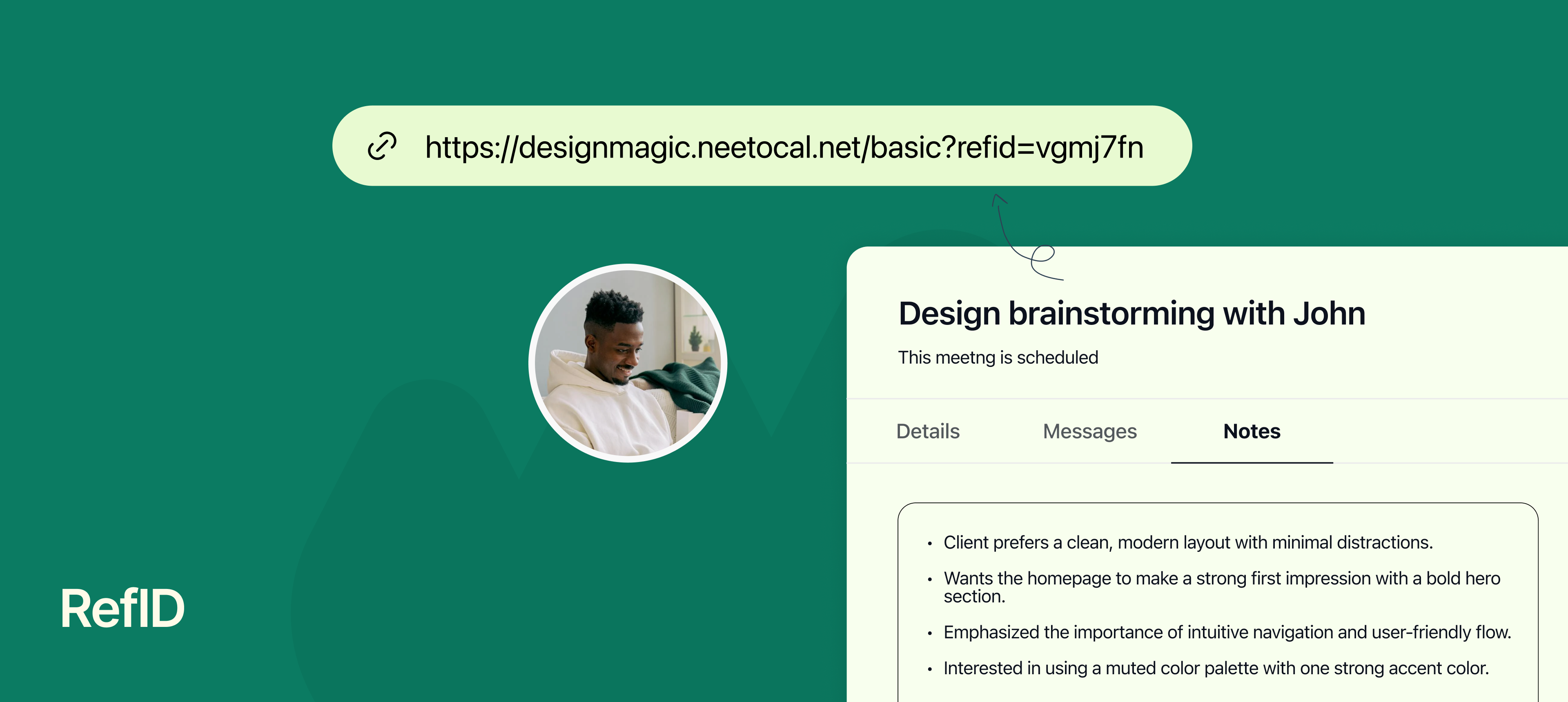
When you have lots of meetings, it’s easy to forget why a call was booked or where the person came from. Was it a LinkedIn message? A support ticket? A Slack chat?

That’s where RefID helps. With RefID, you can add a short note or link to remind you what this meeting is all about.

You just need to attach your refId to your scheduling link. Once a client books using your RefID attached link, those notes automatically shows up in the Notes section of the booking inside your NeetoCal dashboard, so you’ll always know the context before the meeting.

Why use RefID

  • Know where the booking came from – LinkedIn, Twitter, support chat, etc.

  • Share details with your team – Add helpful info so the host is prepared.

  • Avoid confusion – You’ll never wonder “why was this meeting booked?” again.

To learn more about this feature, read our help article.

Visible only to host - banner.png

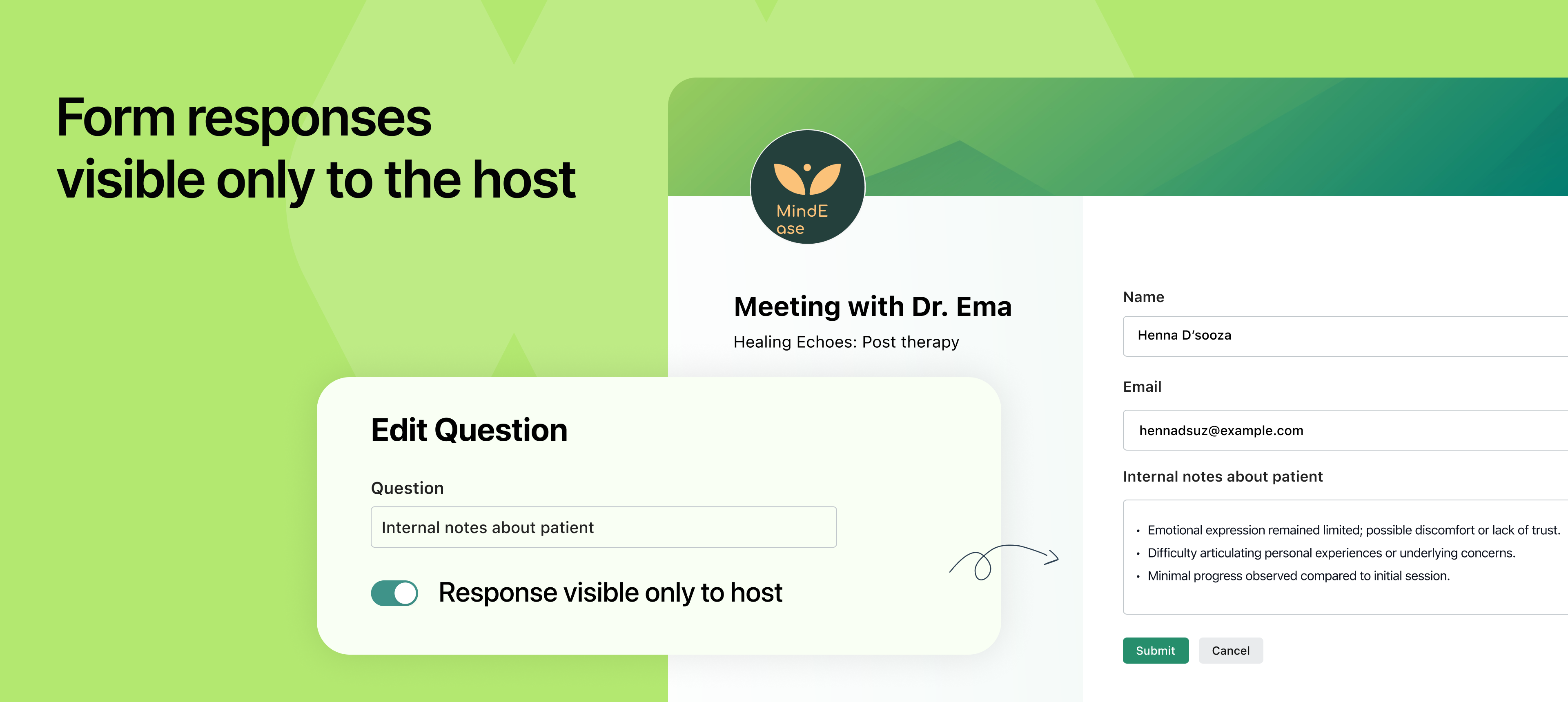
NeetoCal now lets you ask questions during booking that only the meeting host can see. The person filling out the form won’t see those responses again, and it won’t show up in any emails. For example: If your assistant is booking a slot on behalf of your clients and passes on some information to you when you get on a call.

This is helpful when you want to share internal notes or background information with the host, without showing it to the person booking the meeting. It’s like adding a private note that stays behind the scenes.

A few common use cases:

  • Internal handoffs: A team member books a call on behalf of someone else and adds notes like, “This is a follow-up from last month’s demo, client had objections around pricing.”

  • Client history: You’re offering a free consultation and want your assistant to note, “Client previously worked with two agencies and prefers SEO over paid ads.”

  • Sensitive context: You want to collect background details that help you personalise the conversation, but without making the client feel watched or over-analysed.

When you mark a question as Response visible only to host, it will appear in the booking form as usual, but the response won’t be shown on the confirmation screen or in any email notification (not even to the host). It will only be accessible from the Form Responses section under Bookings in your NeetoCal dashboard.

To learn more about how to use this feature, read our help article.

Change video link or meeting place- Banner.png

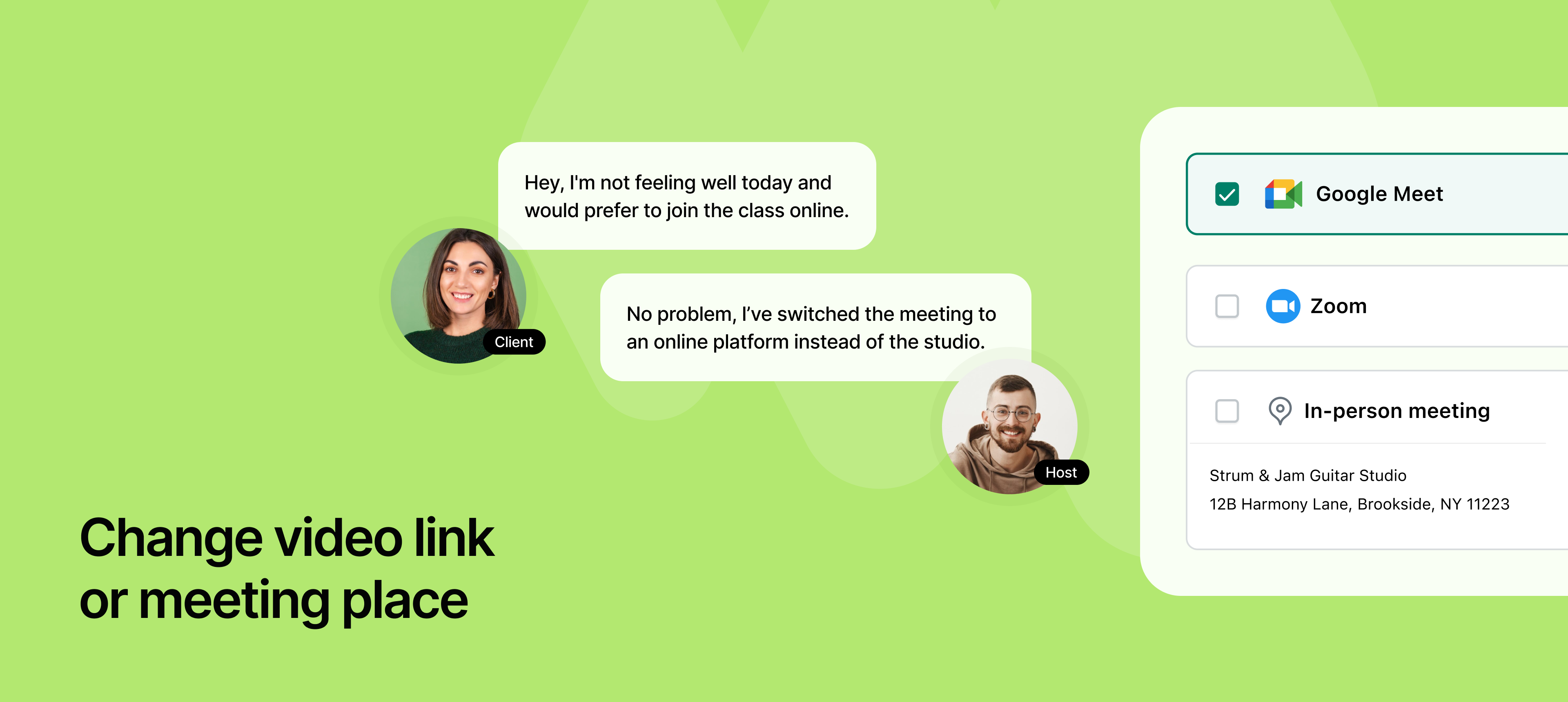
NeetoCal now gives you the flexibility to update your meeting location, whether it's a video conferencing link or a physical address, without needing to cancel or reschedule the appointment. This feature is useful when plans change after a meeting is booked.

For example, if you originally scheduled an in-person meeting but later decide to switch to a virtual one, you can easily update the location without affecting the meeting time. Similarly, if you prefer using a different video conferencing platform than what was initially selected, such as moving from Zoom to Google Meet, you can make that change now with just a few clicks.

Once the meeting location is updated, both you and the invitee will automatically receive an email notification with the revised details, ensuring everyone is aligned without any additional coordination.

To learn more about how to use this feature, read our help article.

Create workflows using the meeting outcome.png

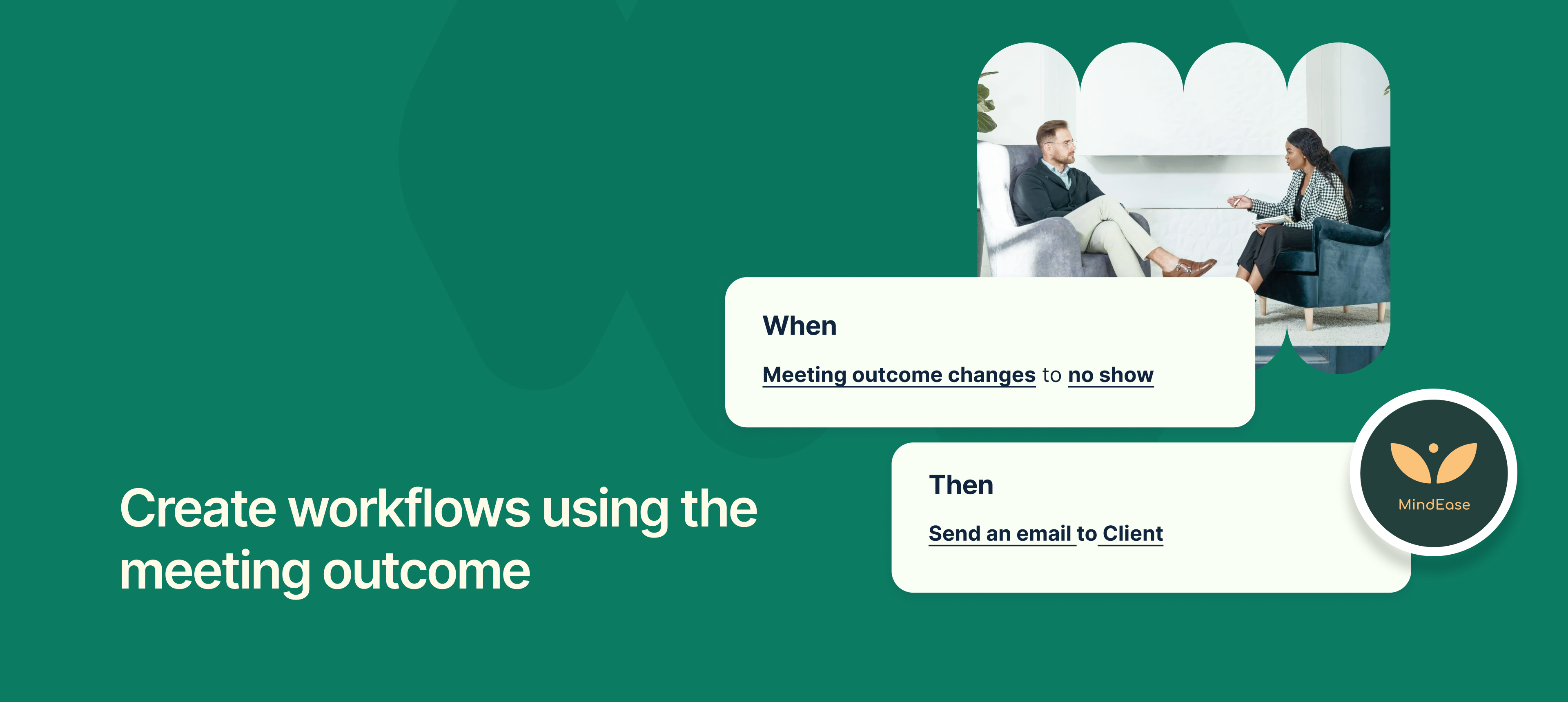
Meeting outcomes can now be used as triggers within NeetoCal workflows.


This means your automation can now react to how the meeting went. For example:

  • If the meeting was completed successfully, and you have added meeting outcome as 'Lead converted". You can now automatically send a next-step email for further actions that are required.

  • If it is no-show, you might send an email with a scheduling link and offer alternative times.

This makes your post-meeting communication smarter and more relevant, reducing manual follow-ups and helping you stay proactive in client engagement.


It also integrates well with internal processes, like CRM updates or internal tracking based on meeting status.


To learn more about how to use this feature, read our help article.
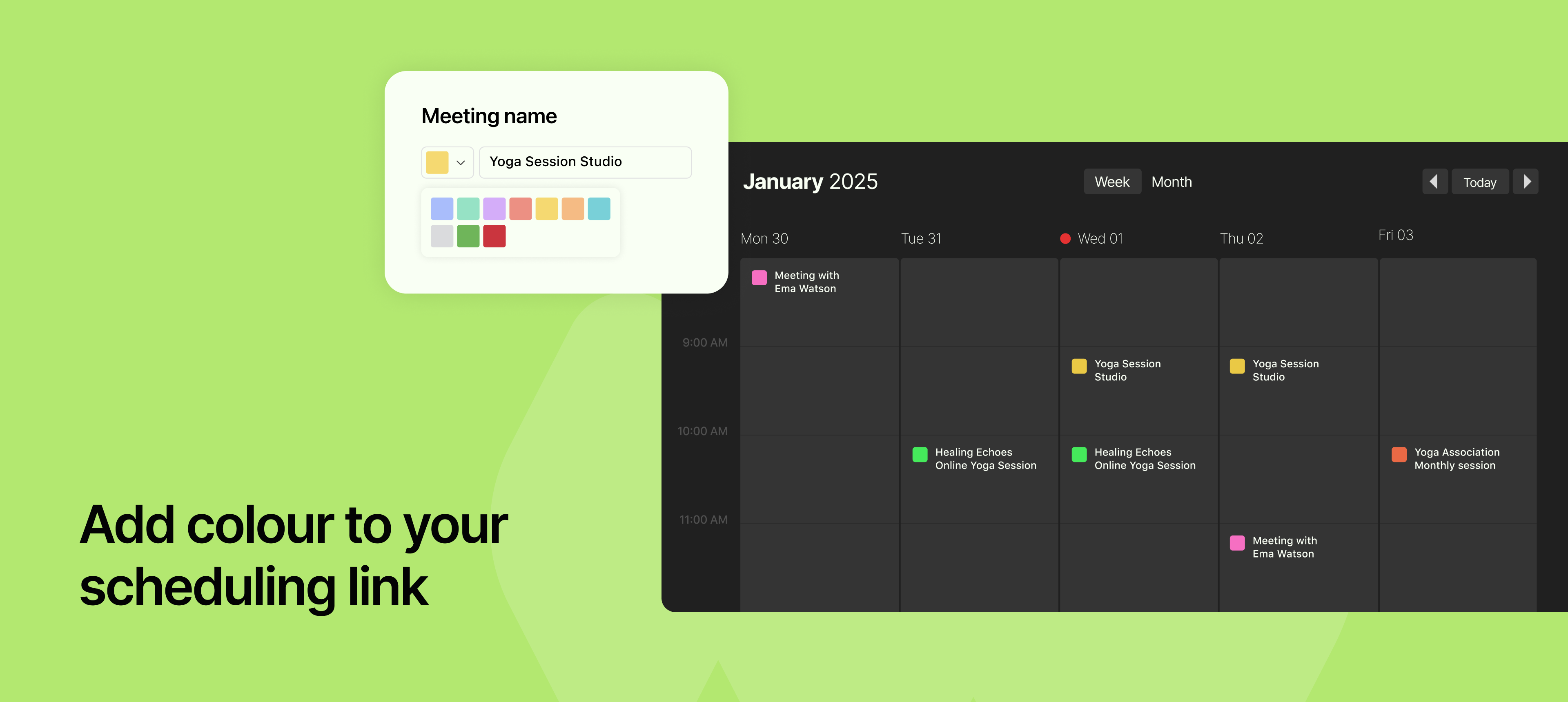

c-Add colour to your scheduling link.png

You can now assign a color to each of your scheduling links, giving you a simple yet powerful way to visually organize your calendar and dashboard.


Colors appear next to each link, helping you instantly identify the type or category of the link, whether it’s a demo, paid session, team sync, or intro call.


This becomes even more helpful when you're managing a large set of links or when multiple team members are involved. It brings a clear visual cue that reduces confusion and saves time when picking the right link to share or update.


You can use your colour-coding style based on purpose, priority, or departments.


To learn more about how to use this feature, read our help article


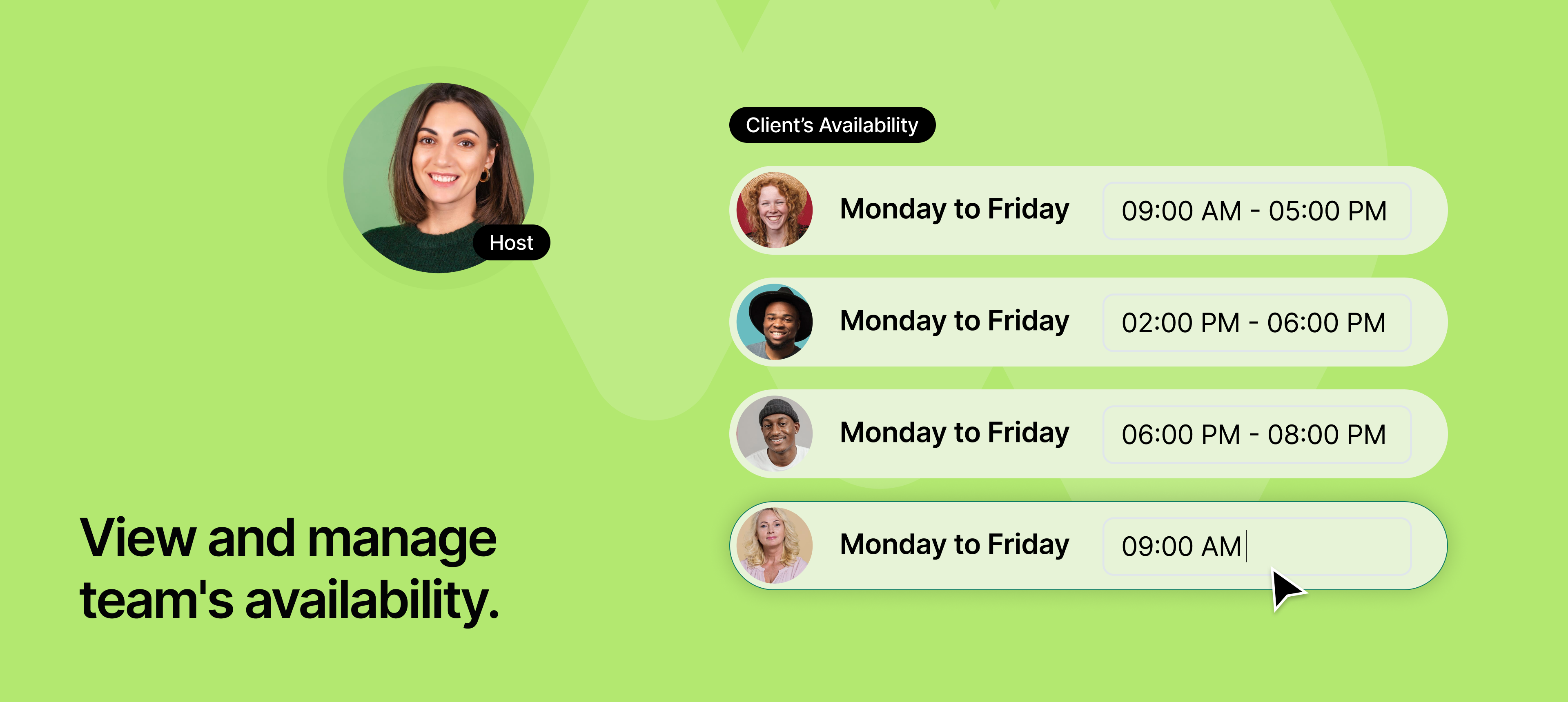
view and manage team availability.png

Managing availability across a team is often a bottleneck, especially in larger organizations. With this new update, admins now have full access to view, edit, and manage the availability of all team members from the team's availabilities tab.

This central control simplifies coordination and ensures team availability is always accurate, whether for client bookings, round-robin distribution, or internal sessions.


It’s ideal for roles like operations managers, executive assistants, or customer success leads who need to ensure schedules are aligned and up to date, without waiting on individual team members to update their availability.


To learn more about how to use this feature, read our help article.

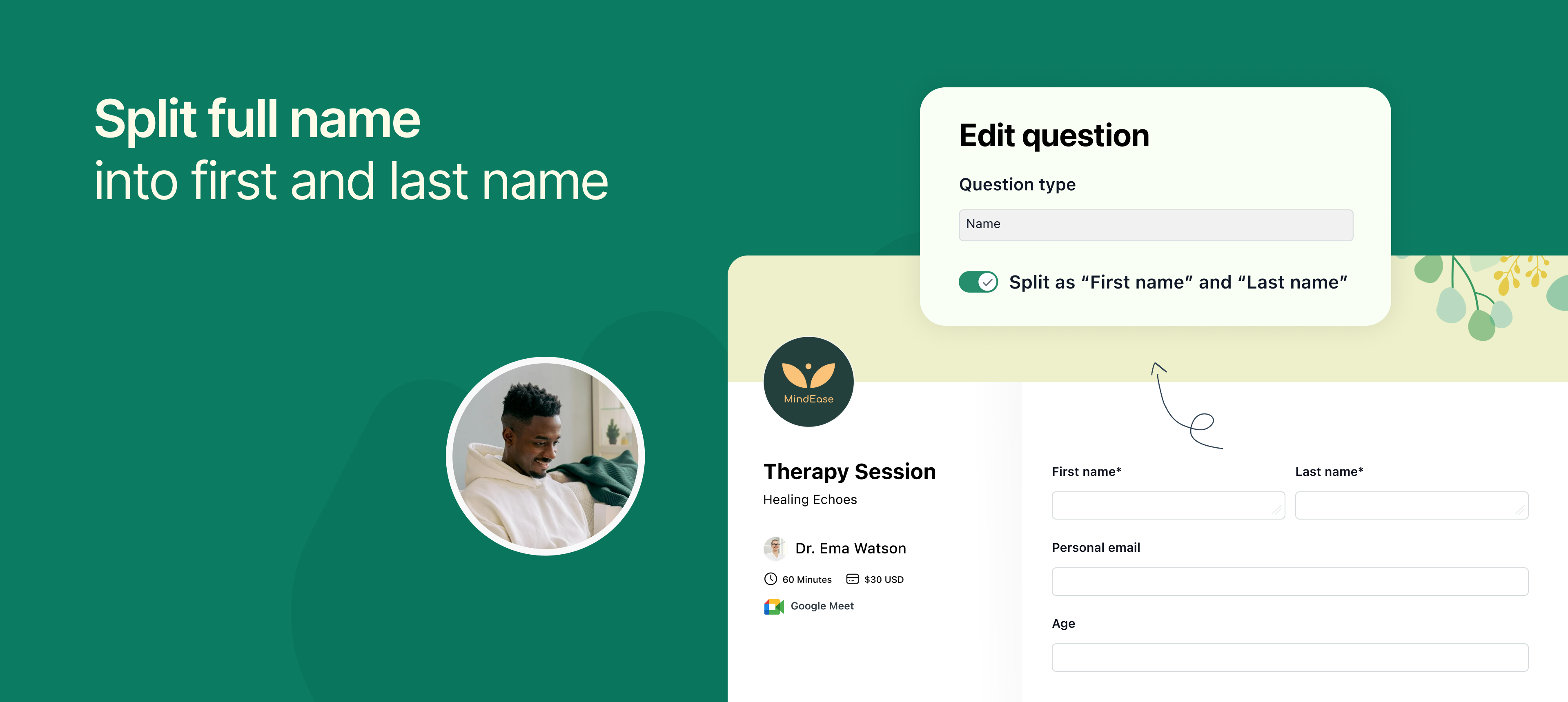
Split full name to first name and last name.png

Previously, when clients filled out the booking form, the full name was stored in a single field. With this update, you can now separate the full name into first and last name.


This enhancement improves personalization and data handling across the platform. You can now greet clients with just their first name in email templates, build smarter workflows, and even export cleaner CSV data.


It also enhances integrations with third-party tools or CRMs that rely on separate name fields.

To learn more about how to use this feature, read our help article