What's new in NeetoCal


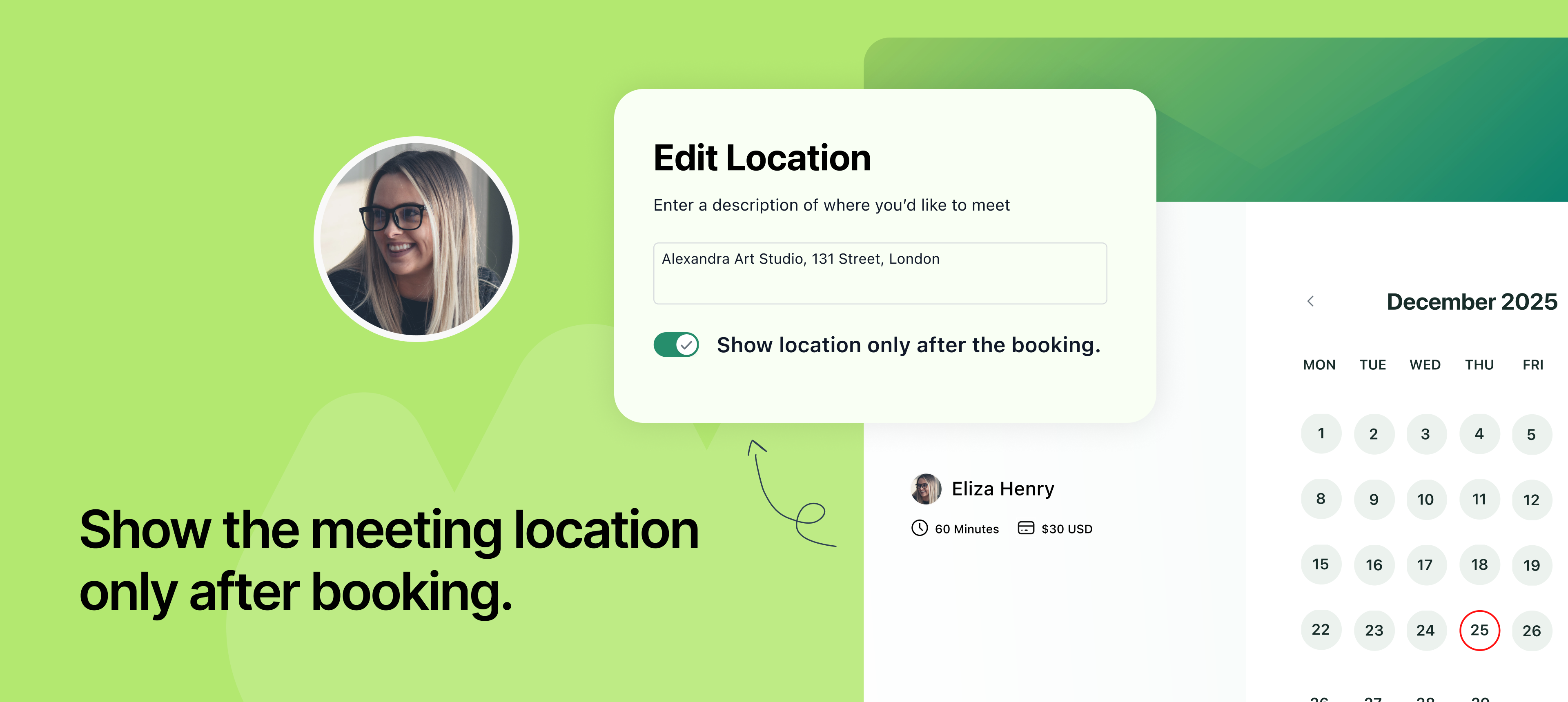
Show the meeting location only after booking..png


You can now show the meeting location like your office address, Zoom link, phone number only after the booking is done.

This helps protect your meeting details from being accessed prematurely or misused. It’s a great option for consultants, therapists, or anyone concerned with privacy and security.


Once the booking is confirmed, the client will automatically see the meeting location on the confirmation page and receive the location in the confirmation email.

To learn more about how to use this feature, read our help article.


Booking Page password protection.png

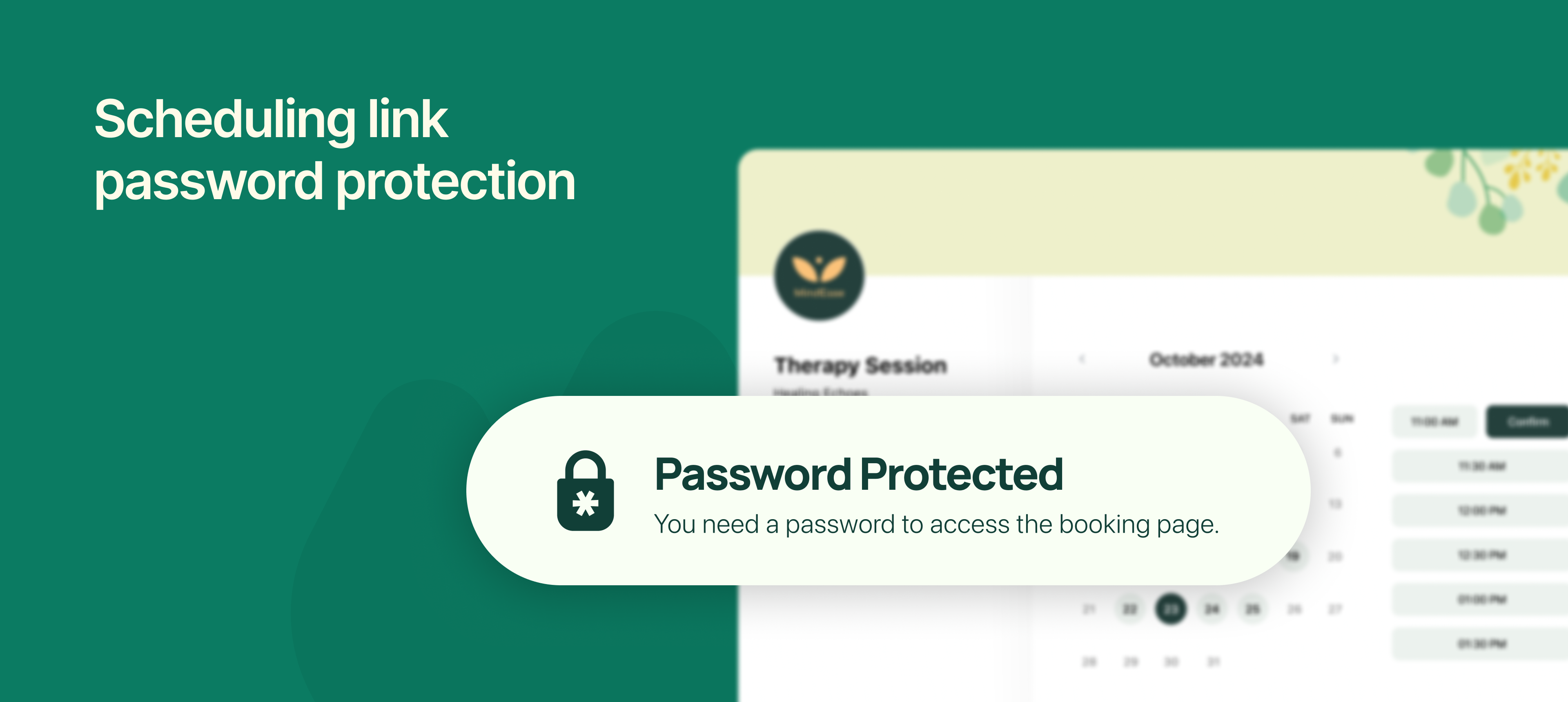
NeetoCal now lets you add password protection to individual scheduling links, giving you more control over who can access and book a meeting with you.


Until now, anyone with your scheduling link could view your availability and book a slot. With this update, you can restrict access by setting a password, ideal for private sessions, premium services, or internal meetings that shouldn’t be open to everyone.


This is particularly useful when sharing links in closed communities, with selected clients, or for invite-only events.


To learn more about how to use this feature, read our help article.


Add guest after meeting is booked.png

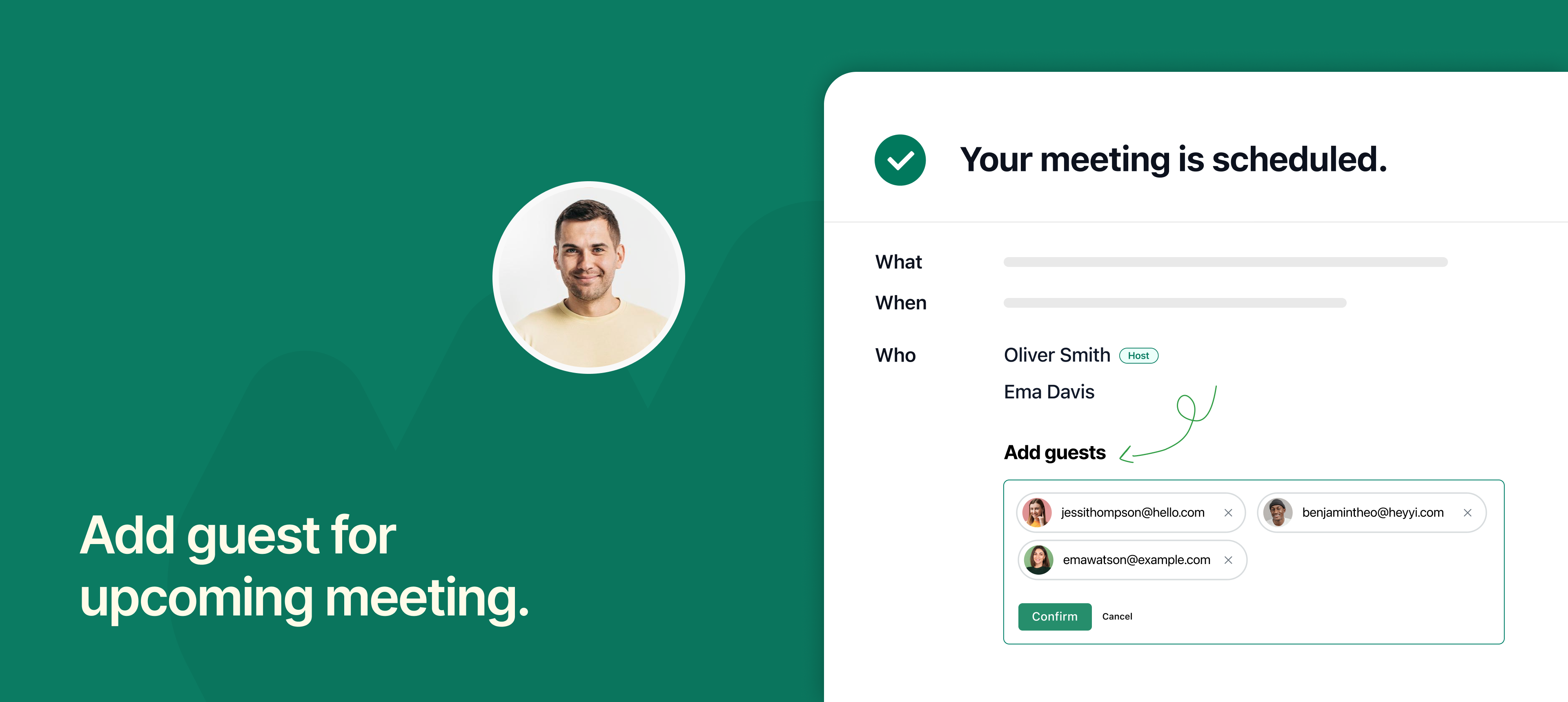
NeetoCal now lets you add guests to an already scheduled meeting, as long as the meeting hasn’t started yet.


This is helpful when a client wants to bring someone along or you decide to loop in a colleague, manager, or team member after the meeting is booked. Instead of cancelling and rebooking, you can add the new guest directly from the meeting confirmation page.


The guest will receive the same meeting invite and join link, keeping everyone on the same page and avoiding confusion.


This feature saves time, improves coordination, and helps ensure the right people are part of the conversation, especially for interviews, demos, or group discussions.

To learn more about how to use this feature, read our help article.


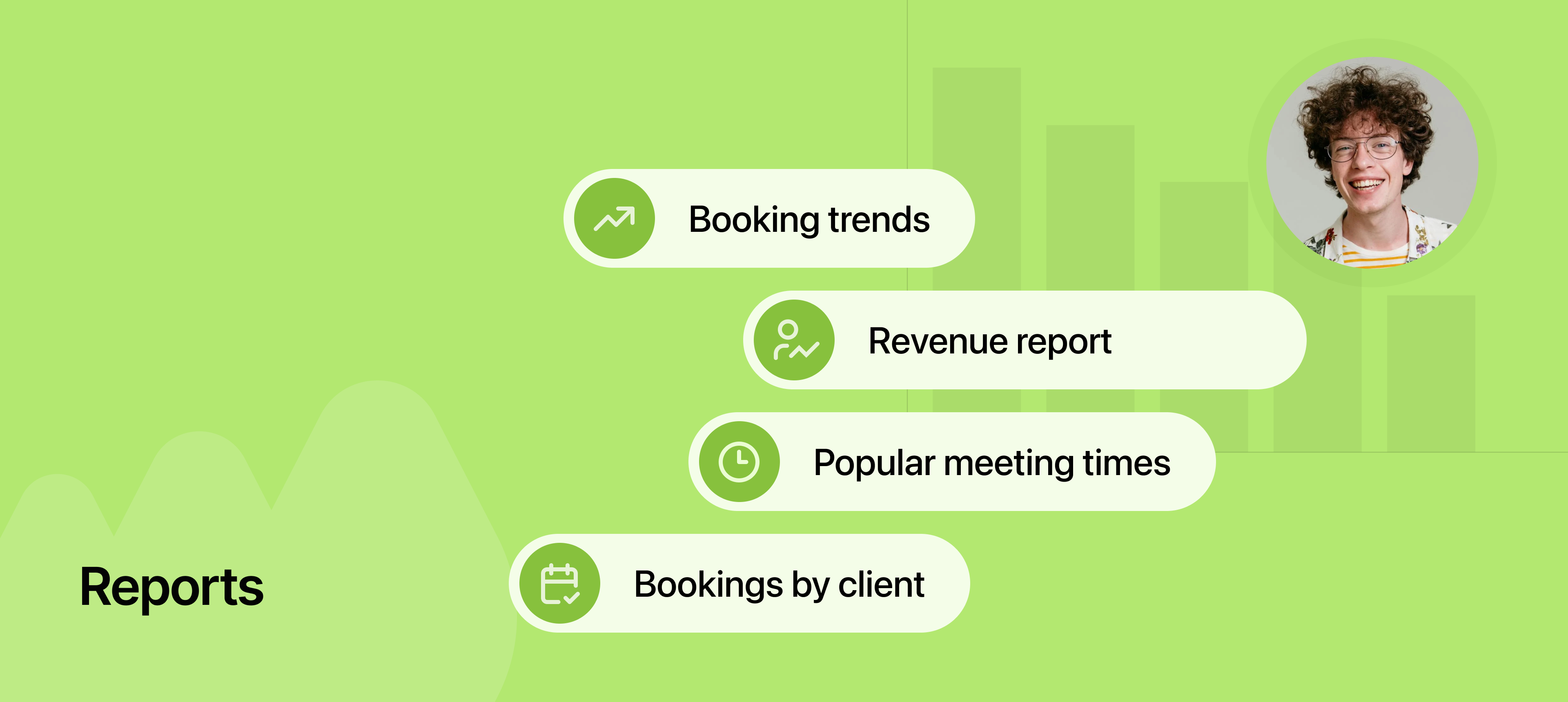
Reports.png

We’ve introduced a Reports section in NeetoCal to help you understand your scheduling performance and business growth more clearly. Whether you're tracking bookings or revenue, you now have access to easy-to-read charts and detailed tables to guide your decisions.

Booking Report

Booking Report gives you a complete overview of how your meetings are performing, like total bookings, cancellations, peak times, top clients and popular hosts etc. You can filter by time ranges like Today, Last week, or All time, and view detailed tables for deeper insights.

Under booking reports you can see the following reports:

  • Host performance report

    This shows how many meeting bookings each team member received. It helps you identify your top performers.

  • Popular meeting times

    See when your clients prefer to book meetings. With this info, you can adjust your available hours to better match client demand and reduce idle time.

  • Bookings by clients

    Understand which clients are scheduling with you the most. This insight is valuable for building stronger relationships and focusing attention on your most engaged clients.

Revenue Report

Revenue Report gives a clear picture of your financial performance. It shows total revenue, refunds issued, the number of paid and free session clients, and your conversion rate from free to paid meetings.


Under the booking reports you can see the following reports:

  • Revenue by scheduling links

    Find out which scheduling links are bringing in the most revenue. This helps you double down on what’s working and refine the ones that aren’t performing well.

  • Revenue by hosts

    See which hosts are contributing the most to your business revenue. It’s a great way to recognise high-performing team members and set goals accordingly.

  • Revenue by clients

    Identify which clients contribute the most financially to your business. This can help you focus your customer success efforts and build long-term relationships with your most valuable clients.

Conversion rate from free to paid

Conversation rate measures how effectively a host transitions clients from free meetings to paid meetings. A client is converted if they have both a paid booking and a free booking.


This helps you understand how well your free meetings are driving business and where you can optimize.
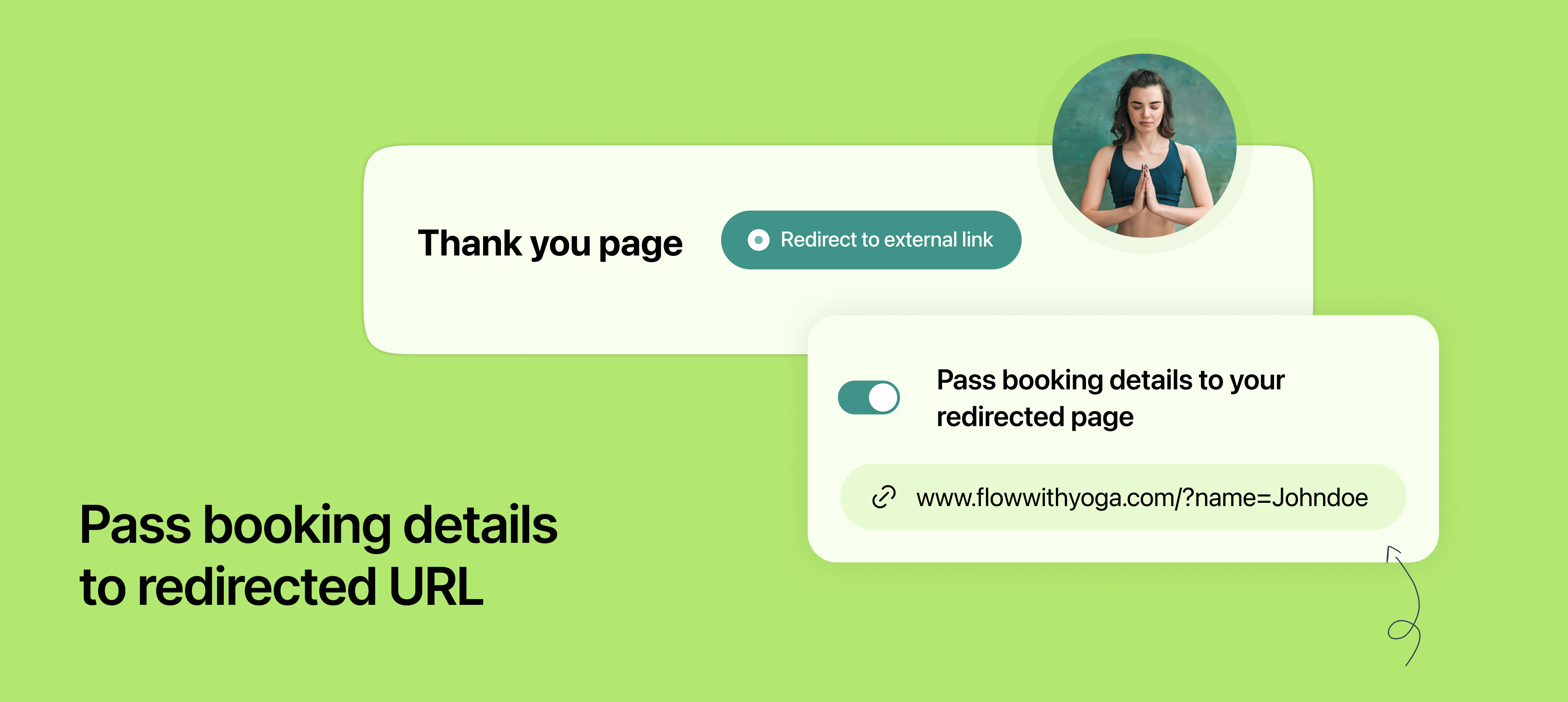
Pass parameter to redirect URL.png

NeetoCal now allows you to pass booking details to an external URL after a meeting is booked.

This means when your client finishes booking, you can send them to any page you want, such as your website, a product page, or a feedback form and now you can also include their booking info on that page.

This is useful because

  • You can personalise your thank-you message using the client’s name or details, making the experience feel more professional.

  • You can track where your traffic is coming from and which bookings came from which campaigns.

  • You can use this information to ask for feedback, show next steps, or even offer follow-up resources based on the meeting they booked.

  • And if you use analytics tools, you can understand more about your visitors and how they interact with your site after booking.

It’s a small tweak with big benefits, perfect for those who want more control and insight after a client schedules a meeting.

To learn more about how to use this feature, read our help article.


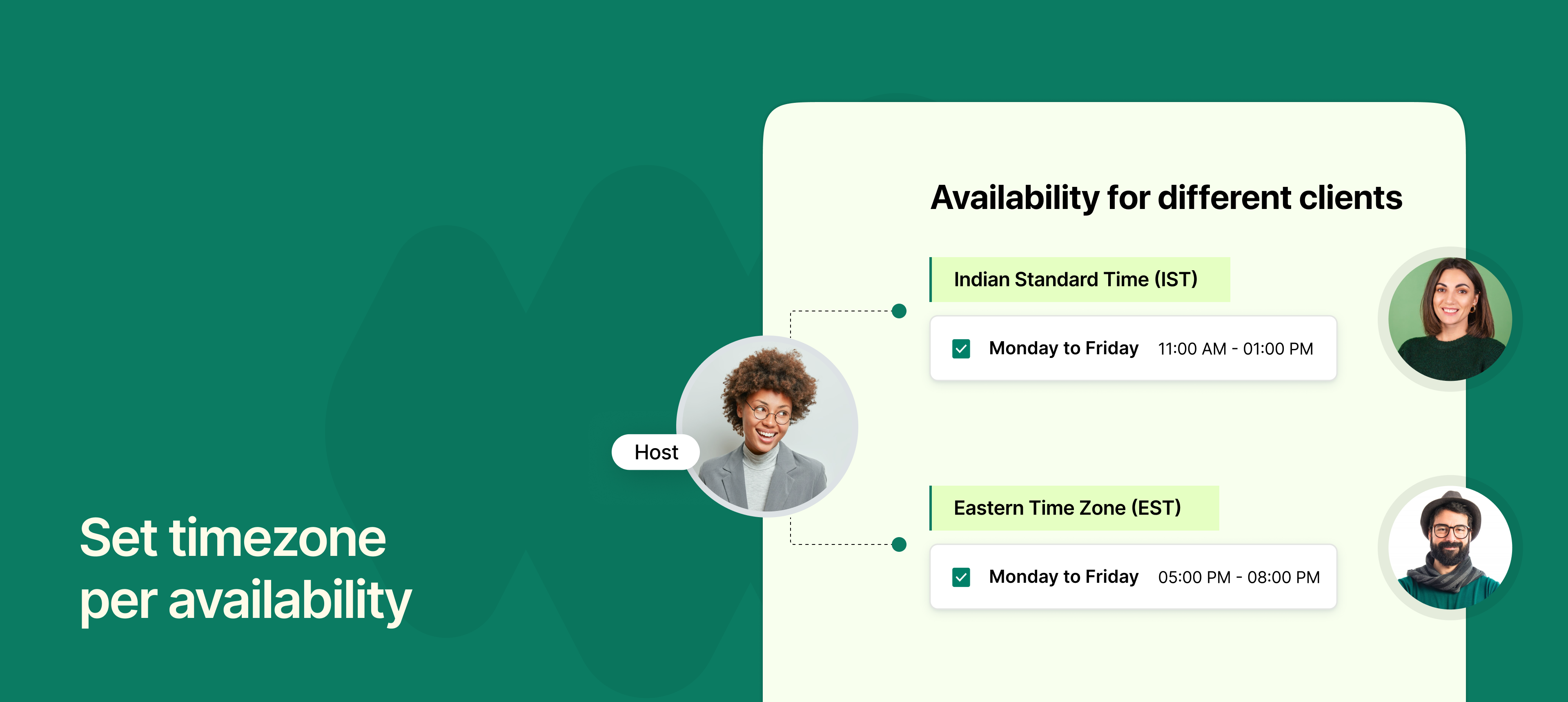
Set timezone per  availability.png

NeetoCal now lets you set a specific time zone for each of your availabilities, instead of relying only on your profile’s default time zone.


This means you can now set your availability based on where you'll be. It is especially helpful if:

  • You travel frequently and want your slots to reflect the local time where you'll be.

  • You work with clients in different regions and want to show specific availabilities for them.

  • You manage multiple teams across time zones and want to ensure clarity for each group.

For example, if you're visiting New York next week, you can set your availability in Eastern Time, and clients will see your available slots in that time zone.

To learn more about how to use this feature, read our help article.


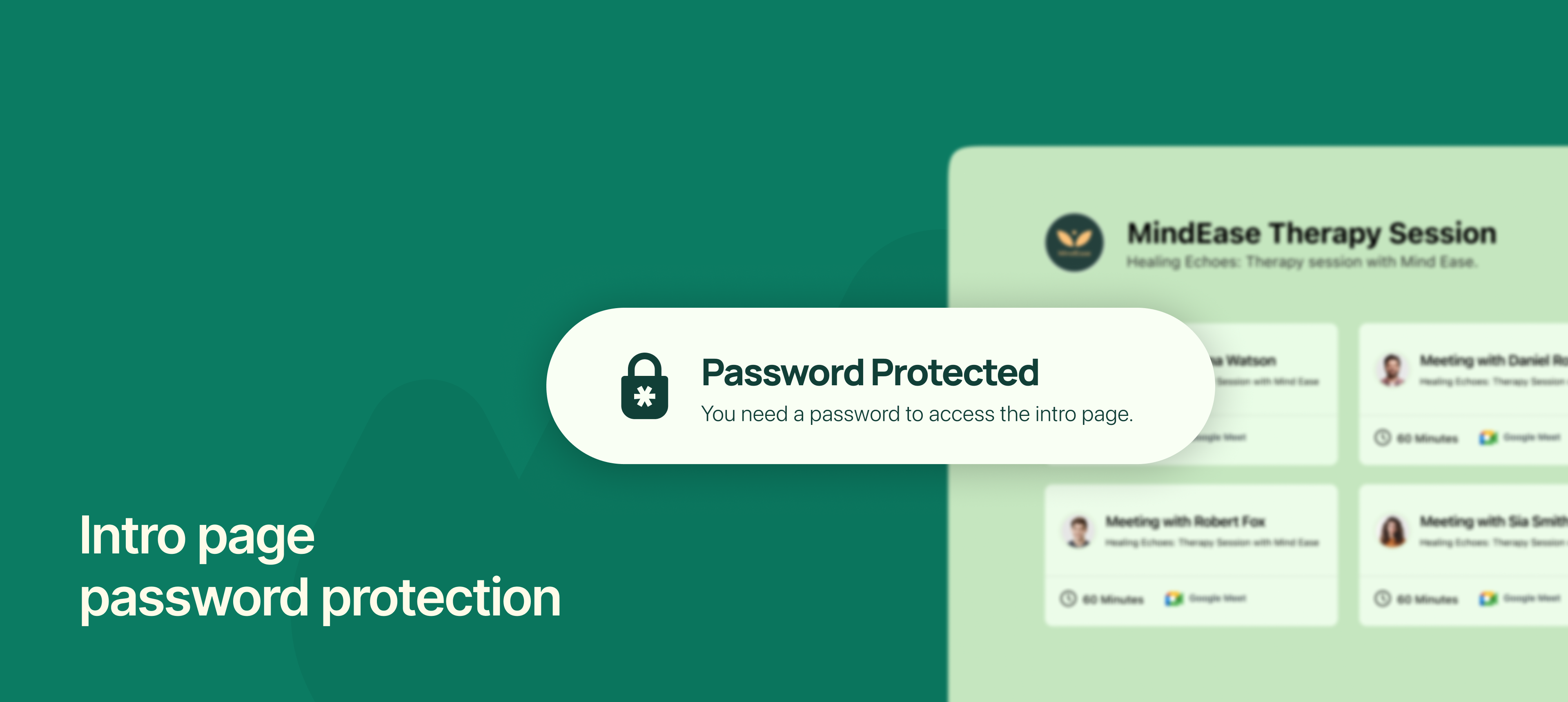
Intro page password protection.png

NeetoCal now lets you add password protection to your intro pages, giving you more control over who can view your scheduling links.


Intro pages act like a landing page where you showcase your services and scheduling links. Until now, anyone with the link could access them.


With this update, you can add a password to any intro page to restrict access. This is perfect when you want to share your availability or services with a specific group, like premium clients, internal teams, or event attendees, without making it public.

To learn more about how to use this feature, read our help article.


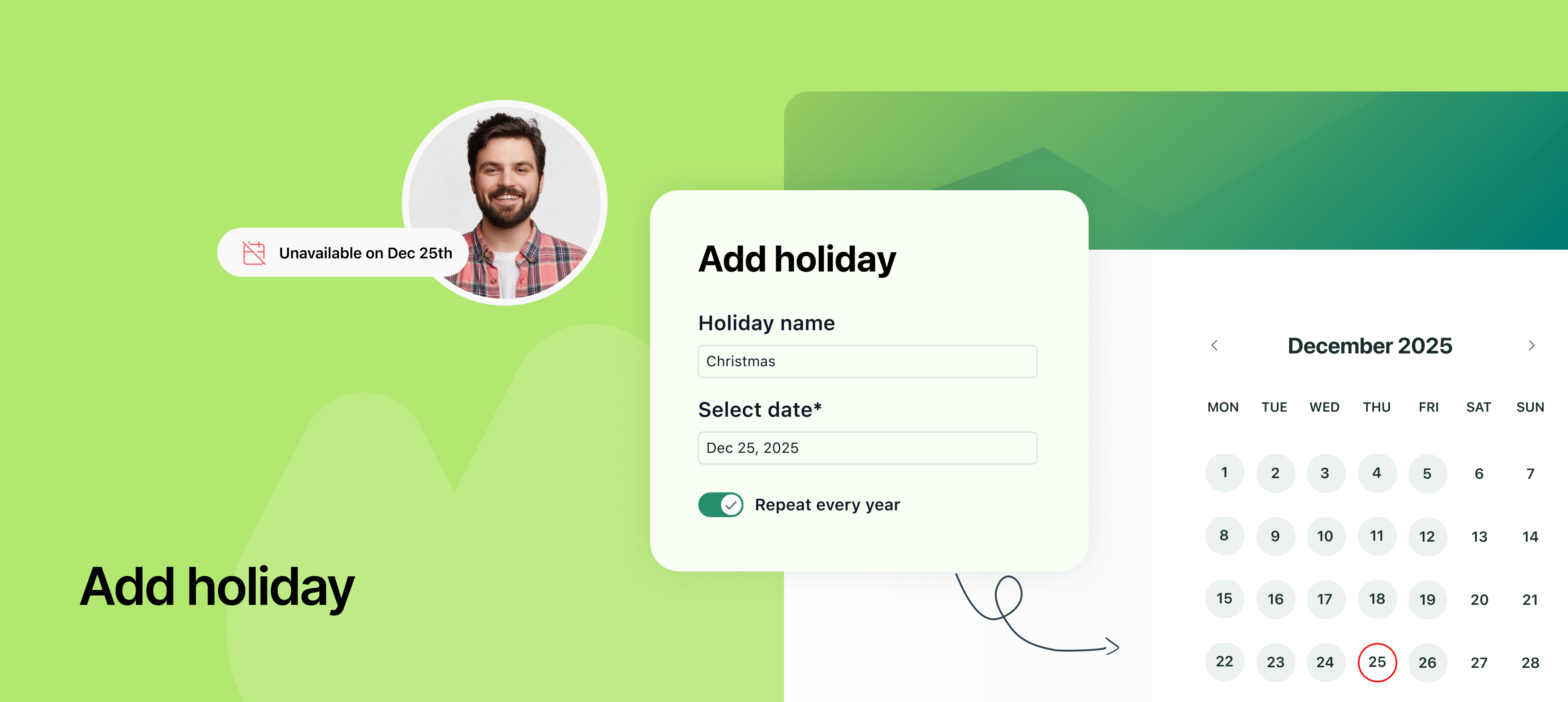
Add holiday.png

You can now add holidays in NeetoCal to automatically block availability across your workspace for all your team mebers on specific dates. This helps ensure no one gets booked accidentally on public holidays, company-wide breaks, or any custom off days.


Once a holiday is added, all team members’ availability will be updated, and those dates will be marked as unavailable by default.


If someone still plans to work on a holiday, they can easily override it by updating their availability just for that day using the availability override.

To learn more about how to use this feature, read our help article.


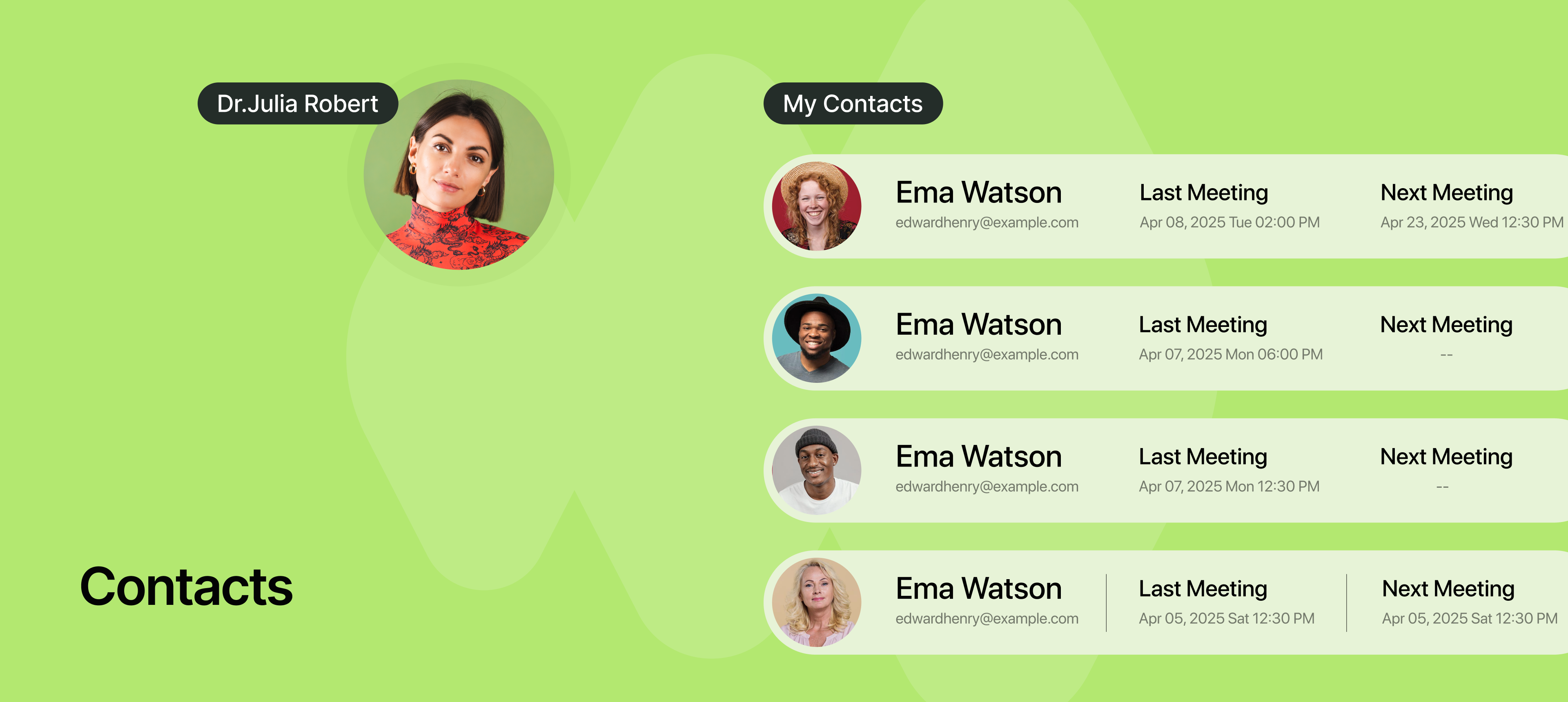
Contacts.png

We’ve added a new Contacts tab in NeetoCal to help you manage your clients more easily.

In this tab, you can see important details about everyone who has booked a session with you, like their name, email, last meeting, and any upcoming meetings. All this information is shown in one place, so you don’t have to search for it.

Contacts tab is especially helpful to send follow-up messages, offer discounts, or even plan personalized marketing campaigns based on client activity.

Whether you're a coach, therapist, consultant, or trainer, this feature gives you a clear view of your client base and helps you build stronger, more consistent relationships.

To learn more, read our help article.


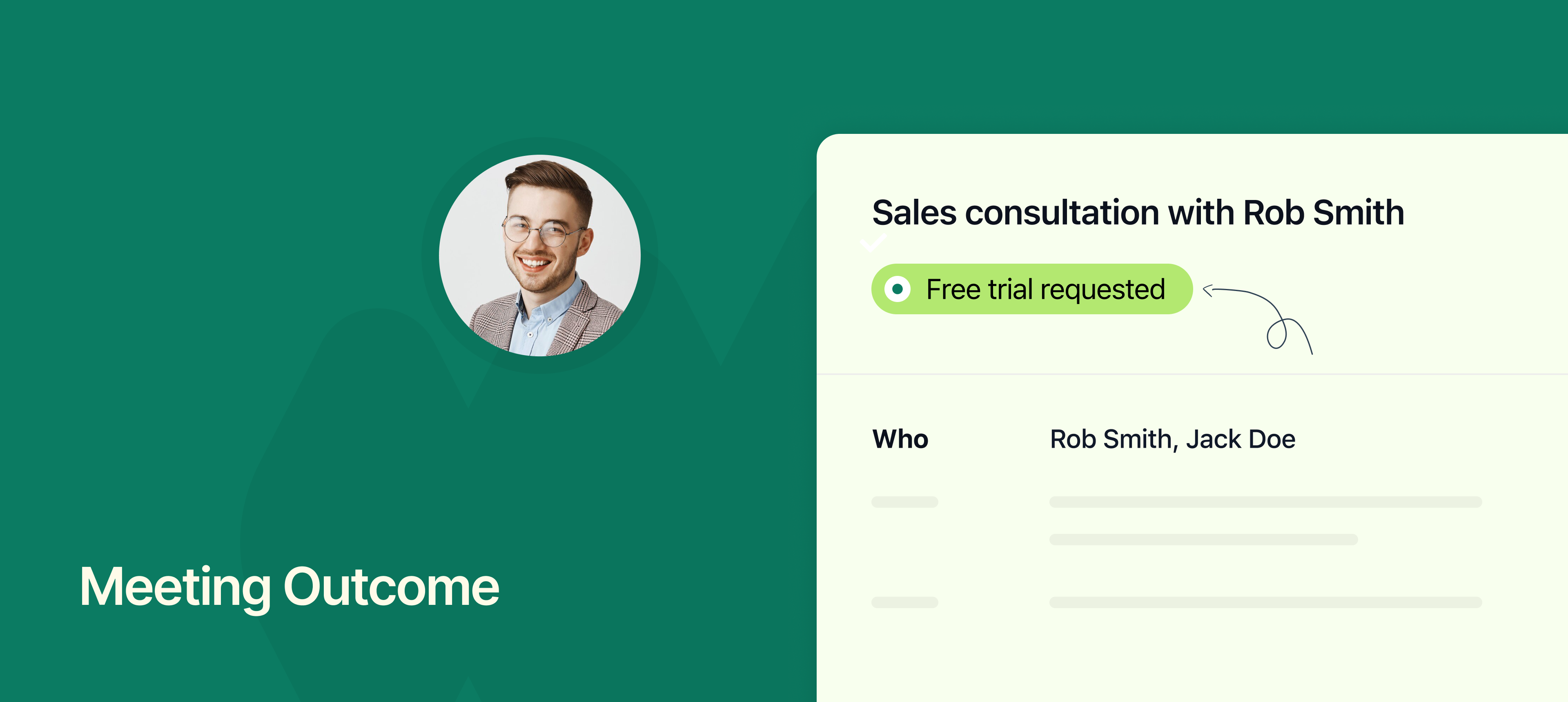
v2-Meeting Outcome.png

We’ve added a new feature called Meeting Outcomes in NeetoCal. After a meeting ends, you can now mark the outcome of that meeting. This helps follow up with clients, understanding what further actions are required and plan accordingly.

NeetoCal comes with a default outcome called No-Show, which you can use when someone doesn’t show up for a meeting. But you can also create your custom outcomes based on your work type.

For example:

  • Sales teams: After a meeting with a lead, they can mark the outcome as a discovery call done, product demo done, or a free trial requested.

  • Therapists or counsellors: After an initial consultation can set outcomes like what kind of therapy is needed for that client and connect them with the right therapist.

  • Recruiters or HR teams: After a candidate interview, they can choose outcomes such as: Move to next round, Keep on hold, Not a fit.

  • Fitness or wellness coaches: After a session, they can mark outcomes like Nutrition plan shared, Needs follow-up session, Ready for next level.

To learn more about how to use this feature, read our help article.