What's new in NeetoCal


UTM_tracking_for_embedded_scheduling_links-banner_0l4lrrjd2.png

Previously, when clients embedded their NeetoCal scheduling link within their website and promoted that website URL through ad campaigns (such as Google Ads, Meta Ads, or Instagram Ads), there was no way to identify which ad platform the booking originated from.


Even though NeetoCal already supported UTM parameter tracking, that only worked when users shared the direct NeetoCal link (for example: neetocal.com/s/john?utm_source=googleads).


In embedded cases, such as when a NeetoCal scheduling page was embedded to a website landing page like advantageinvestment.co.uk/book-demo, those UTM parameters weren’t being passed into the embedded iframe.

As a result, all bookings appeared identical, and marketing teams couldn’t distinguish between bookings from Google Ads, Instagram, or any other campaign.

What we fixed

NeetoCal can now capture and store UTM parameters even when the scheduling link is embedded inside another website.


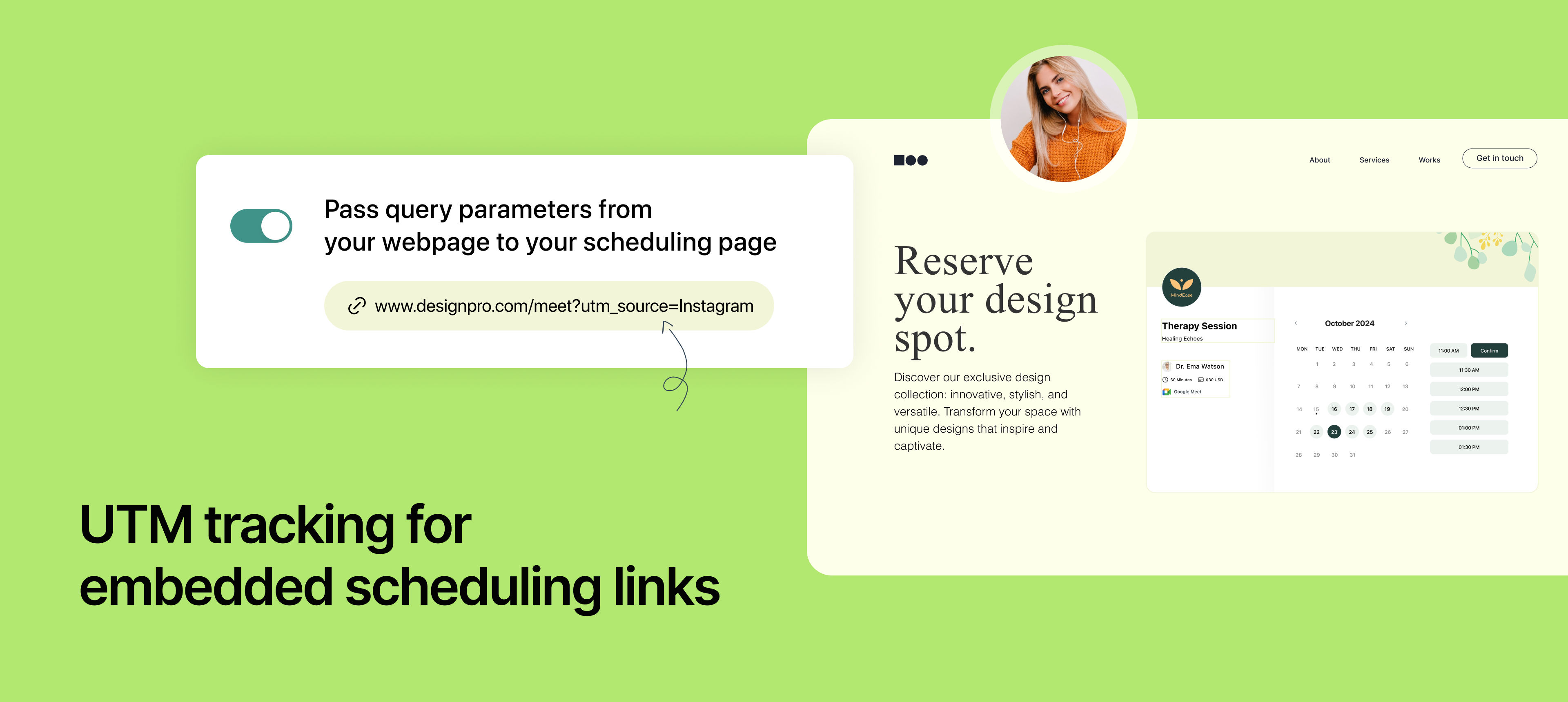
When a visitor lands on a webpage that includes a NeetoCal embed, any UTM parameters for example: utm_sourcein the page URL, are automatically passed into the embedded NeetoCal scheduling page.


This means:

  • If someone visits advantageinvestment.co.uk/book-demo?utm_source=googleads and books a meeting, NeetoCal will record that the booking came from Google Ads.

  • Similarly, a booking from ?utm_source=instagram will show up with Instagram as the campaign source.

These captured parameters are visible in:

  • The booking details are viewed inside NeetoCal.

  • Google Sheets exports, if integration is enabled.

Why this matters

With this enhancement, marketing teams running multi-platform campaigns can now:

  • Attribute each booking to its true campaign source.

  • Analyze ad performance directly from NeetoCal data.

  • Understand which channels bring the most qualified leads, without changing how they embed scheduling page.

To learn how to use this, refer to this help article.

cover_Centralized_email_notifications_and_scheduling_link-level_customization._ThbyXHZ7f.png

We’ve simplified how email notifications work in NeetoCal. Earlier, if you wanted to update your booking confirmation or reminder emails, you had to edit them separately for every scheduling link. This was repetitive and error-prone. Now, email templates can be managed once at the Admin Panel and applied across all scheduling links in your workspace. This saves time, ensures consistency, and still gives you the option to customize emails for specific scheduling links when needed.

Manage notifications from the Admin Panel

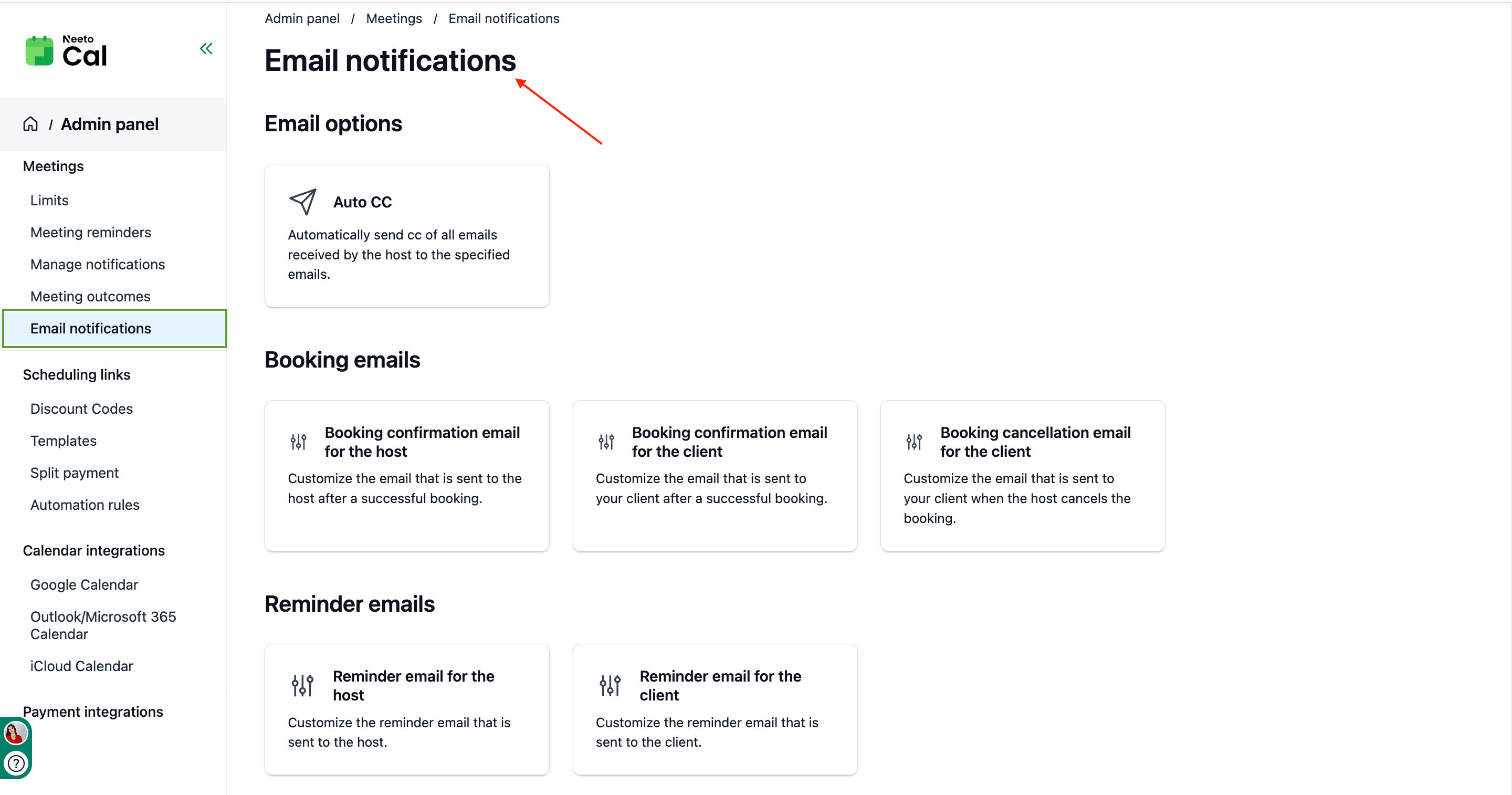
Email notifications are now managed from the Admin Panel. Admins can set confirmation, cancellation, and reminder templates once, and the changes automatically apply across all scheduling links, saving time and ensuring consistency.

  • Configure and update templates (confirmation, cancellation, reminders) at Admin Panel → Meetings → Email notifications.

  • Changes made here apply automatically across all scheduling links.

  • Keep communication uniform across your workspace.

  • All scheduling links inherit the Admin Panel templates by default.

Templates you can manage centrally:

  • Booking emails

    • Confirmation email for host

    • Confirmation email for client

    • Cancellation email for client

  • Reminder emails

    • Reminder email for host

    • Reminder email for client

    Screenshot_2025-09-23_at_11.31.22_AM_UJiO35IMI.png

Customize notifications per scheduling link

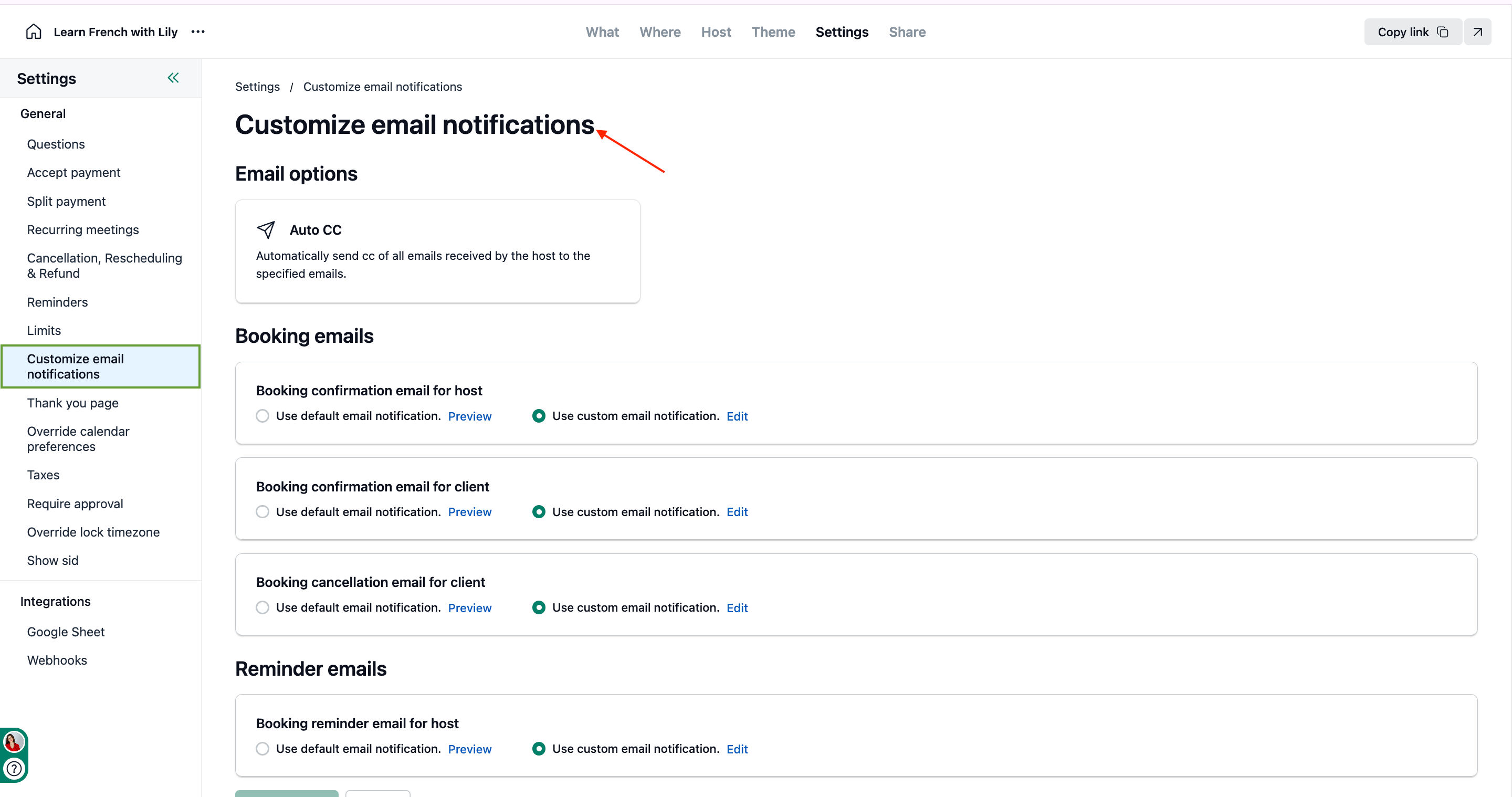
While the Admin Panel controls default email templates, you can still customize email notifications for a specific scheduling link. This is helpful if one particular link needs different wording or additional information.

This cusotmization allows you to switch between default & custom

  • Default: All scheduling links use Admin Panel templates.

  • Custom: Switch to Use custom notifications to override.

Screenshot_2025-09-23_at_11.29.19_AM_vDrxfWWmE.png

To know more about how to use this, refer to this help article. Email notification templates and Customize email notifications

Taxonomy_support__U40bXy9NI.png

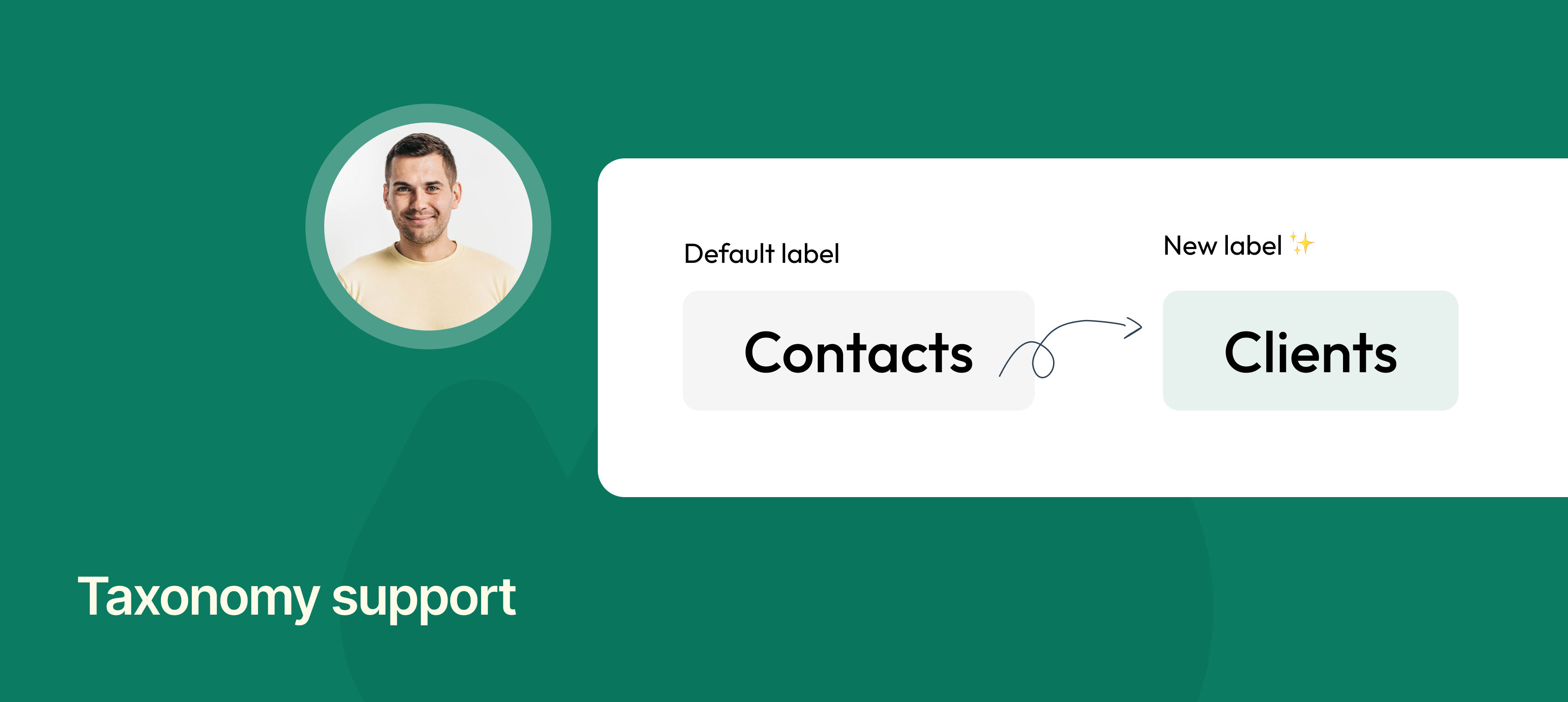
Previously, every workspace in NeetoCal used the default term Contacts.

While this worked in most cases, many businesses use their own terminology, such as “Clients,” “Customers,” “Patients,” or even unique names. This sometimes made the app feel less aligned with their business.

To address this, we’ve introduced Taxonomy support for contacts, providing you with the flexibility to rename “Contacts” to whatever best suits your business.


For example, if you’re a therapist, you might prefer to call them “Patients.” If you’re in consulting, “Clients” may feel more natural. Once updated, this new label will appear consistently throughout the app, making NeetoCal feel more personalised and relevant to your business context.

To learn more how to use this, refer to this help article.

Client_email_verification_via_OTP_Fwi2igmfn.png

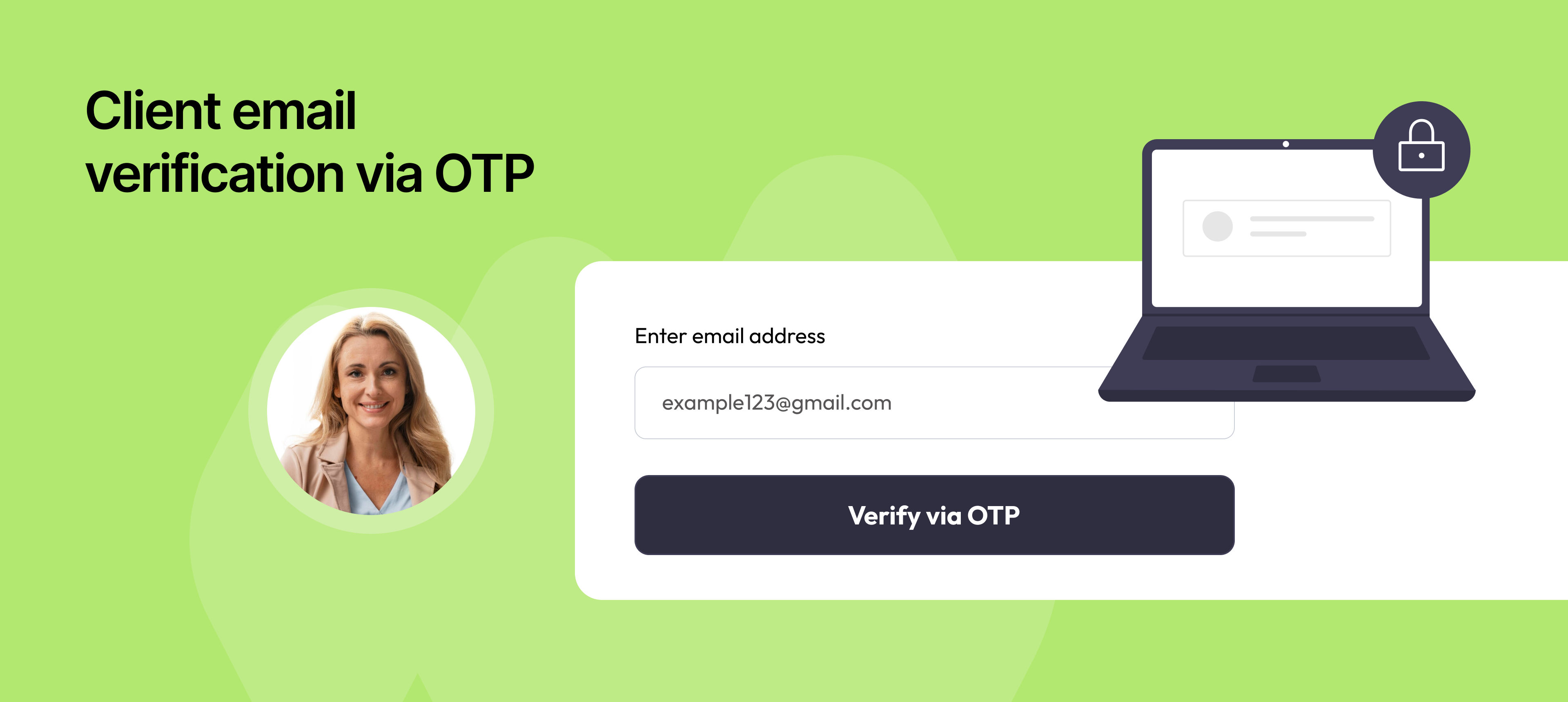
You can now verify client email addresses with a one-time password (OTP) before confirming their booking in NeetoCal.

Previously, when a client booked a meeting, the system would accept any email address provided, even if it was mistyped or fake. This sometimes led to spam bookings, no-shows, or failed communications. To address this, we’ve introduced client email verification via OTP, ensuring that only valid email addresses can complete a booking.


For example, if a potential client enters their email while booking, NeetoCal will send a one-time password to that email. The booking will only be confirmed after the client enters the correct OTP. This ensures that meeting invites, reminders, and follow-ups always reach a verified inbox.

Why is it useful

  • Stops spam and fake bookings by requiring email verification.

  • Reduces no-shows by ensuring meeting links, reminders, and updates reach the right inbox.

To learn how to use this, refer to this help article.

Banner -Send calendar invite to anyone.png

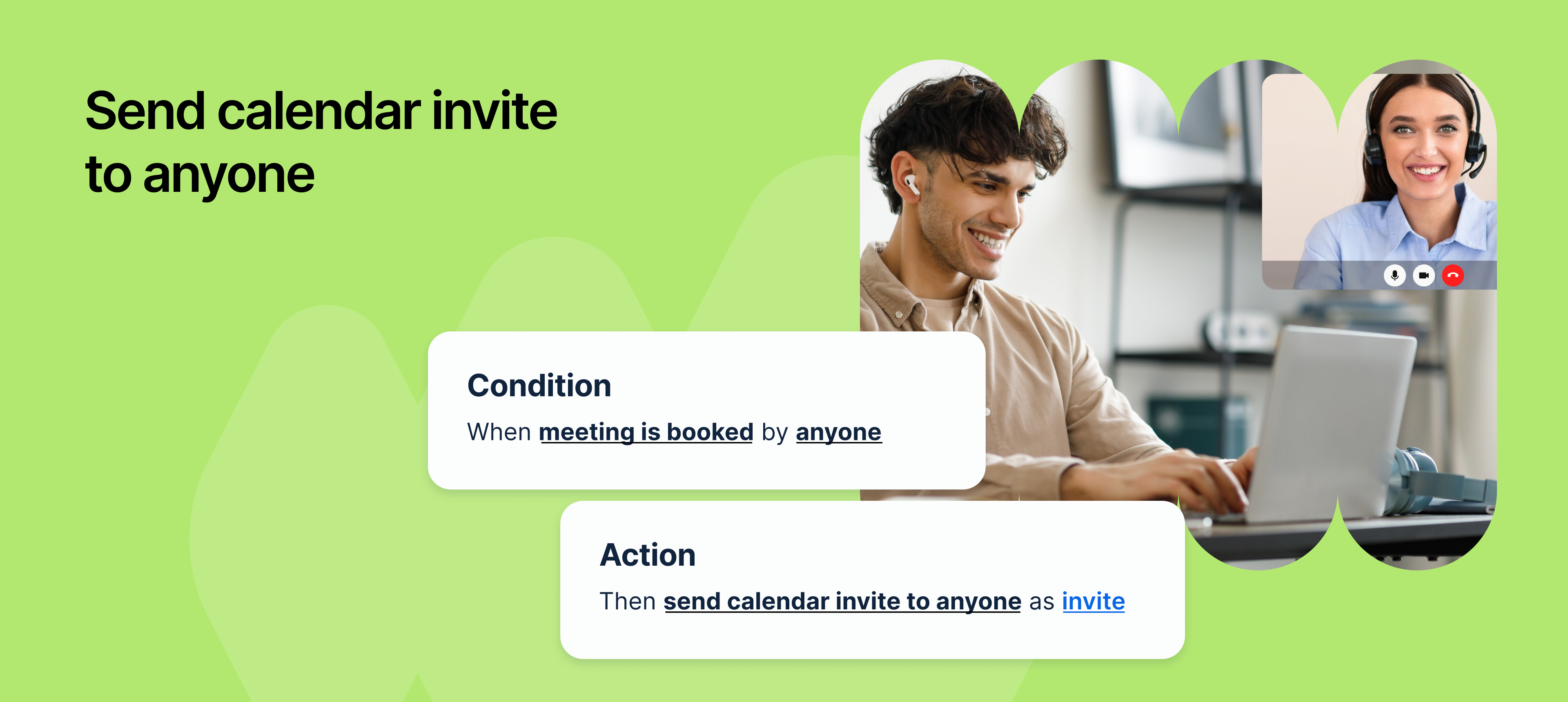
You can now automatically send calendar invitation (.ics file) to any email address using an automation rule in NeetoCal.

Previously, automation rules allowed you to send custom emails when a meeting was booked. One of our clients requested the ability to invite a third person, such as an interviewer, to the meeting, without manually sending a calendar invitation each time. To support this, we've introduced a new action in automation rules: i.e. Send calendar invite to anyone.

For example, if you're a recruiter, When a candidate books a meeting, you want the assigned interviewer to automatically receive a calendar invitation. You need this invite to appear directly on their calendar, but you also want to protect the candidate's privacy by sharing only essential information like the interview link. This feature helps you do exactly that.

Why it is useful

  • Saves time by removing the need for manual invites.

  • Ensures better coordination with accurate calendar details.

  • Prevents missed meetings with automatic invitations.

  • maintain confidentiality by controlling what information is included in the invite.

How it works

  • In your automation rule, select the new action: Send calendar invite to anyone.

  • Enter one or more email addresses where the calendar invite should be sent.

  • Customize the subject and body of the email using dynamic variables like:

  • The invite will be sent with a .ics file attached when the trigger happens

With this new automation action, NeetoCal makes it even easier to keep everyone informed and prepared automatically.

To learn more how to use this, refer to this help article.

Cover Disable Email Notification.png

NeetoCal automatically sends email notifications to hosts and clients to keep everyone informed about their scheduled meetings. These emails cover important actions like confirmations, reminders, reschedules, cancellations, and approvals.


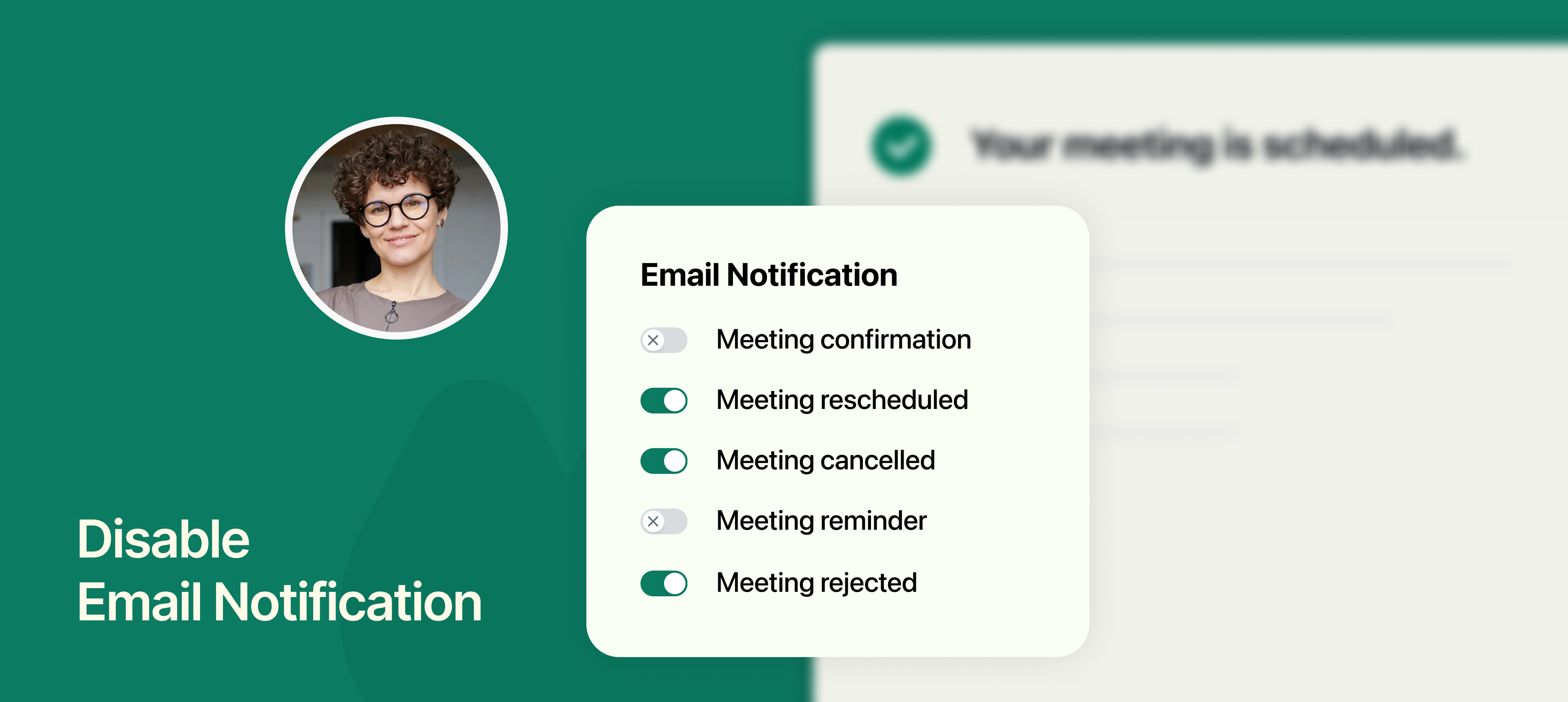
However, some teams prefer using their email systems, whether it’s for branding, personalization, or automation through tools like Zapier, Make, or a transactional email provider (e.g., SendGrid, Postmark). That’s why NeetoCal now allows you to turn off specific email notifications selectively.

What you can disable:

  • Meeting confirmation

  • Meeting rescheduled

  • Meeting cancelled

  • Meeting reminder

  • Meeting requested (approval pending)

  • Meeting rejected

All these notifications are enabled by default, but you can disable them individually based on your workflow needs.


To learn more how to use this, refer to this help article.

Banner Customising reminder email for different reminders.png

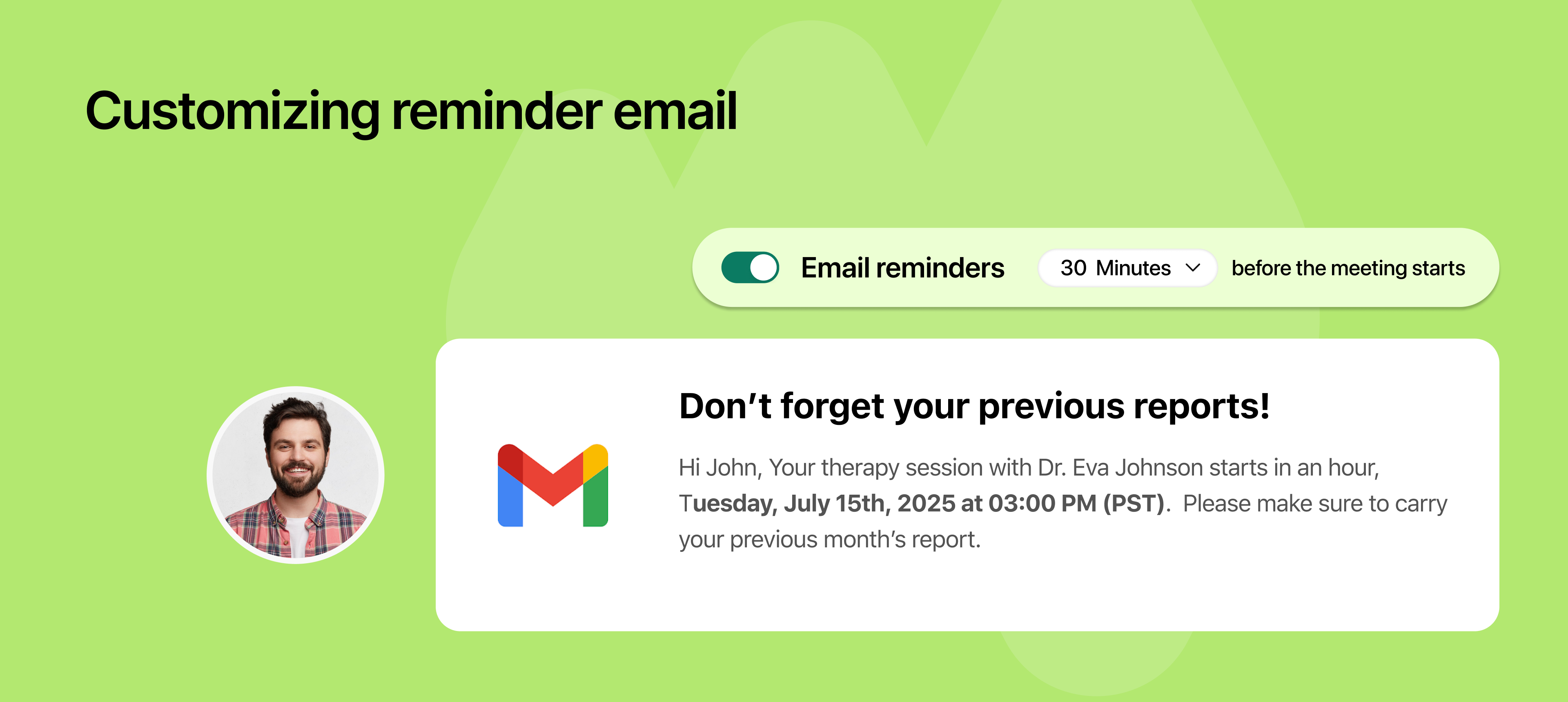
You can now personalize reminder emails based on when they’re being sent, whether it’s 24 hours before a meeting or just 1 hour in advance.

Instead of using the same message for every reminder, you can now tailor each one individually. This gives you greater control over how and when you communicate with your clients, allowing you to adapt the tone, level of detail, and call-to-action depending on how close the meeting is.


Whether you're sending a friendly nudge the day before, or a final confirmation just before the meeting starts, your communication can now feel more intentional and relevant.

Why this is useful

  • Customize messaging to how close the meeting is.

  • Add different call-to-actions or context depending on timing.

  • Great for nudging clients, reducing no-shows, or adding last-minute details.

To learn how to use this, refer to this help article.

banner Popular channel report.png

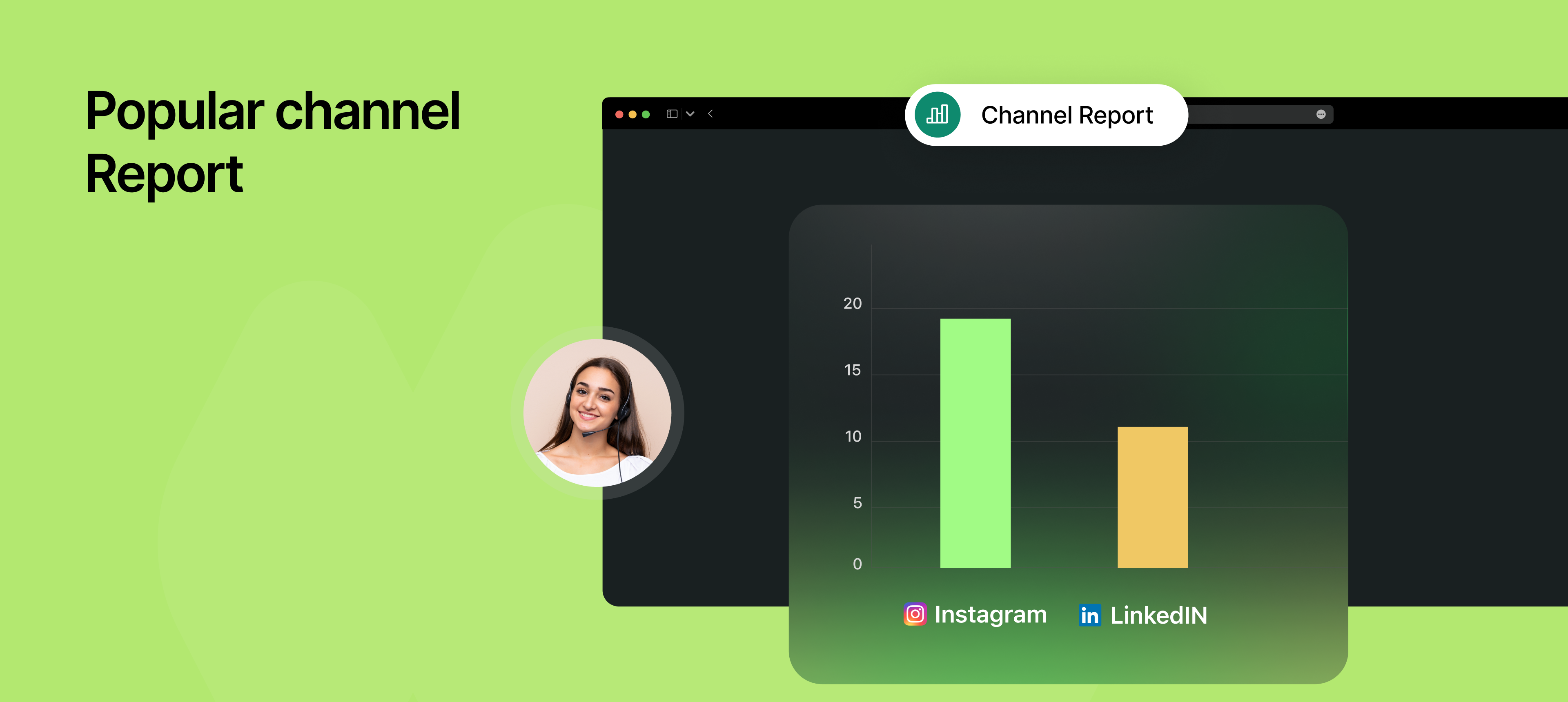
You can now identify which channels are bringing in the most bookings using NeetoCal’s new Popular Channels Report.

By adding a simple custom parameter (like ?source=LinkedIn) to your scheduling links, NeetoCal will automatically track and report which marketing or distribution channels are performing best. Perfect for teams running campaigns across LinkedIn, Instagram, email newsletters, and more.

How it works

  • First, configure the key you want to use for tracking sources (default is source, but you can set it to from, ref, campaign, etc.).

  • Add that key and a value to your scheduling link.
    Example: https://example.neetocal.com/john-smith?source=LinkedIn

  • Each time someone books using that link, NeetoCal tracks the value (e.g., LinkedIn)

  • The Popular Channels Report displays booking counts for each channel, helping you understand which ones are performing best.

Why this is useful

  • Know which channels convert best so you can double down on what works.

  • Optimize your marketing and outreach efforts with real data.

  • Great for marketing teams, sales funnels, and campaign-specific links.

  • No need for third-party tracking tools or complex UTM setups

To know how to use this, refer to this help article.

banner tips.png

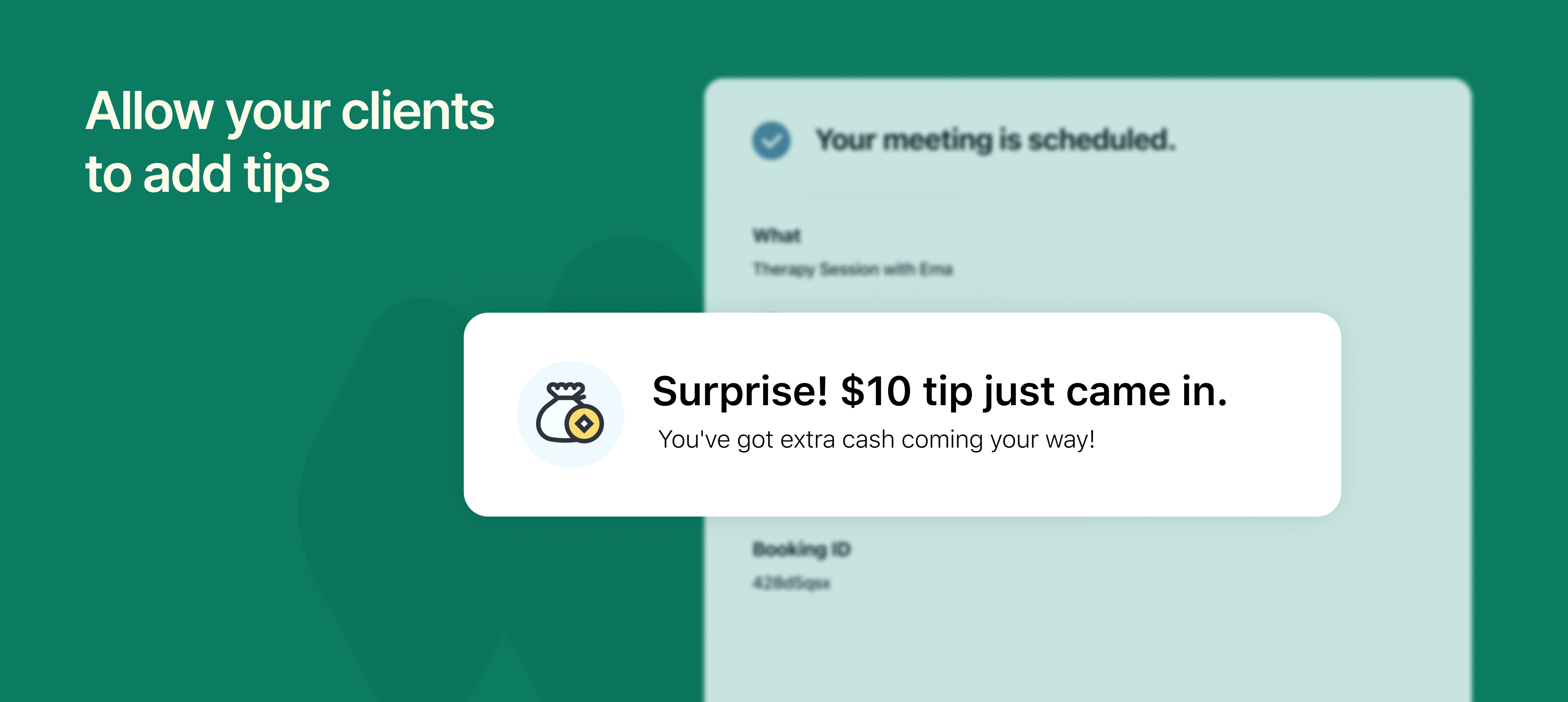
NeetoCal now lets you offer clients the option to add a tip during the booking payment process, perfect for service-based businesses where appreciation often comes in the form of a little extra.

Once enabled, clients will see a prompt during checkout asking if they'd like to add a tip. They can choose from preset options like 18%, 22%, or enter a custom percentage. The total amount is updated instantly based on their selection.

If tax is enabled, it’s applied separately to the base amount and the tip.

Why this is useful

  • Allows clients to show appreciation for your service.

  • Helps service providers earn more without changing base prices.

  • Provides a transparent, optional way for clients to contribute extra.

  • Keeps the payment experience seamless and professional.

Who can use this feature

  • Coaches, consultants, and freelancers who accept paid bookings.

  • Therapists, wellness professionals, and personal trainers.

  • Artists, instructors, and creatives offering 1:1 sessions.

  • Any service-based business using NeetoCal for paid appointments.

To know more how to use this feature, refer to this help article.

banner  Google Sheet.png

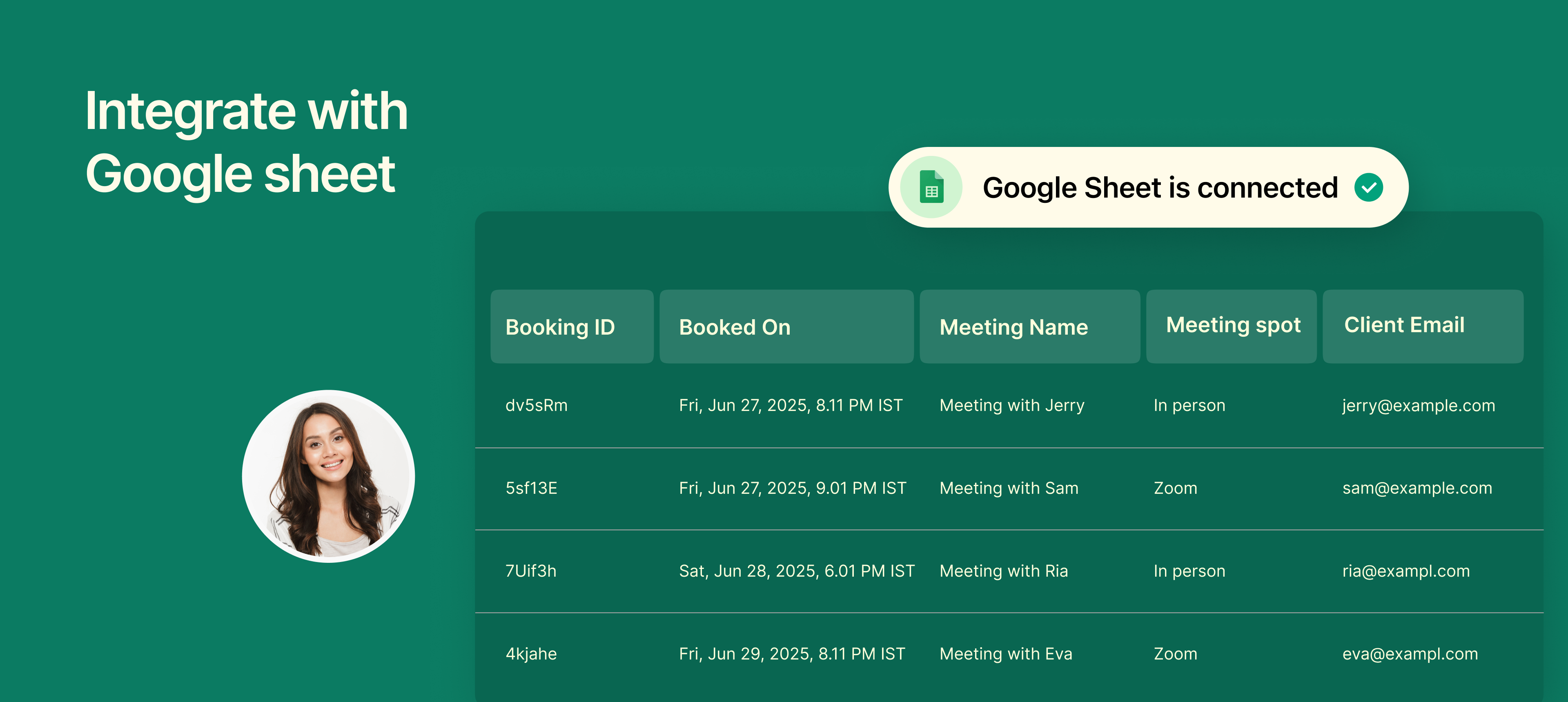
You can now connect your NeetoCal scheduling links to Google Sheets to automatically log every booking in a structured and shareable format.

Once connected, each new booking is instantly added as a new row in your Google Sheet, including client details, meeting time, and payment info (if applicable). This is especially useful if you want to maintain a centralized log of all your meetings, export data, or share booking info with your team.

Why it is useful

  • Automatically sync bookings in real-time, no manual copy-pasting.

  • Create custom dashboards or reports in Google Sheets.

  • Share booking data easily with your team or clients.

  • Filter, sort, or analyze bookings the way you want.

  • Keep historical booking records in one organized place.

  • Export booking data for backup, invoicing, or offline access.

Perfect for teams that prefer working out of spreadsheets or need a lightweight reporting system without jumping between dashboards.


To know how to integrate it, refer to this help article.