Centralized email notifications & scheduling link-level customization
We’ve simplified how email notifications work in NeetoCal. Earlier, if you wanted to update your booking confirmation or reminder emails, you had to edit them separately for every scheduling link. This was repetitive and error-prone. Now, email templates can be managed once at the Admin Panel and applied across all scheduling links in your workspace. This saves time, ensures consistency, and still gives you the option to customize emails for specific scheduling links when needed.
Manage notifications from the Admin Panel
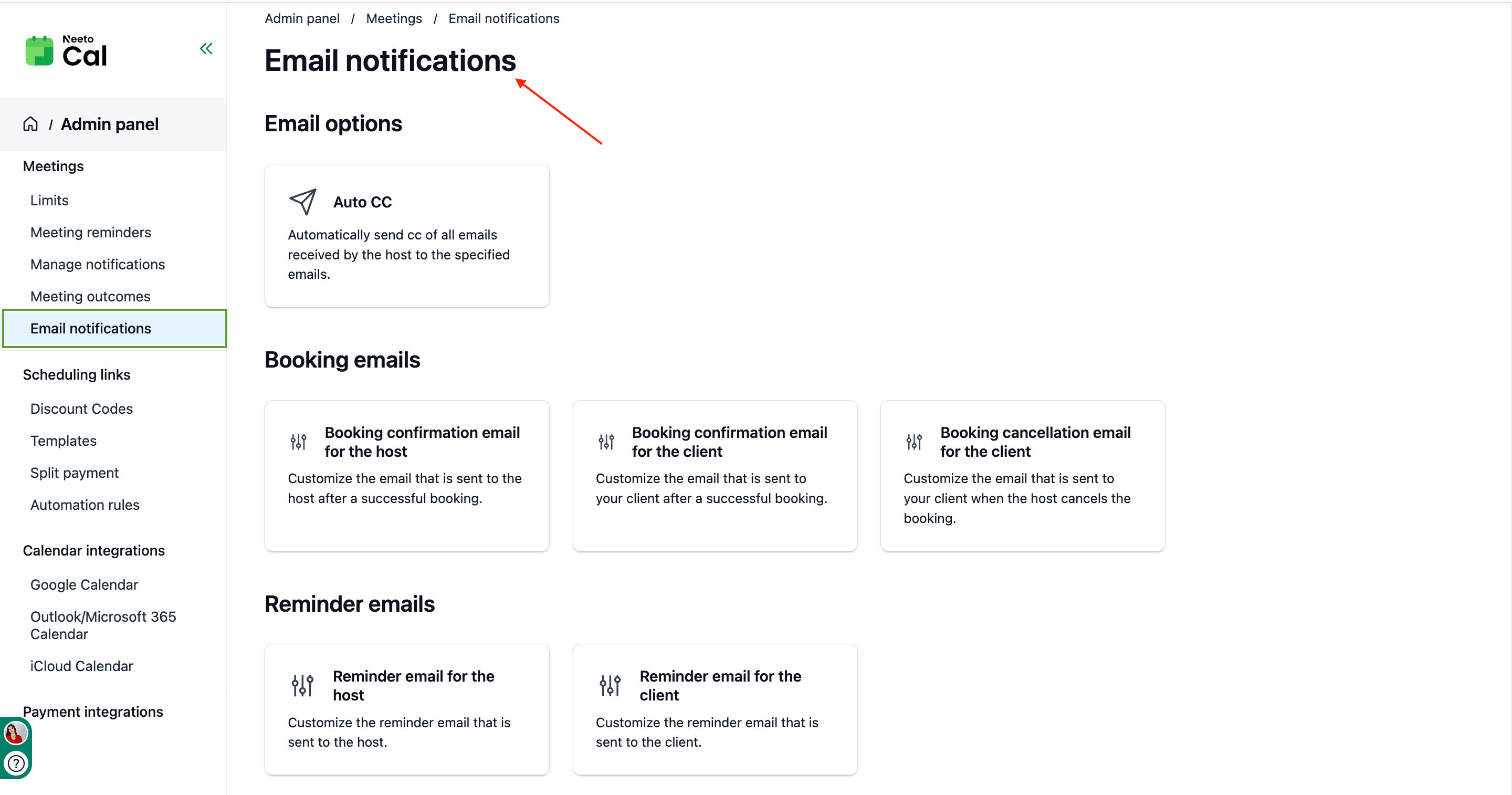
Email notifications are now managed from the Admin Panel. Admins can set confirmation, cancellation, and reminder templates once, and the changes automatically apply across all scheduling links, saving time and ensuring consistency.
Configure and update templates (confirmation, cancellation, reminders) at Admin Panel → Meetings → Email notifications.
Changes made here apply automatically across all scheduling links.
Keep communication uniform across your workspace.
All scheduling links inherit the Admin Panel templates by default.
Templates you can manage centrally:
Booking emails
Confirmation email for host
Confirmation email for client
Cancellation email for client
Reminder emails
Reminder email for host
Reminder email for client
Customize notifications per scheduling link
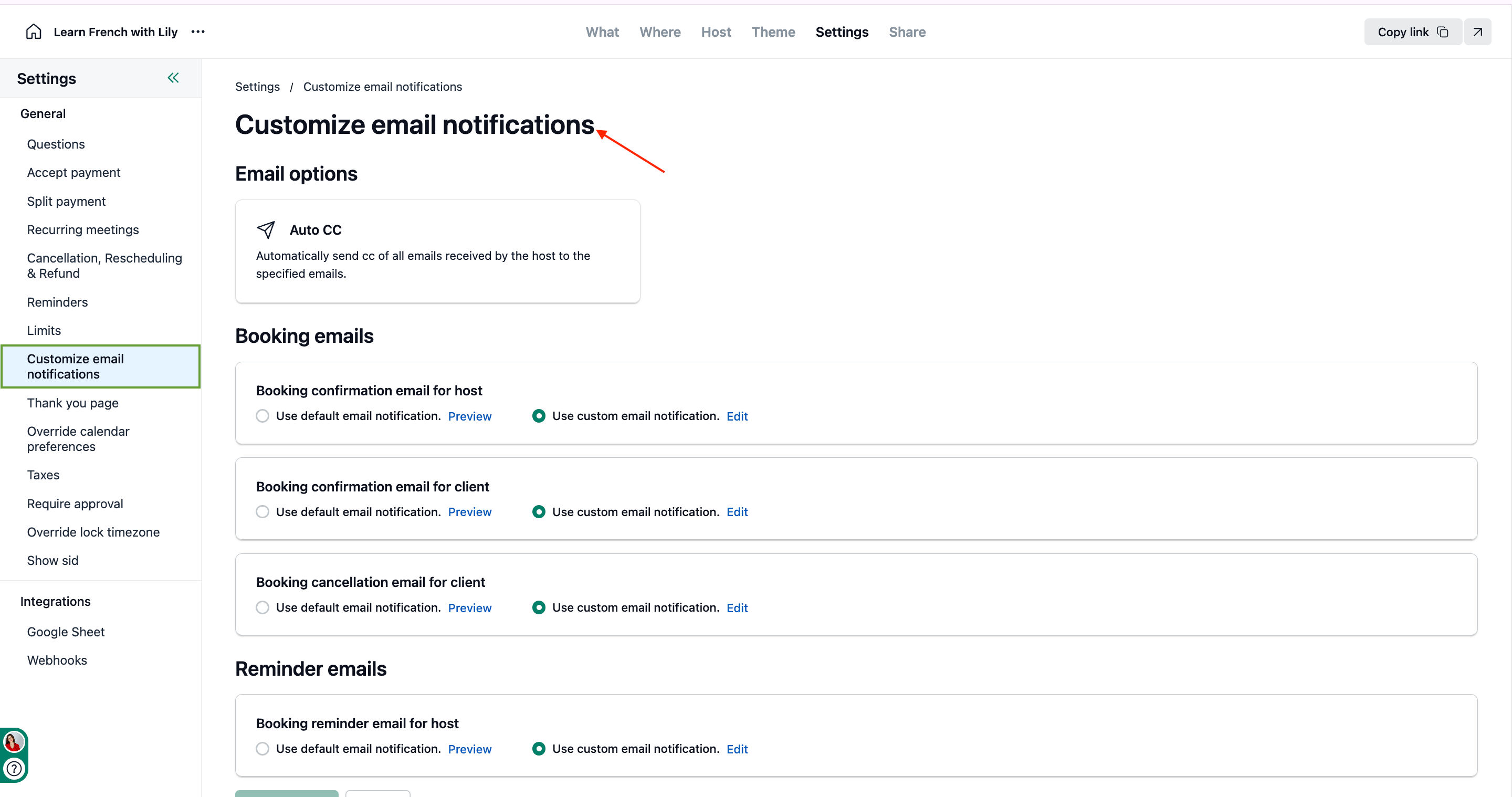
While the Admin Panel controls default email templates, you can still customize email notifications for a specific scheduling link. This is helpful if one particular link needs different wording or additional information.
This cusotmization allows you to switch between default & custom
Default: All scheduling links use Admin Panel templates.
Custom: Switch to Use custom notifications to override.
To know more about how to use this, refer to this help article. Email notification templates and Customize email notifications