What's new in NeetoCal


image_WWUJdydfc.png

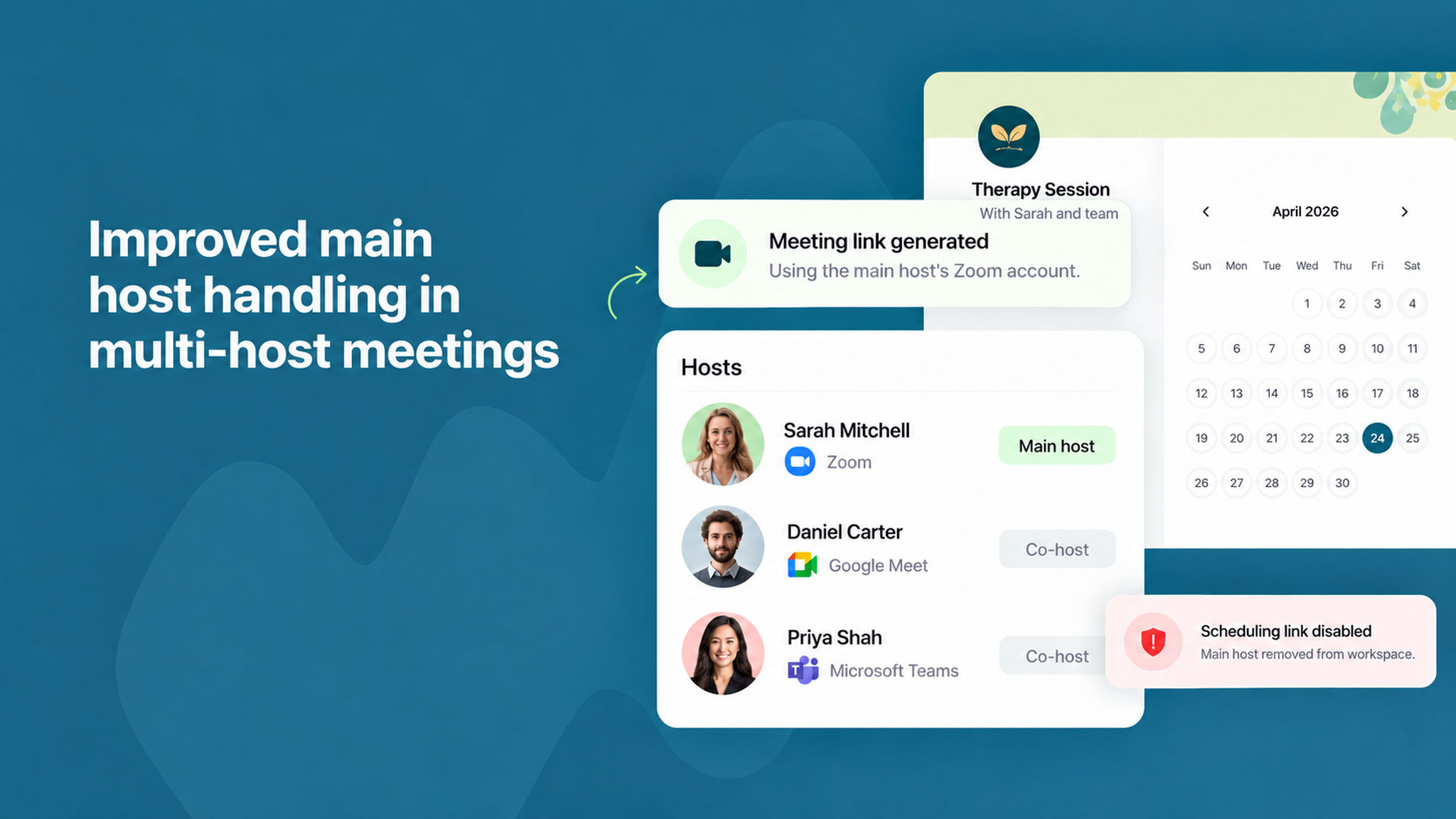
NeetoCal now automatically assigns the creator of a multi-host meeting as the main host. The main host's connected video conferencing account (Zoom, Google Meet, or MS Teams) is used to generate the meeting link, ensuring a consistent experience for clients. If the main host is removed from the workspace, the scheduling link is automatically disabled to prevent meetings from being created without a valid video link.

To learn more about multi-host meetings, read our help article.


image_MuGptDbaF.png

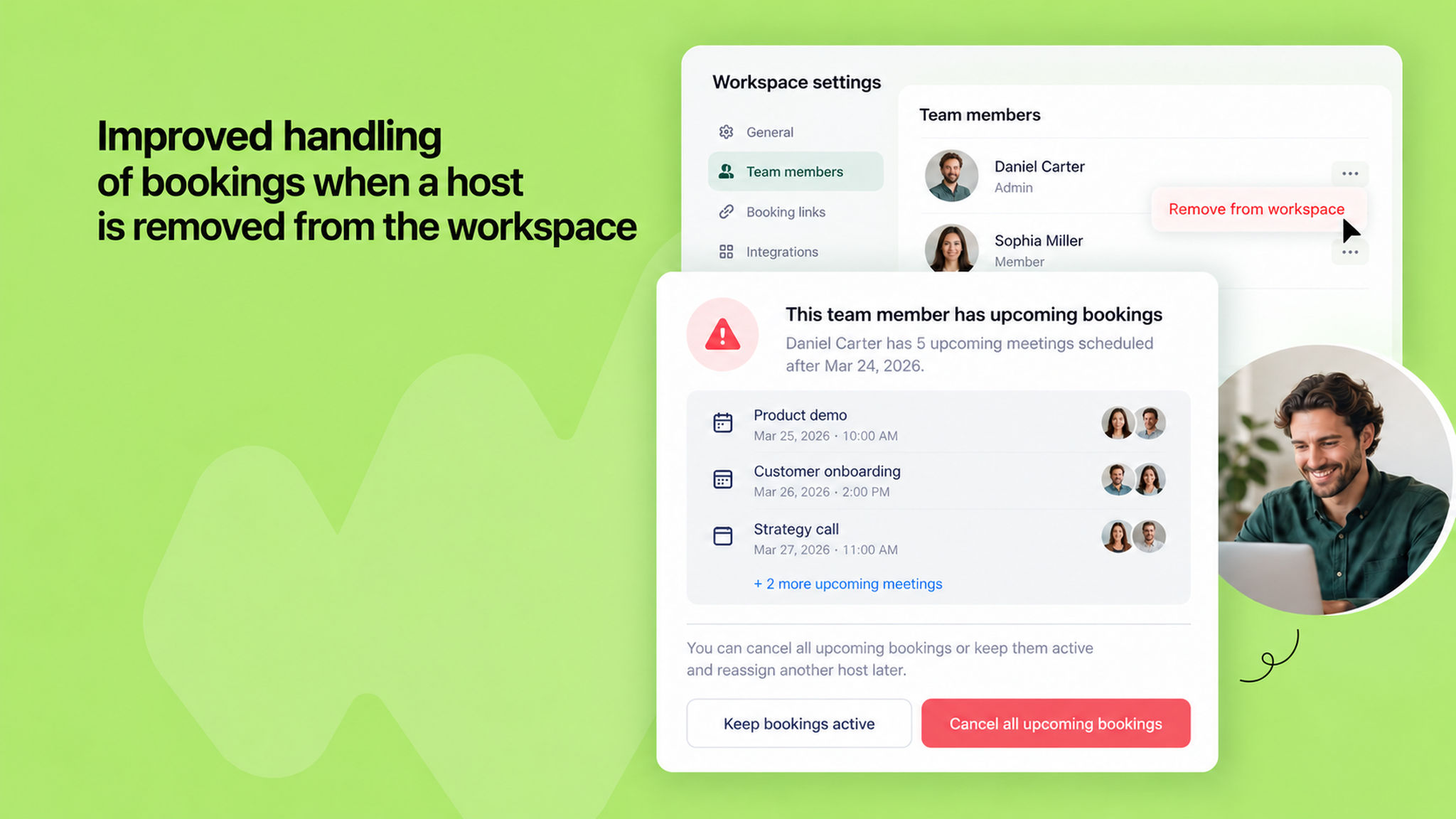
When removing a team member with upcoming bookings, NeetoCal now shows a dedicated alert so you’re aware of all existing meetings. You can cancel all upcoming bookings in bulk or choose to keep them active and reassign another host later.

This ensures a smooth offboarding experience, prevents orphaned bookings, and helps you continue running your business without disrupting clients or losing revenue.

To learn more, read this help article.


image_P6gqwk9b_Z.png

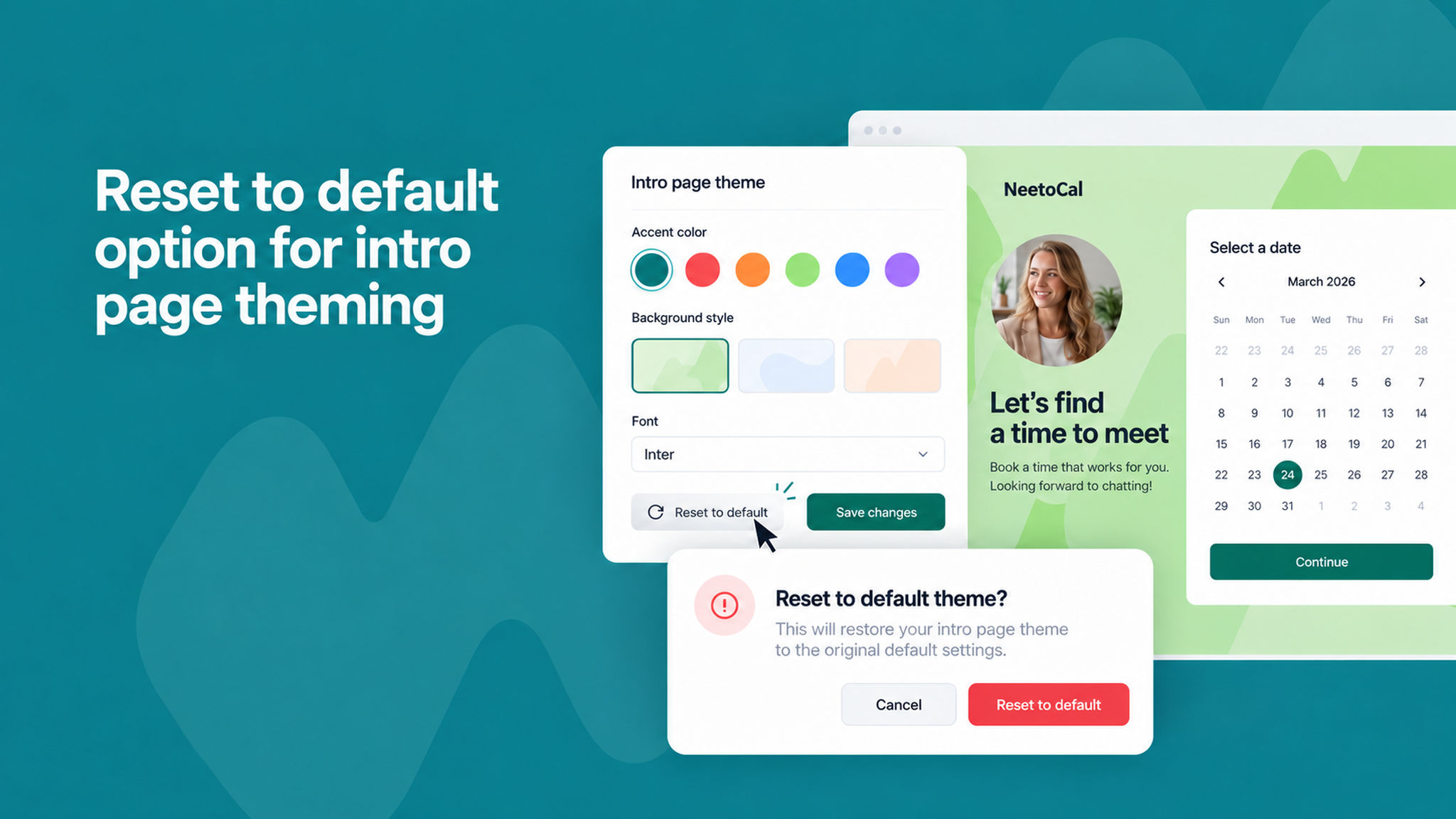
You can now reset your intro page theme back to the default theme with a single click. If you've customized colors and styling on your intro page and want to start fresh, use the new Reset button to restore everything to the original defaults. A confirmation modal ensures you don't accidentally lose your customizations.

To learn more about intro page theming, read our help article.


image_11SjLuyYyQ.png

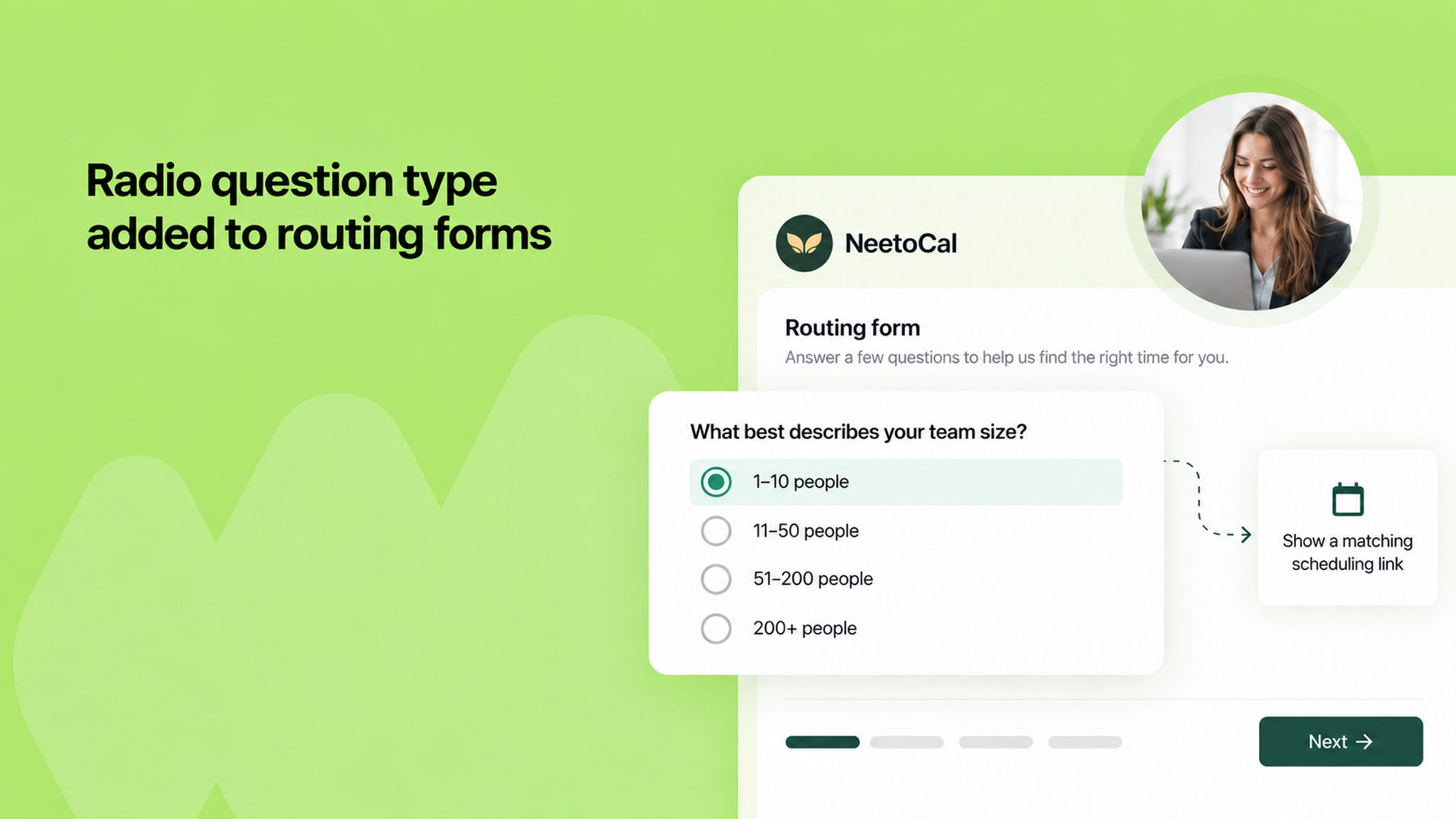
You can now use the radio button question type in routing forms, in addition to the existing dropdown and checkbox options. This gives you more flexibility in how you present choices to visitors before routing them to the right scheduling link. Radio buttons work like dropdowns, they allow a single selection but display all options at once, making it easier for visitors to compare and choose.

To learn how to use this feature, read our help article.


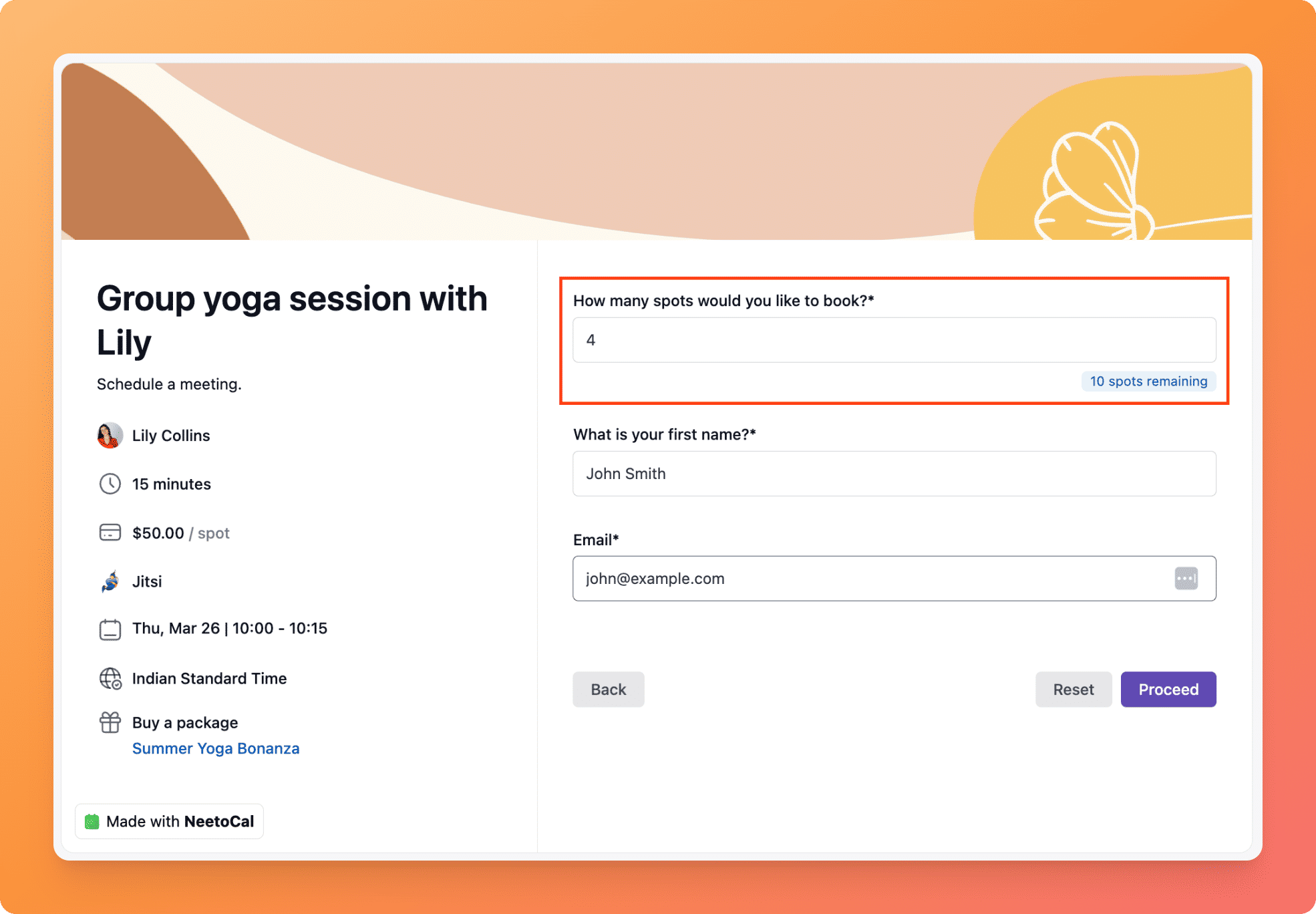
Clients can now reserve multiple spots in a group meeting using a single email address. Instead of submitting separate bookings for each attendee, a client can select how many spots they'd like to book at once. If payment is enabled, the total price is automatically multiplied by the number of spots reserved. All reserved spots are treated as a single booking, so cancelling removes all spots at once.

To learn how to use this feature, read our help article.

pawelzmarlak-2026-03-25T09_19_16.530Z_O0TfTnWFJ.png

google-tag-manager-integration_ZWaAOUZG7.png

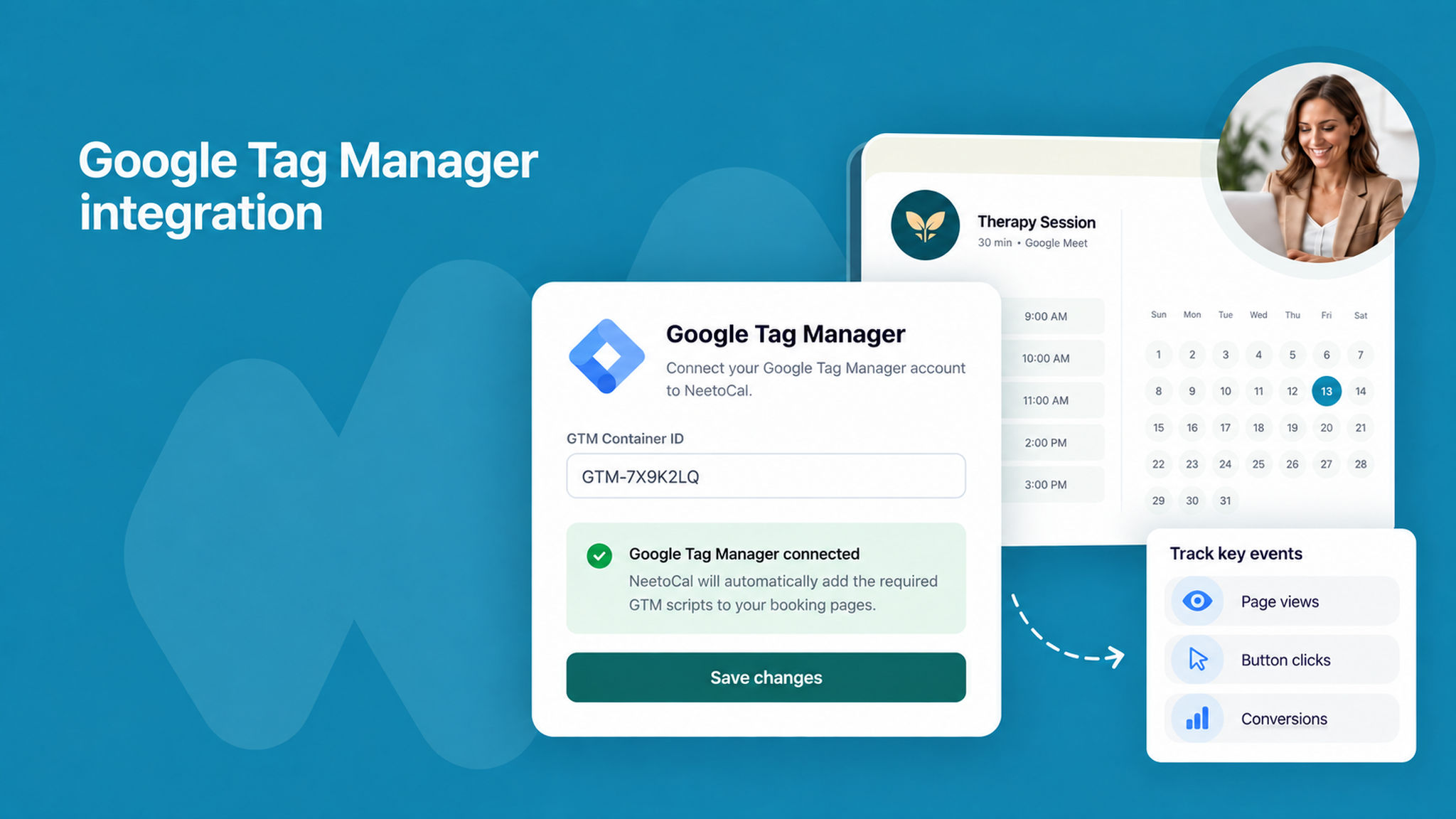
You can now connect Google Tag Manager (GTM) to your scheduling links and intro pages in NeetoCal. This allows you to track visitor behaviour on your booking pages, measure conversions, and monitor events like page views or button clicks without modifying code repeatedly.

Once connected, NeetoCal automatically adds the required GTM scripts to the page.

To learn how to use this feature, read our help article.


bann_Send_emails_from_your_domain_3-oZdLXXR.jpg

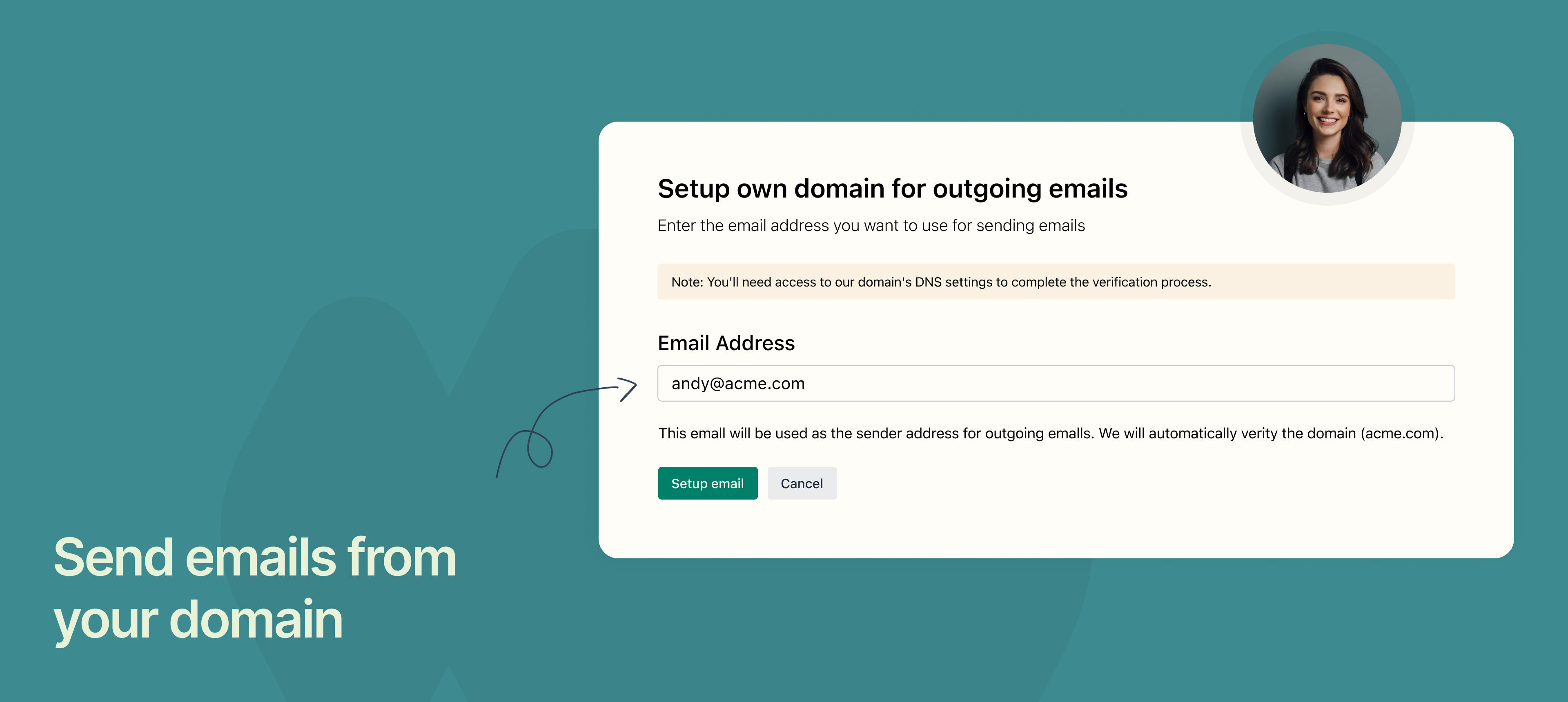
You can now send emails from your own domain in NeetoCal, along with Google and Outlook, NeetoCal also supports custom email domains for sending emails.


Previously, all emails were sent from neetocal.outbound@neeto.com to both hosts and clients. While functional, this made it harder for teams to maintain consistent branding in their communication.

To solve this, NeetoCal now supports custom email providers, allowing you to send emails directly from your own domain by configuring your email settings.


This means booking confirmations, reminders, and follow-ups can now come from an address that matches your brand, improving trust and professionalism for client-facing communication.

Why is it useful

  • Maintains consistent brand identity in all emails.

  • Improves trust and recognition for clients.

  • Works even without Google or Outlook integrations.

To know how to use it, read our help article.


bannwe_SMS_integration_with_Telnyx_evy88N3zJ.jpg

NeetoCal now supports Telnyx as an SMS provider, in addition to Twilio.

Earlier, Twilio was the only option available for sending SMS notifications, which wasn’t always the most cost-effective choice for all teams. To give users more flexibility, we’ve added Telnyx as an alternative SMS provider that can be used for sending booking confirmations, reminders, and updates.


This is especially useful for teams that send a high volume of SMS notifications and want a more affordable or simpler option while maintaining reliable message delivery.

Why is it useful

  • Provides an alternative to Twilio for SMS notifications.

  • Helps reduce costs for high-volume SMS usage.

  • Gives teams more flexibility in choosing their SMS provider.

To learn how to use this, refer to this help article.

banner_NickName_IHnVAy9nn.jpg

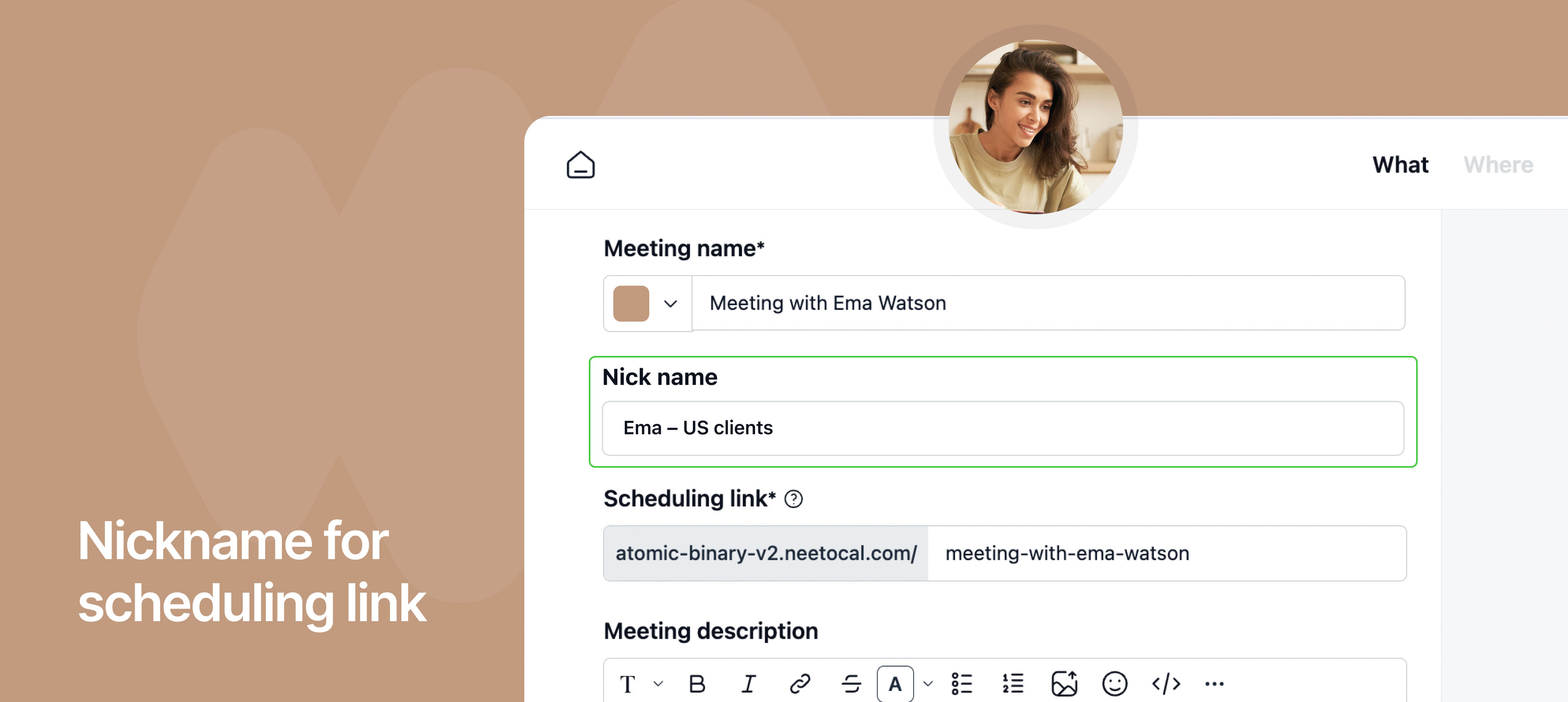
You can now add nickname to scheduling links in NeetoCal to make them easier to identify internally.


Earlier, when hosts created multiple scheduling links with the same public meeting name, such as “Meeting with Oliver” for different regions, teams, or use cases, it became difficult to tell them apart inside the NeetoCal dashboard.

While clients always saw the correct meeting name on the booking page, hosts often had to open each link individually to understand its purpose.

To solve this, we introduced nicknames that are visible only to hosts and workspace admins.

For example, a host can assign internal labels like “US Sales – Oliver”, “EU Support – Oliver,” or “Enterprise Demos – Oliver” to similar scheduling links.

These nicknames appear only inside NeetoCal, helping teams quickly identify the right link without affecting what clients see during booking.

Why is it useful

  • Makes it easy to distinguish between multiple similar scheduling links.

  • Keeps client-facing meeting names clean and unchanged.

  • Improves internal organization and reduces confusion for hosts and admins.

To learn how to use this, refer to this help article.

cover-Host_r_dEZneWi.jpg

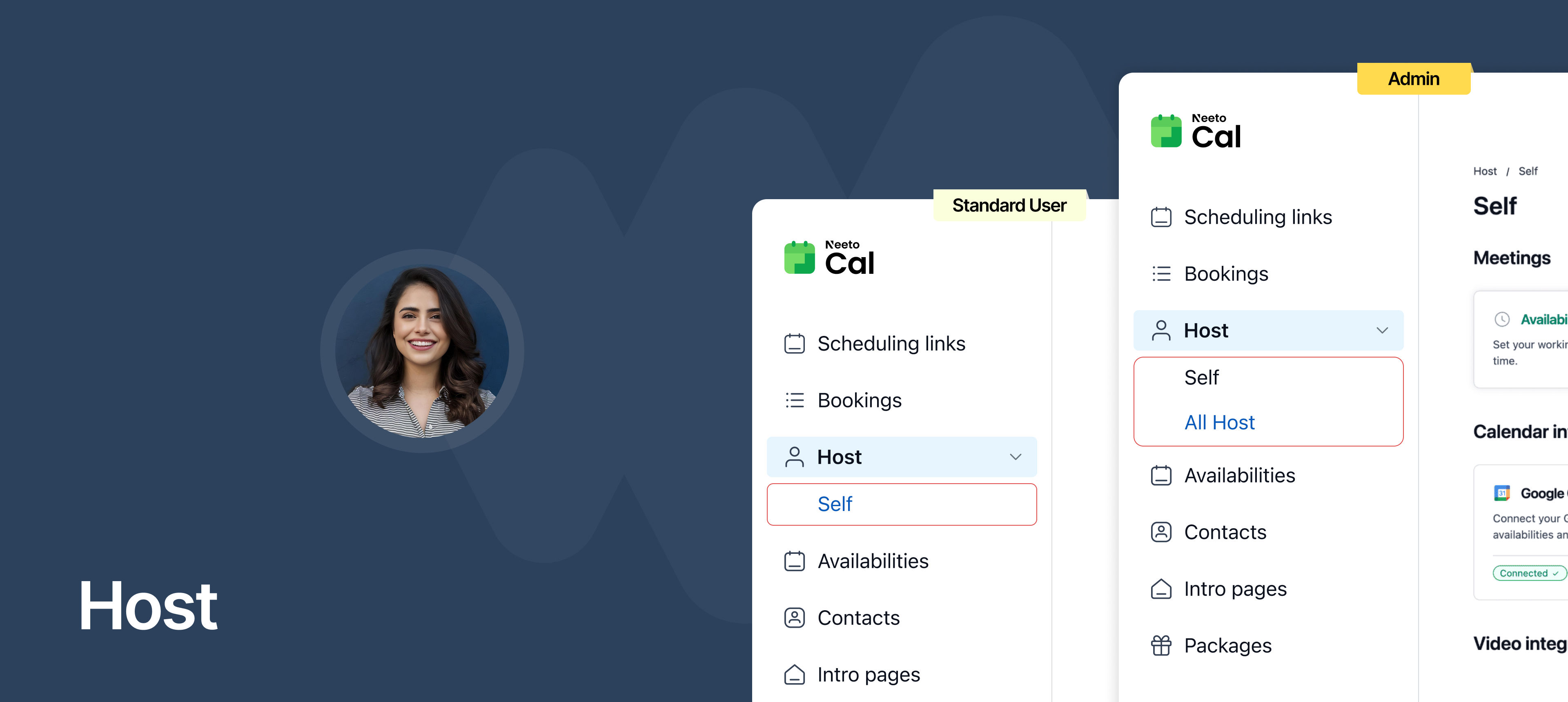
You can now manage all your personal scheduling settings from a dedicated Host tab in NeetoCal.


Previously, host-level settings like availability, reminders, meeting limits, and integrations were part of the Admin Panel. This made it harder for hosts to manage their own preferences and for admins to get a clear overview of the team's configurations. To simplify this, we’ve introduced a centralized Host tab that brings all host-related settings into one clean, organized place.


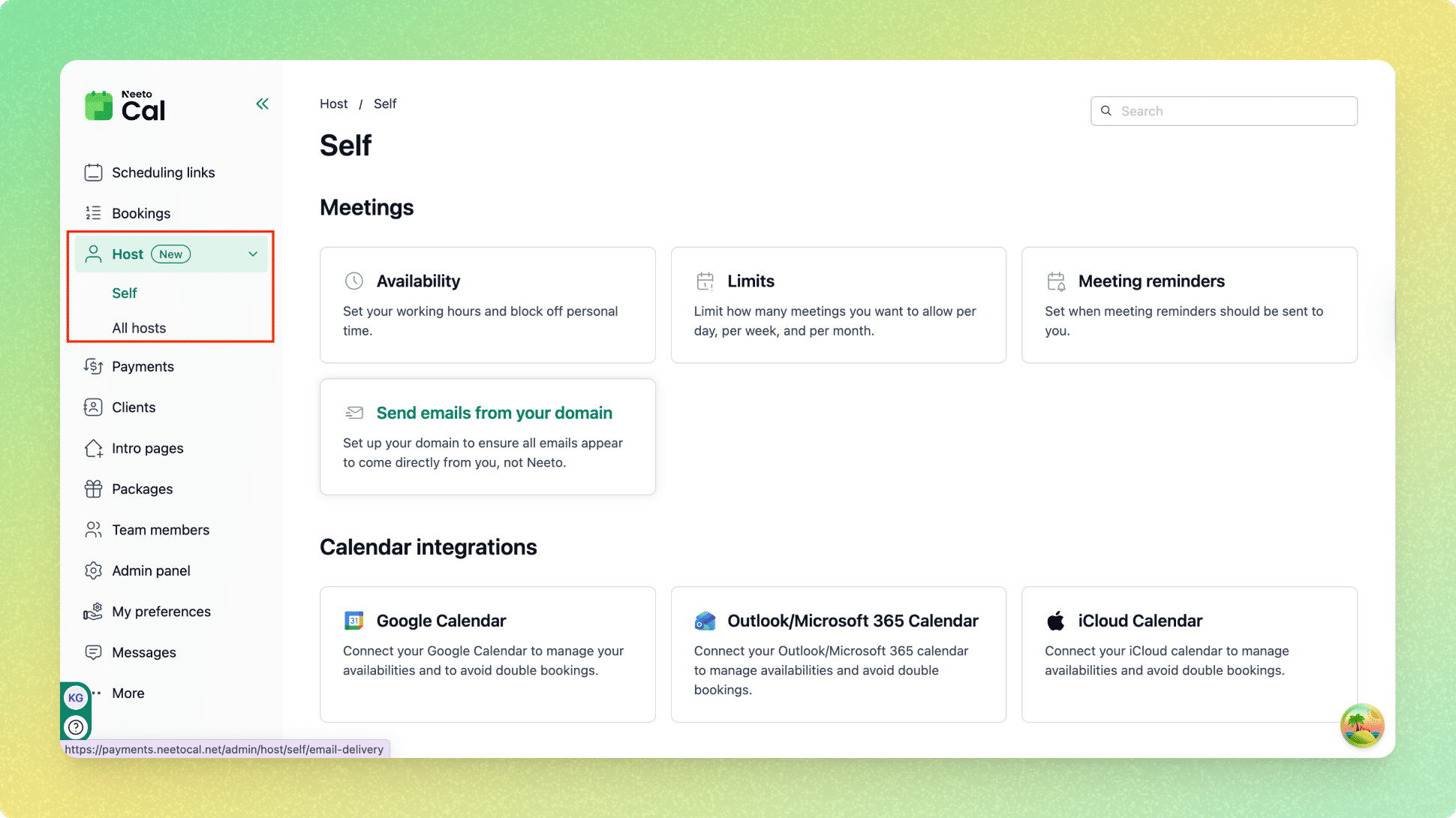
The Host tab appears in the left sidebar, just below Bookings. Standard users see a Self view where they can manage their own availability, meeting limits, reminders, and integrations.

pawelzmarlak-2026-01-05T16_00_30.736Z_jWae6IL-E.png

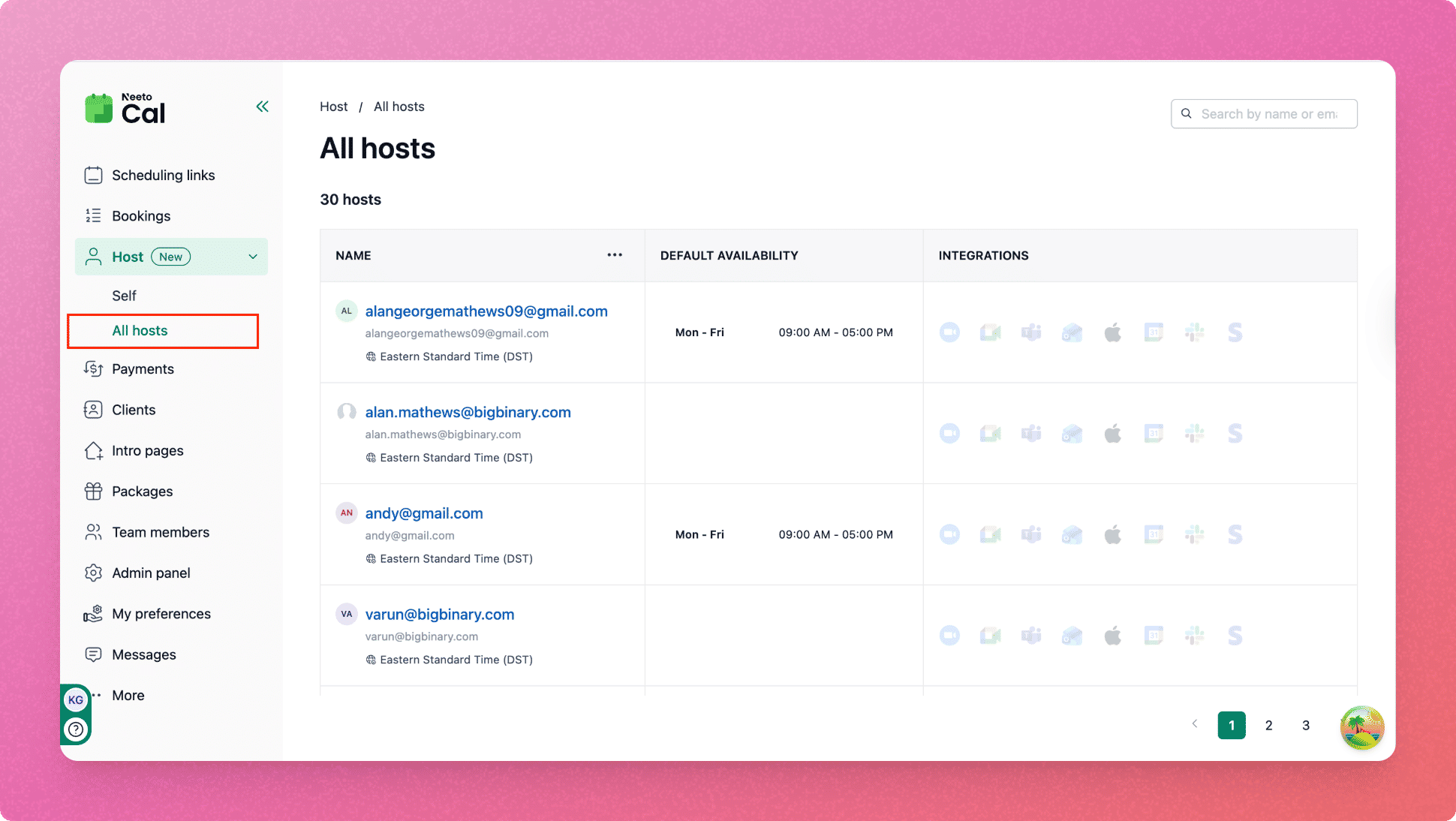
Admins get an additional All hosts view that shows a directory of all team members, including their timezone, default availability, and integration status. Clicking on any host opens a detailed view with clear navigation.

pawelzmarlak-2026-01-05T17_23_05.054Z_xMIgSFCizM.png

Why is it useful

  • Centralizes all personal host settings in one place.

  • Makes it easier for admins to review and manage hosts at scale.

  • Provides a clear overview of availability and integrations across the team.

  • Reduces confusion as workspaces grow.

To learn how to use this, refer to this help article.