What's new in NeetoCal


image_NGcj3xUhR.png

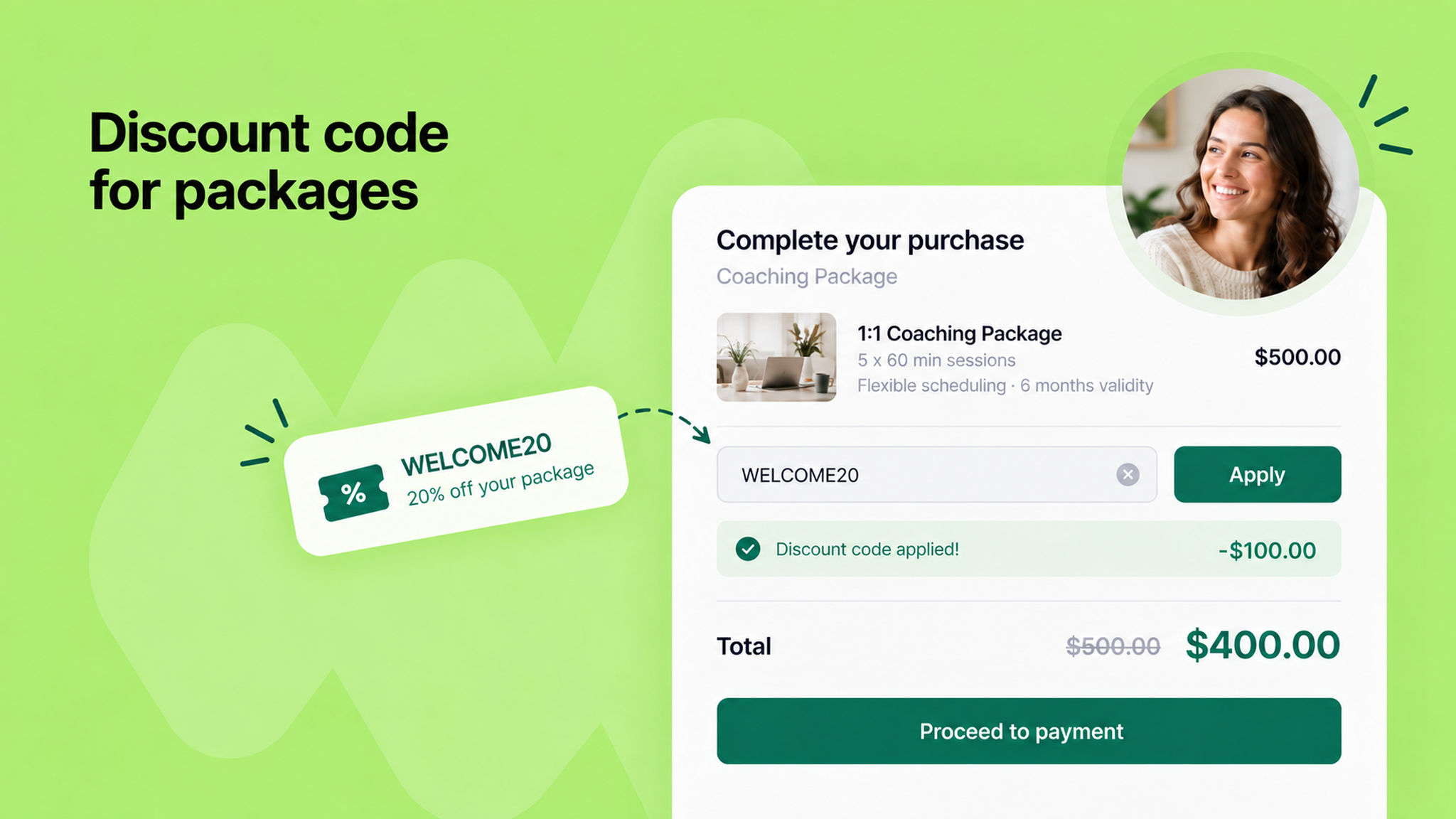
You can now offer discount codes on packages, not just individual meetings. This gives you an easy way to run promotions, reward loyal clients, and encourage people to buy more sessions upfront.

A well-timed discount on a package can be a great hook to attract new clients and turn one-off bookings into longer commitments.

Set up a discount code the way you already do, and it will apply at checkout when a client books a package.

To learn more, read our help article.


image_W_NkKFOqM.png

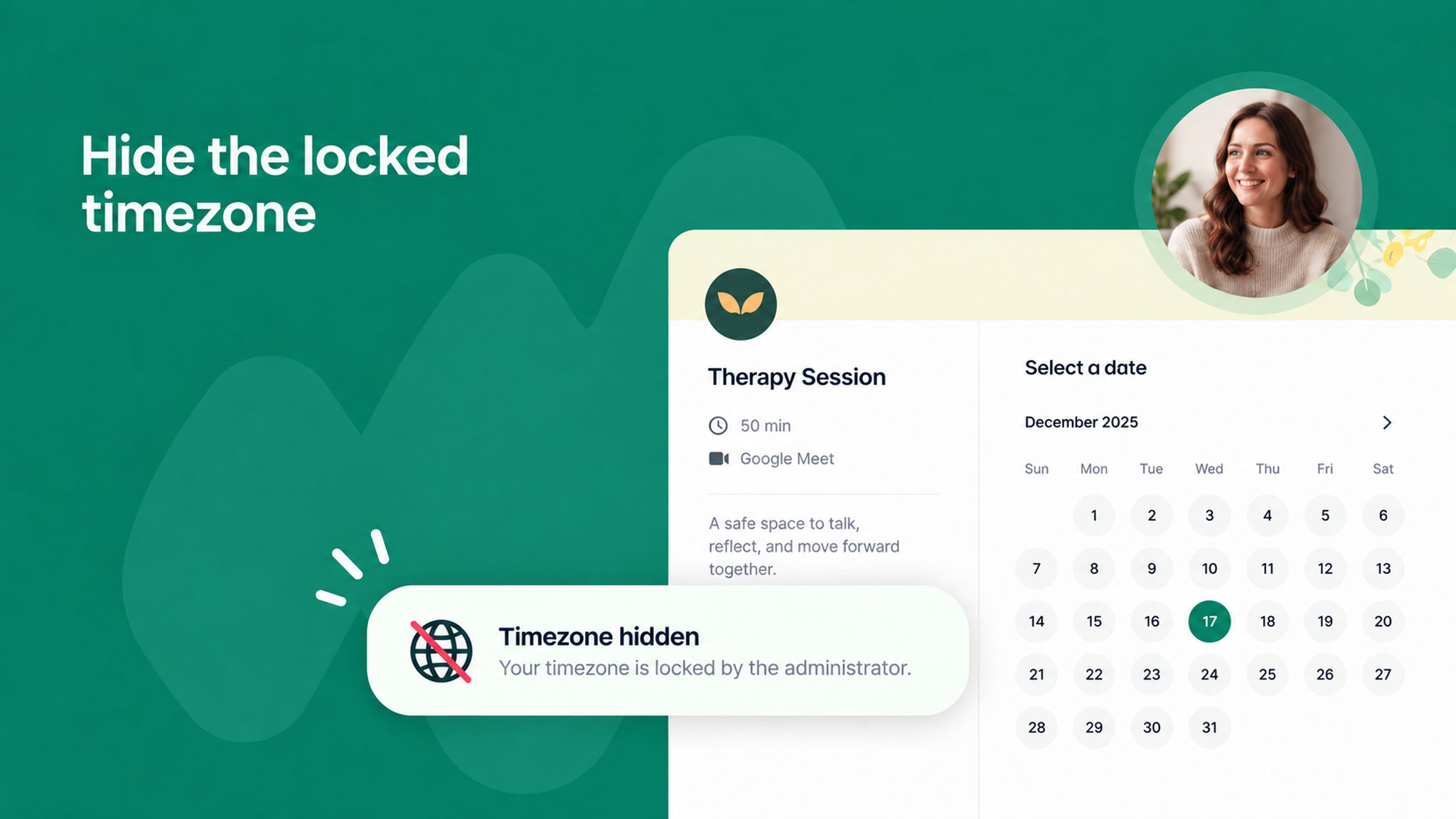
You can now hide the timezone on your scheduling pages when it is already locked. This helps avoid confusion for your customers, since they don't need to see extra information that isn't relevant to them.

You will find the new checkbox next to the lock timezone setting, both in the admin panel and at the scheduling link level. It appears only when the lock timezone toggle is turned on.

With it enabled, the locked timezone won't be shown to customers on the booking page.

To learn more, read our help article.


image_PgnYMLeaW.png

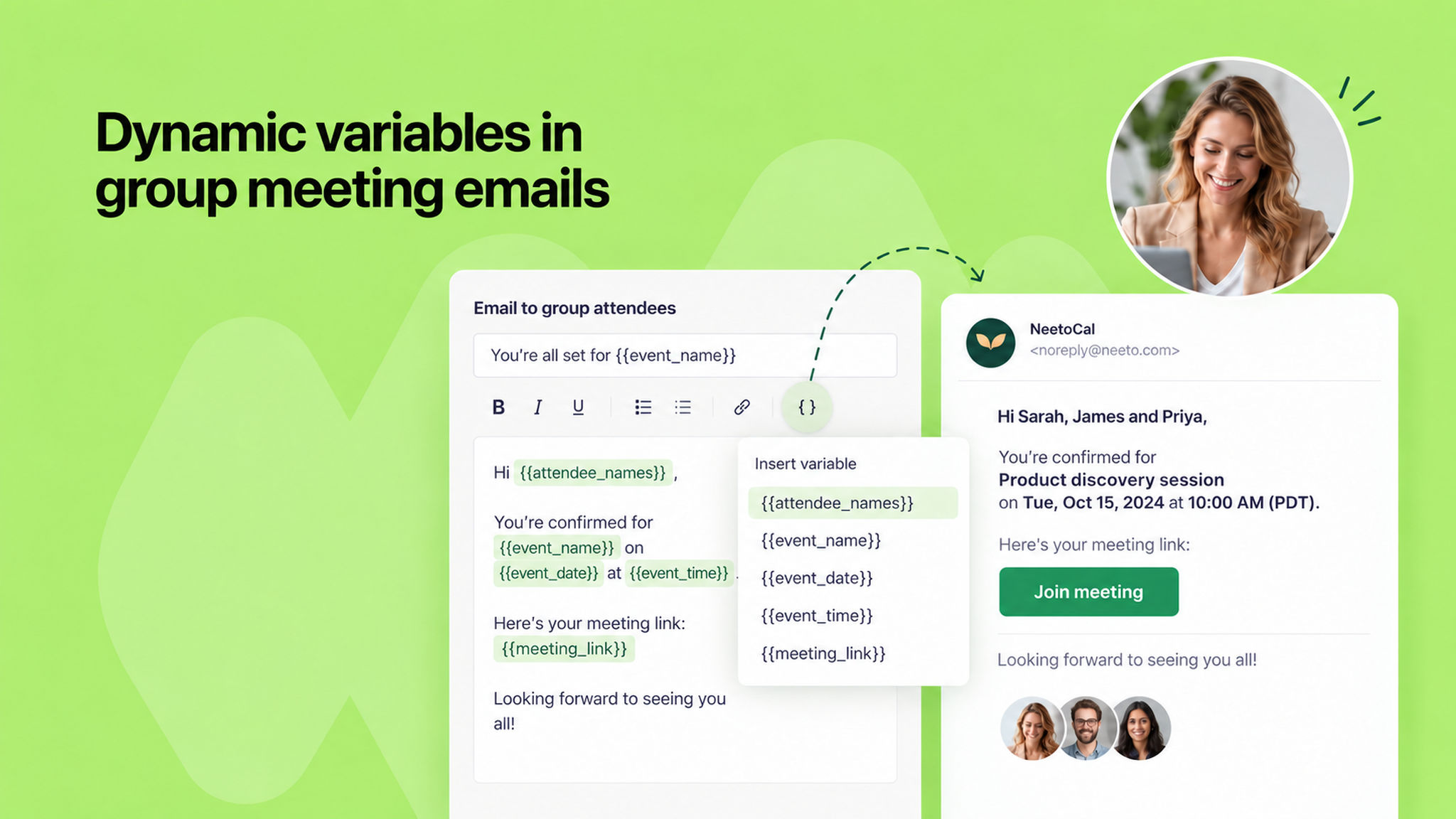
When customizing email notifications for a group meeting, several dynamic variables were missing from the editor. That made it harder to personalize these emails with details like the attendee's name or the booking amount.

All of these variables are now available in group meeting emails, for both clients and hosts.

Client details now work everywhere, including full name, first and last name, email, timezone, and the meeting start time in the client's timezone, along with the final booking amount.

The cancellation email now includes the cancellation date and reason. The reschedule email now includes the reschedule reason and the old and new times in both the client and host timezones. The rejection email now includes the rejection reason.

To learn more, read our help article.


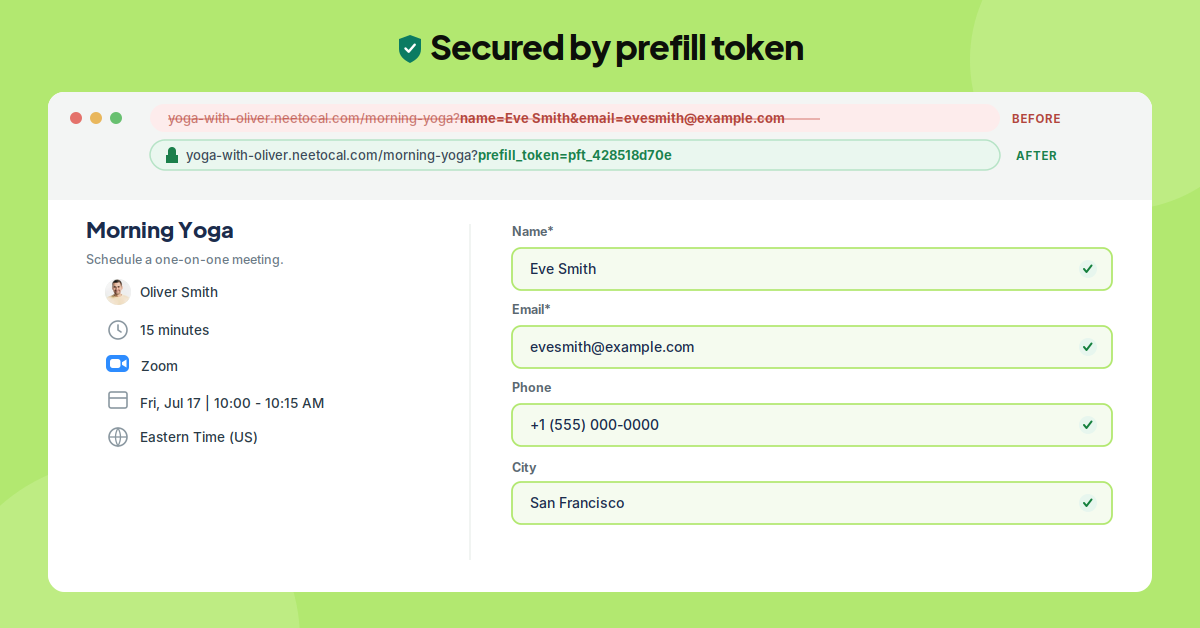
You can now prefill booking questions without including your customer's personal details in the booking link. Instead of adding the customer's name and email as URL parameters, your website sends those details to NeetoCal behind the scenes and receives a secure prefill token in return.

Add this token to the booking link. When the customer opens the page, their booking questions are already prefilled, while their personal information never appears in the URL, browser history, or server logs. This makes prefilling GDPR compliant.

Each token remains valid for 30 days. Prefilling with URL parameters continues to work as before, but the token-based approach is the recommended option when handling personal information.

To learn more, read our help article.

prefill-token-v6_C2ix_CHZx.png

image_KPr8x41cy.png

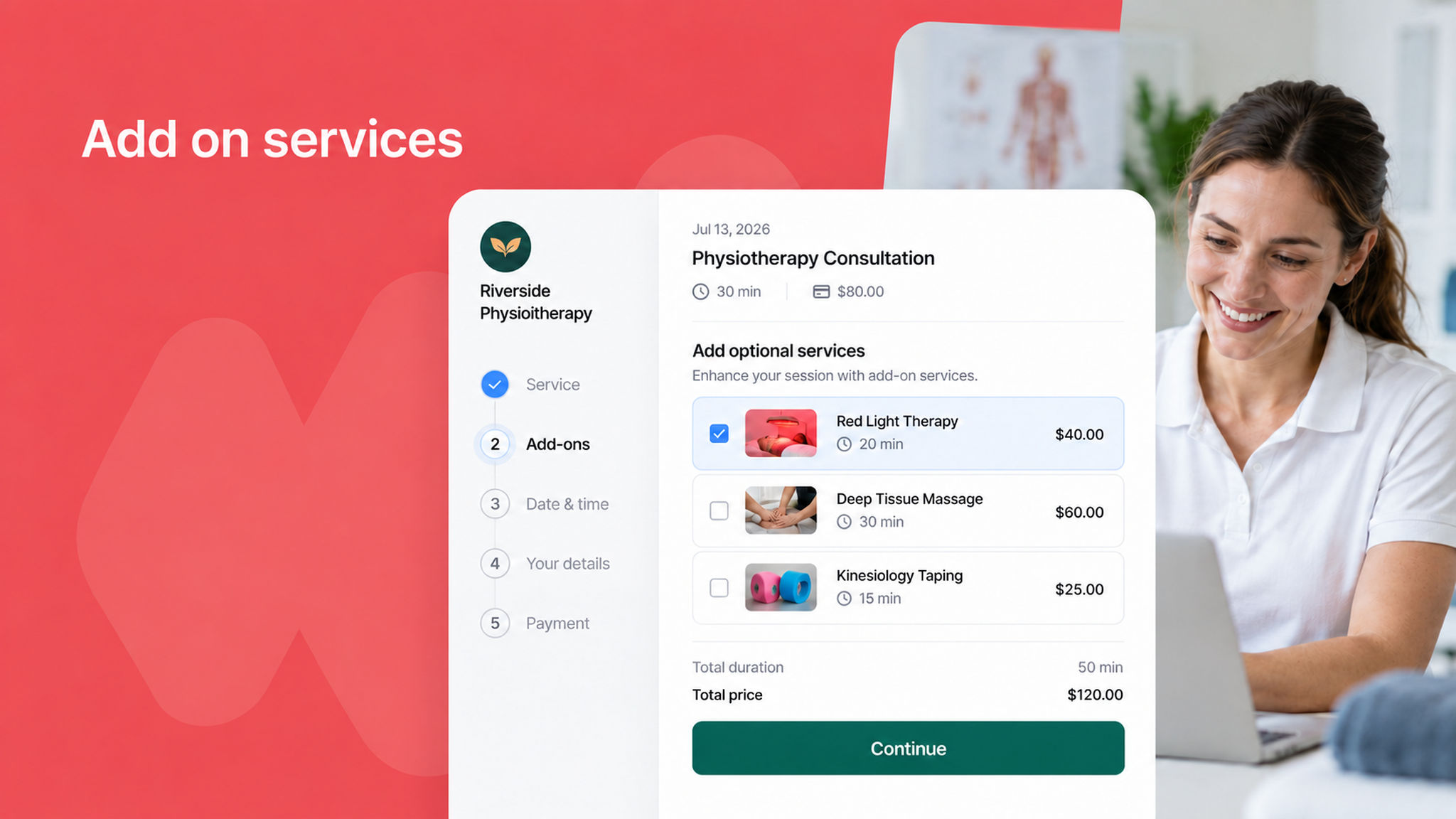
You can now offer add-on services on a scheduling link, so clients can add extras to whatever they are booking. For example, a physiotherapy clinic can offer red light therapy as an add-on service alongside the main consultation.

Each add-on service has its own duration and its own price. When a client picks one while booking, its duration is added to the meeting duration so the slot covers the full appointment, and its price is added to the amount collected at checkout.

Until now, offering extras meant creating a separate scheduling link for every combination, or sorting it out with the client after the booking came in. Now it is all handled up front, while they book.

Selected services show up everywhere you would expect: the booking details, confirmation emails, the bookings list, exports, and the external API.

To learn how to set this up, read our help article


image_OI9_m60om.png

Until now, email was the only way for clients to book a meeting in NeetoCal, and it was a mandatory field on every booking form.

With the new "switch from email to phone" capability coming soon, clients can book a meeting using just their phone number, with no email required.

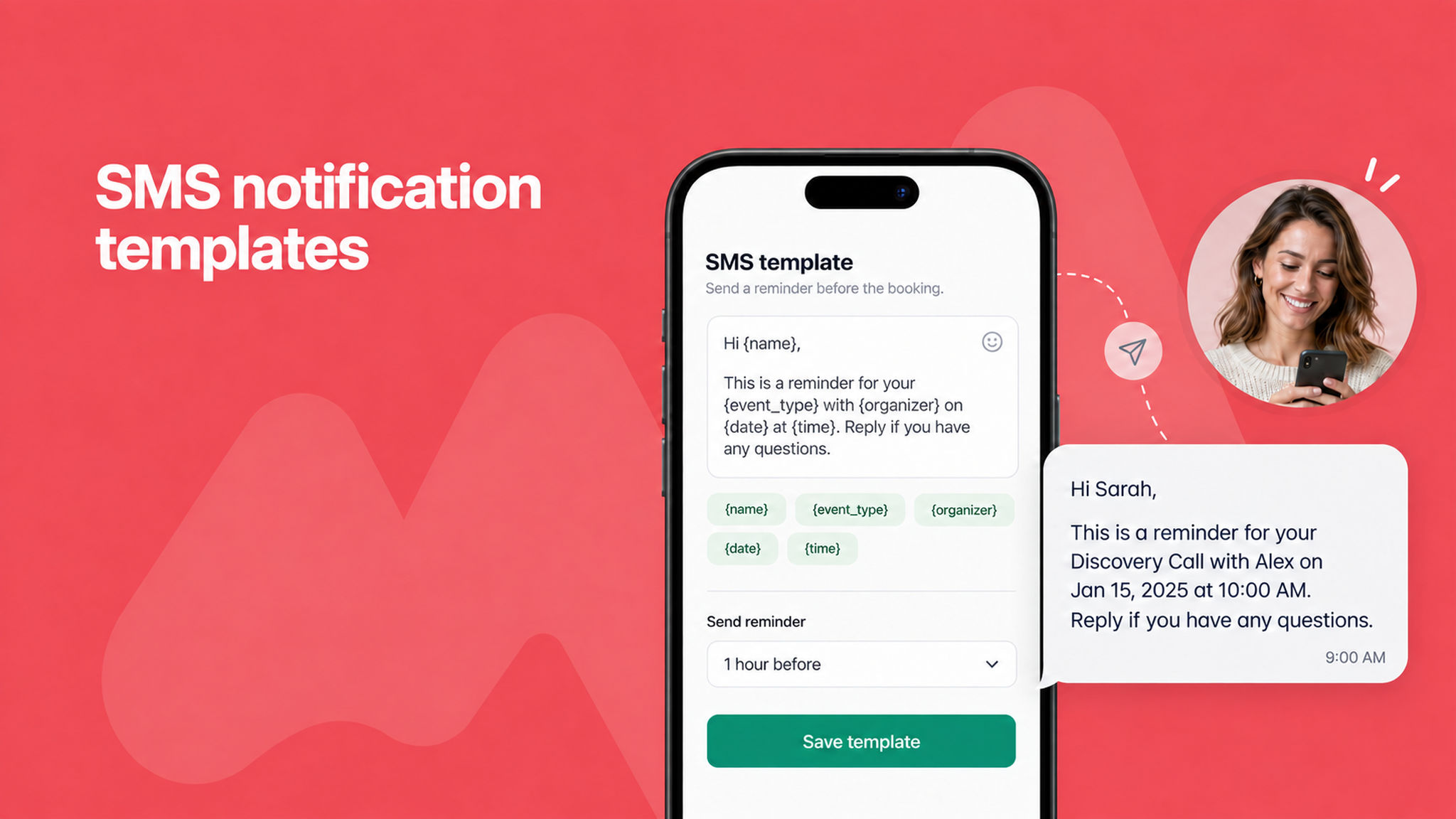
To support this, NeetoCal now provides default SMS notification templates. As soon as a client books a meeting, the system automatically sends the relevant SMS notifications, so clients booking by phone stay informed every step of the way, from confirmations to reminders.

These templates come ready to use out of the box, and you can fully customize them under the notification templates section in the Admin Panel to match your tone and messaging.

Do note that SMS notifications are sent only if you have a Twilio or Telnyx integration set up in your workspace. Without one of these connected, NeetoCal cannot deliver text messages to your clients.

To learn more, read our help article.

image_LLmk1nwJW.png

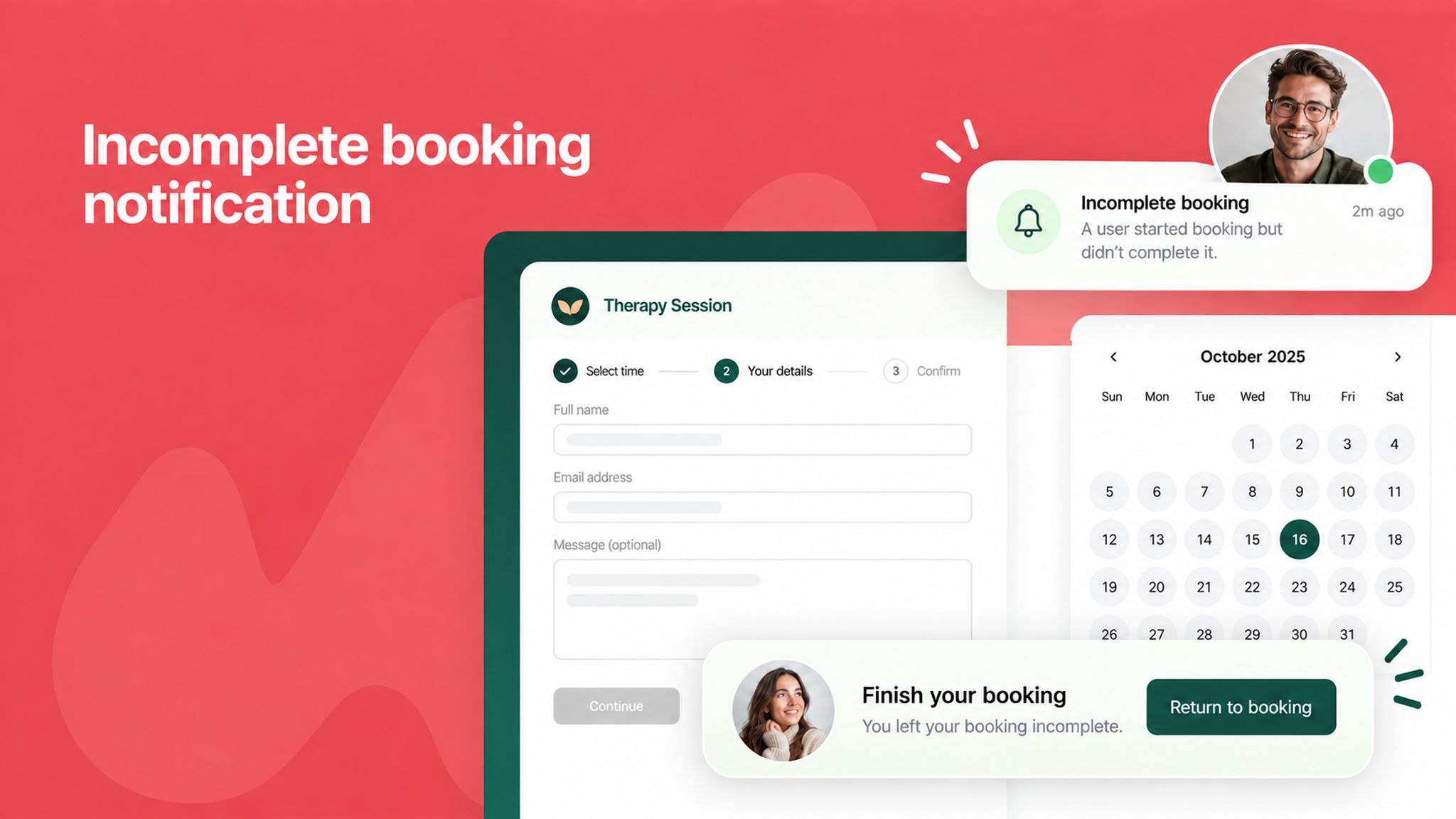
The Incomplete bookings page now gives you much clearer insight into why a booking wasn't completed.

Each incomplete booking shows reason whether the client never reached the payment form, saw it but didn't pay, had a payment declined, or lost the slot to someone else along with how many payment attempts were made and how long ago the last activity happened.

A new Timeline tab lays out every event in the booking's journey in chronological order, and the list view now includes a "Last Attempted" column.

So you can spot the most recent drop-offs at a glance. NeetoCal can also automatically send a gentle nudge email to clients who started but didn't finish booking, helping you recover bookings that would otherwise be lost.

To learn more about incomplete bookings, read our help article.


2026-06-29-default-permissions-for-new-roles_YpAmxtQDk.png

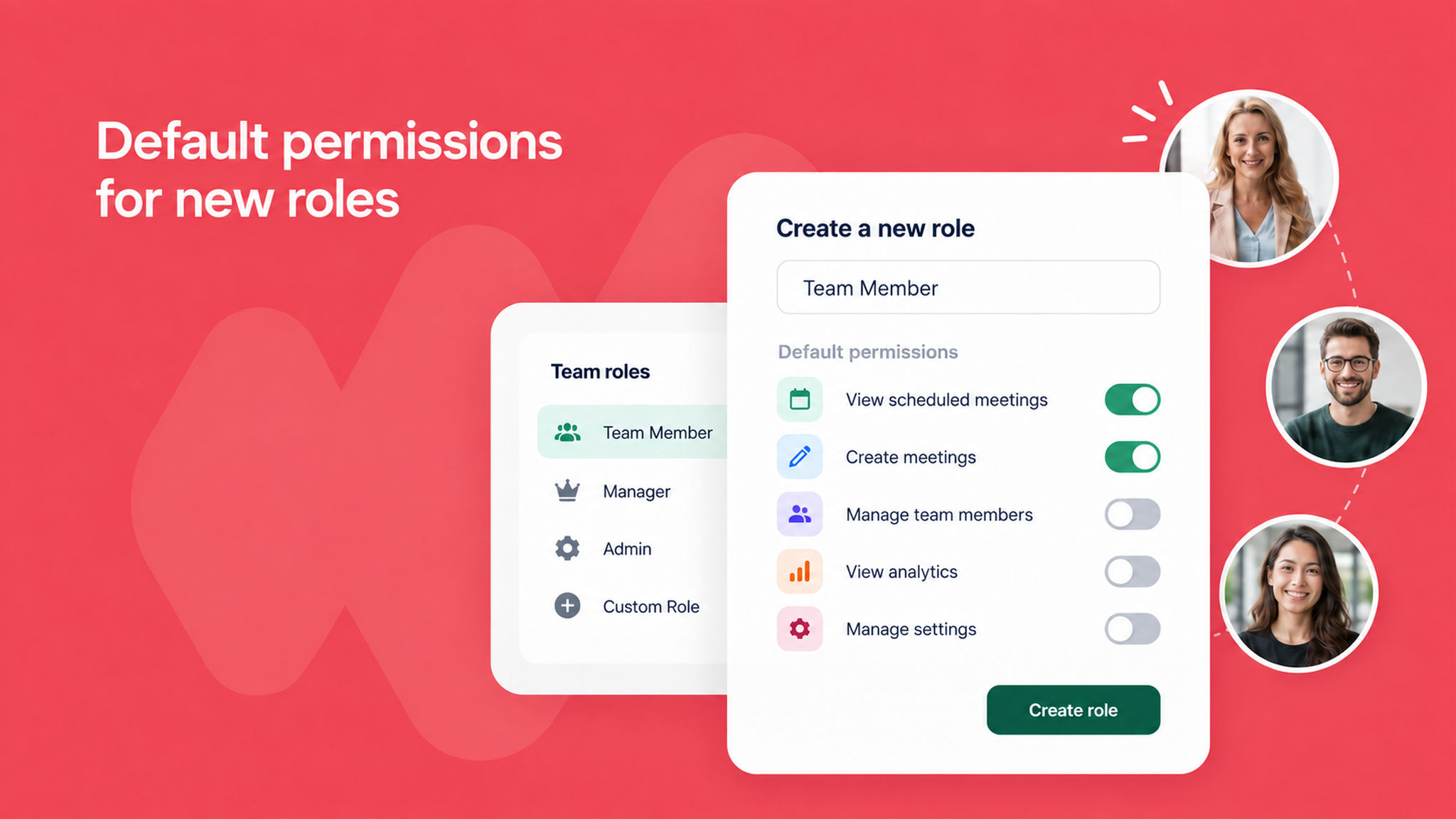
Setting up roles is now faster and less confusing. When you create a new custom role or use the Standard role in a new workspace, a thoughtful set of permissions is pre-selected by default.

These cover the everyday essentials a host needs, like managing their own scheduling links, availabilities, calendar and video integrations, bookings, and contacts.

You can still adjust them to fit your needs, but you'll no longer have to build every role from scratch.

To learn more, read our help article.

image_mKgN0LoWl.png

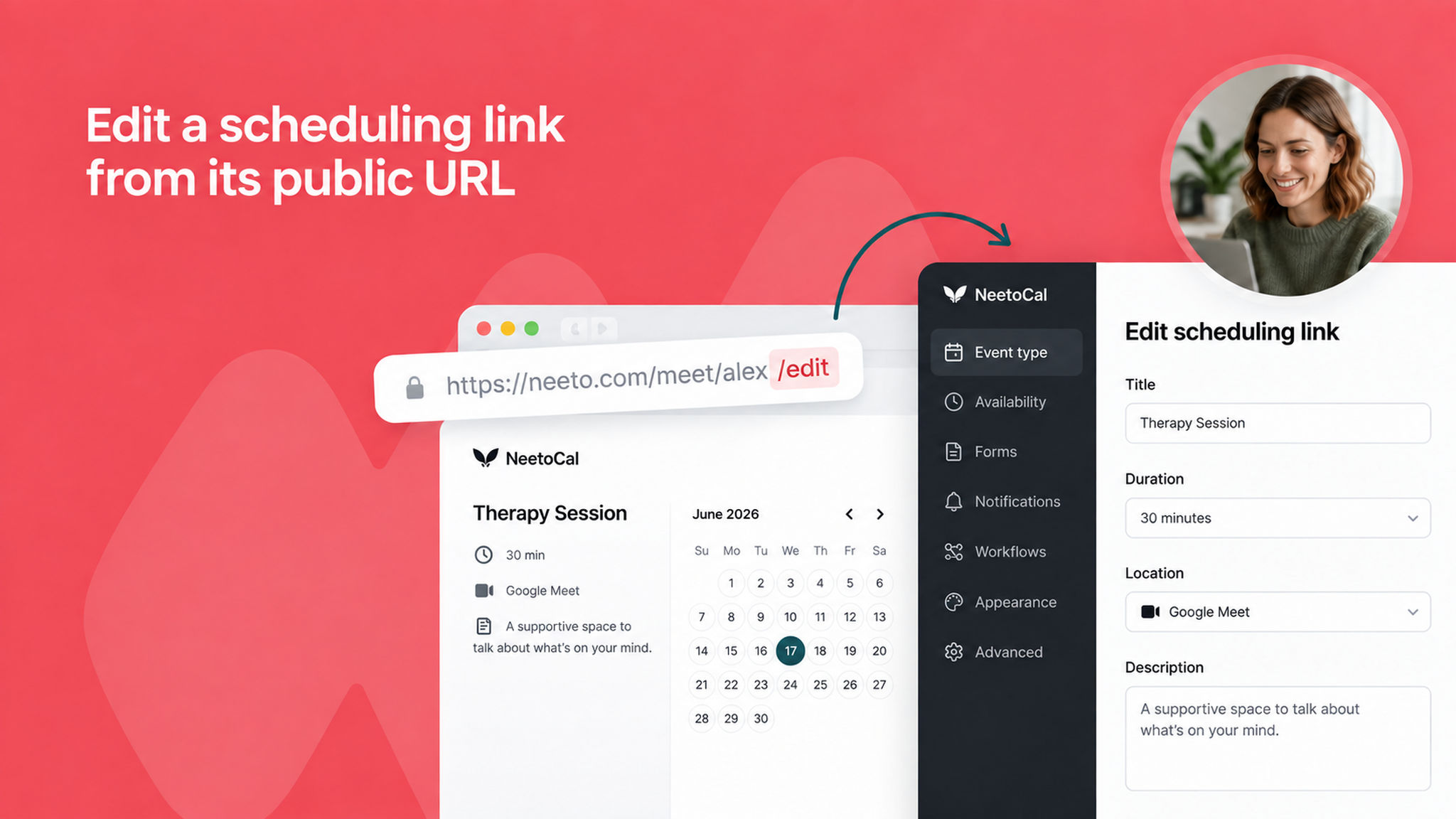
You can now jump straight to editing a scheduling link by adding /edit to the end of its public URL.

When you're viewing a live booking page and want to make a change, there's no need to navigate back through the admin panel to find the right link, just append /edit and you'll be taken directly to its settings (as long as you're logged in with edit access).

To learn more about scheduling links, read our help article.


image_FdiGdkucM.png

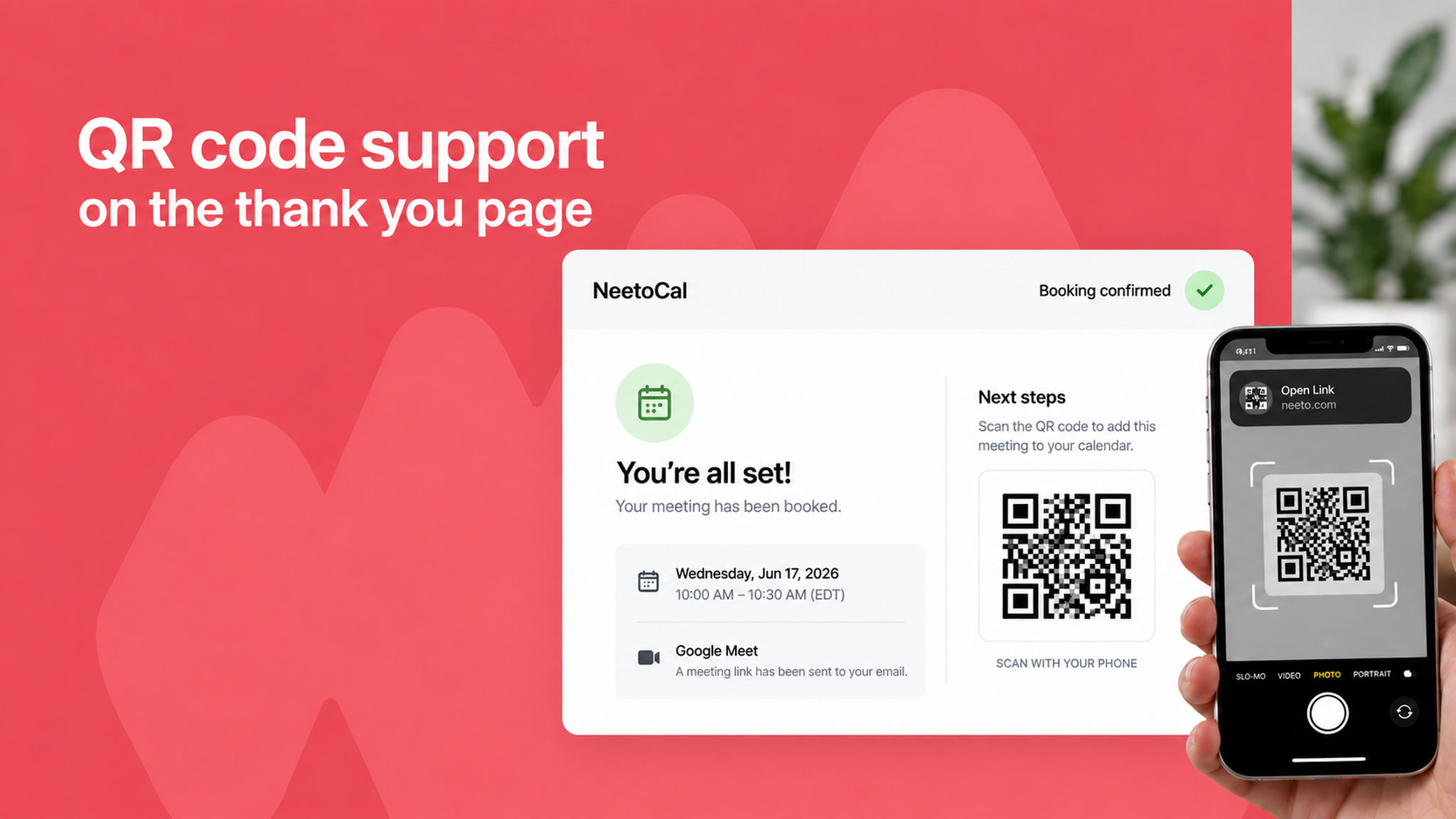
You can now display a QR code on the thank you page that clients see after booking.

This makes it easy to point clients to a follow-up action like adding the meeting to their calendar, accessing a payment link, joining a group, or visiting any URL you choose.

Clients scan the code with their phone and are taken straight there, creating a smoother handoff right after they book.

To learn more, read our help article.