What's new in NeetoCal


We’re excited to introduce Packages in NeetoCal, a great way to offer clients to buy bundle of appointments upfront.

With Packages, you can sell a set number of sessions in duration as one deal. For example, instead of booking and paying for five sessions separately, your client can now buy a 5-session package, maybe even at a discounted rate (like 5 for the price of 4). It’s a win-win for both you and your clients.


Unlike subscriptions, Packages are one-time purchases and do not renew automatically. Clients can redeem their package across multiple appointments, and you can choose how many sessions or minutes each package includes. It helps simplifying the payment and scheduling process.

This is ideal for

  • Coaches and therapists: Offer session bundles like a 6-session coaching package to encourage long-term commitment.

  • Fitness and wellness professionals: Let clients prepay for multiple yoga, training, or wellness sessions to stay consistent.

  • Tutors and instructors: Sell lesson packs (e.g. 10 math sessions) to help students stay on track and reduce cancellations.

  • Consultants: Create structured multi-session plans (like 4-session strategy packages) to showcase value and simplify booking.

To learn more about how to use this feature, read our help article.

Group Booking.png

Scheduling group meetings can often get messy, especially when you're trying to coordinate with multiple people at once. Endless back-and-forth messages, time zone confusion, and double bookings can turn a simple task into a frustrating one.

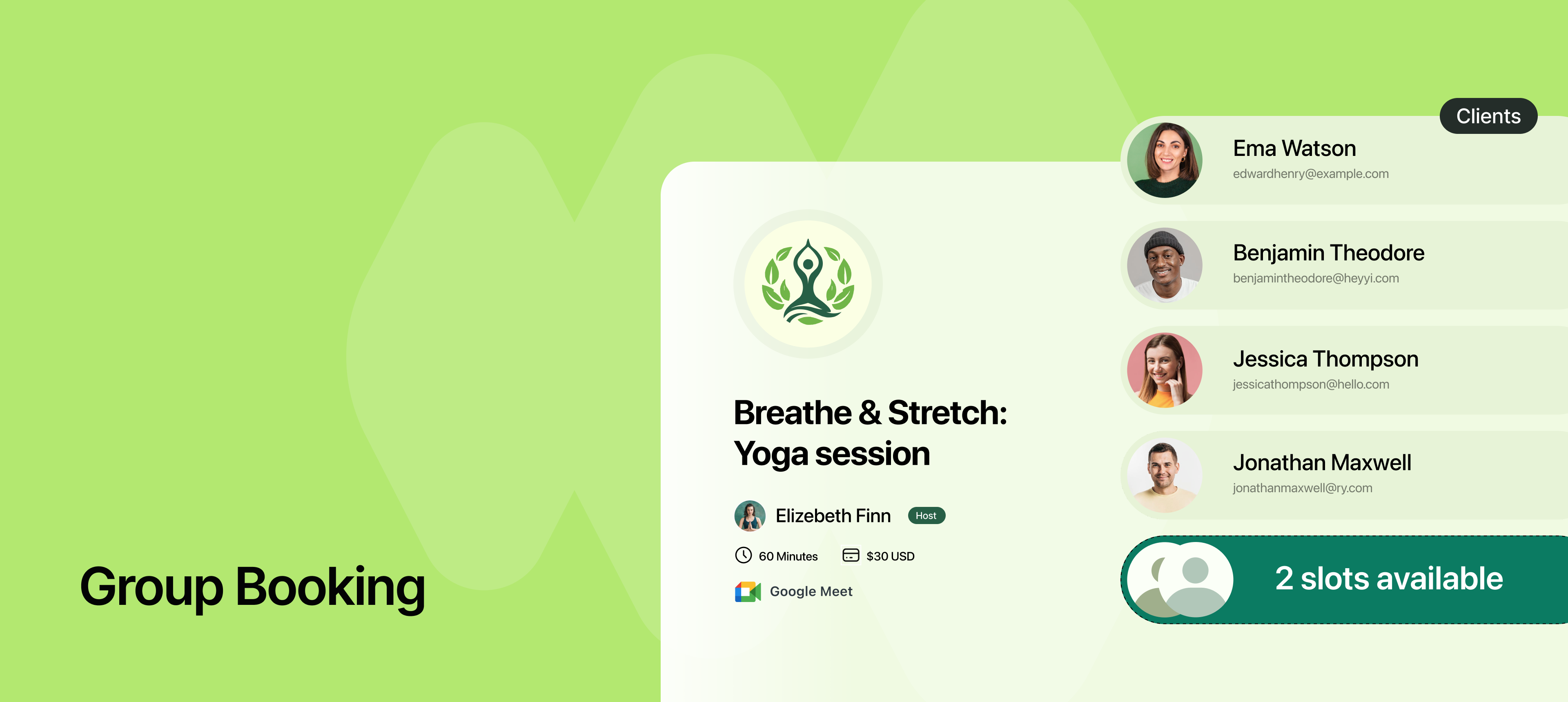
That’s why we’ve added Group meeting in NeetoCal, to make it easy to schedule sessions where multiple people can book the same time slot without any of the usual stress.

All you have to do is to set how many people can book, then share your scheduling link or put it on your website. NeetoCal will handle the rest. When all seats are booked, the time slot will automatically close. This means no overbooking and your calendar stays organized.


Group meeting can happen online, in person, or over the phone, whatever suits your business.

This feature is ideal for:

  • Group yoga sessions

  • Online classes or coaching

  • Webinars and live workshops

  • Group therapy or counseling sessions

  • Team training or onboarding meetings

To learn more about how to use this feature, read our help article.

Apple Pay support.png

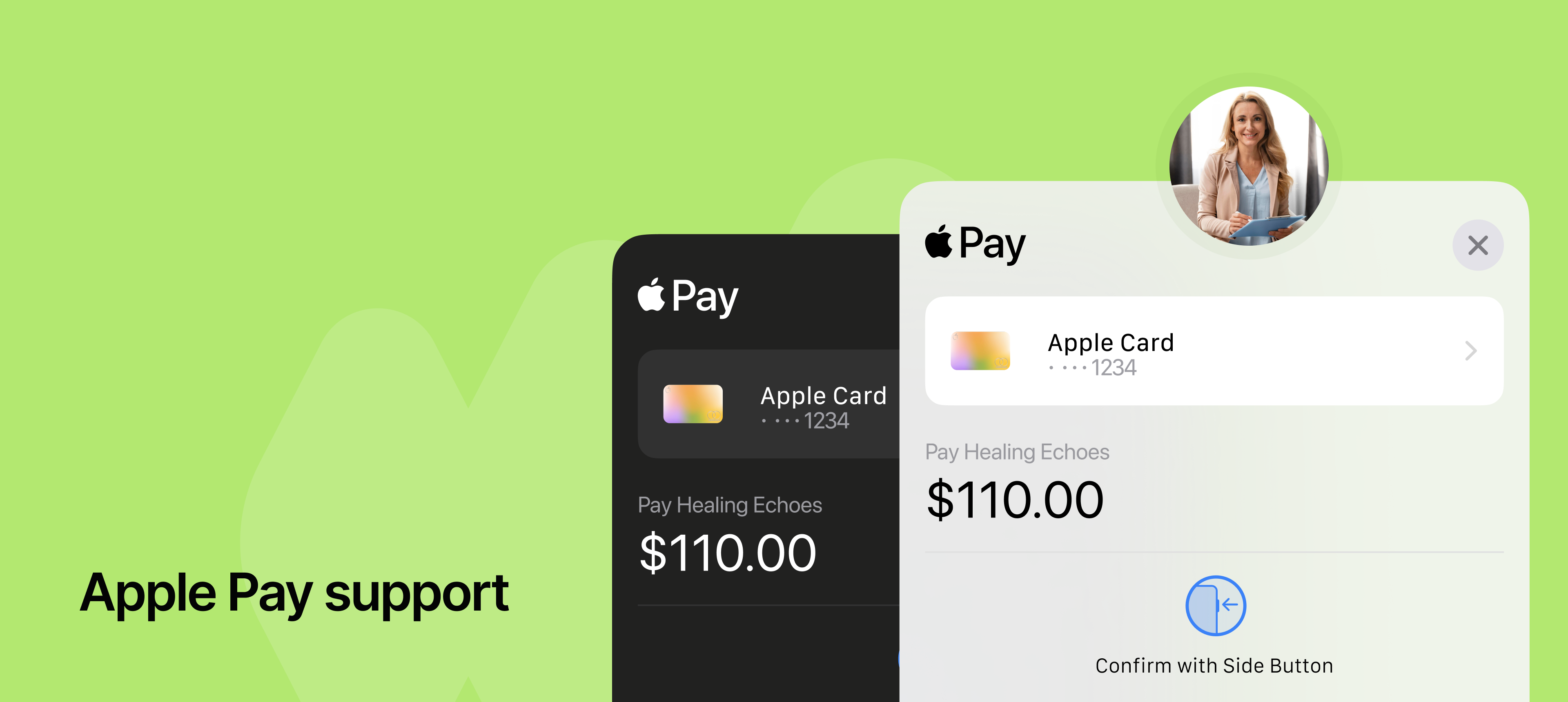
NeetoCal now supports Apple Pay as one of the payment methods through Stripe, making checkout faster and more secure for your clients. Along with credit and debit cards, Apple Pay provides a secure payment experience.

How it works

  • Apple Pay lets customers pay using any saved card in their Apple Wallet.

  • Stripe automatically enables Apple Pay for eligible devices. If a customer’s device doesn’t meet the requirements, Apple Pay won’t be displayed as an option.

  • Customers can use Apple Pay for payments in iOS apps (iOS 9 and above) and on the web in Safari (iOS 10 and above, macOS Sierra and above).

  • Refunds are simple, issue full or partial refunds for Apple Pay transactions just like card payments.

Apple Pay is available worldwide, except in India. If you’ve already integrated Stripe with NeetoCal, Apple Pay will be enabled automatically, no extra setup needed.

To learn more about how to use this feature, read our help article.

Google Pay support.png

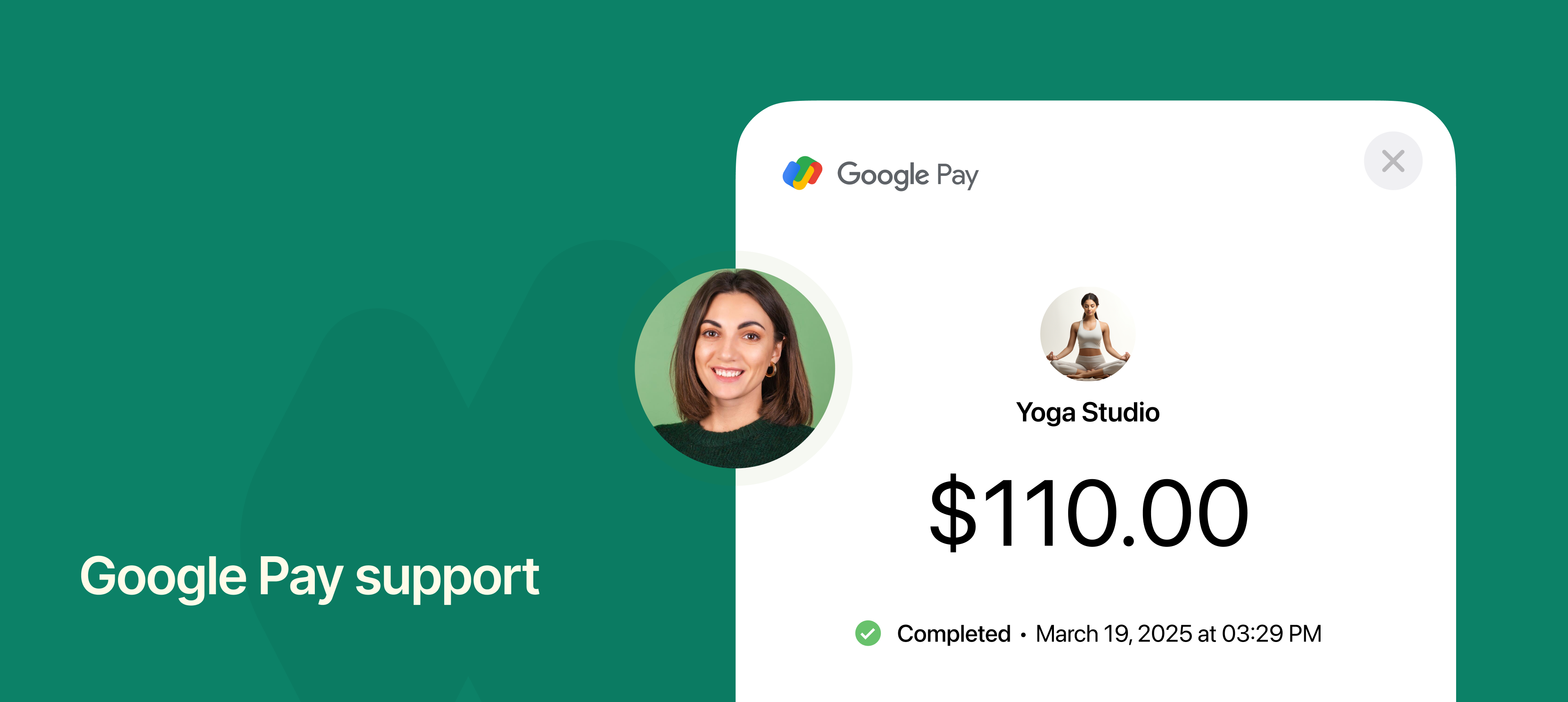
NeetoCal now supports Google Pay as one of the payment methods through Stripe, making it even easier for your customers to complete their payments. Along with credit and debit cards, Google Pay offers a secure checkout experience.

How it works

  • Google Pay lets customers pay using any saved card in their Google Account.

  • Stripe automatically enables Google Pay for eligible devices. If a customer’s device doesn’t meet the requirements, Stripe won’t show Google Pay as an option.

  • Refunds are simple, issue full or partial refunds for Google Pay transactions just like card payments.

Google Pay is available worldwide, except in India. If you’ve already integrated Stripe with NeetoCal, Google Pay will be enabled automatically, no extra setup needed.

To learn more about how to use this feature, read our help article.
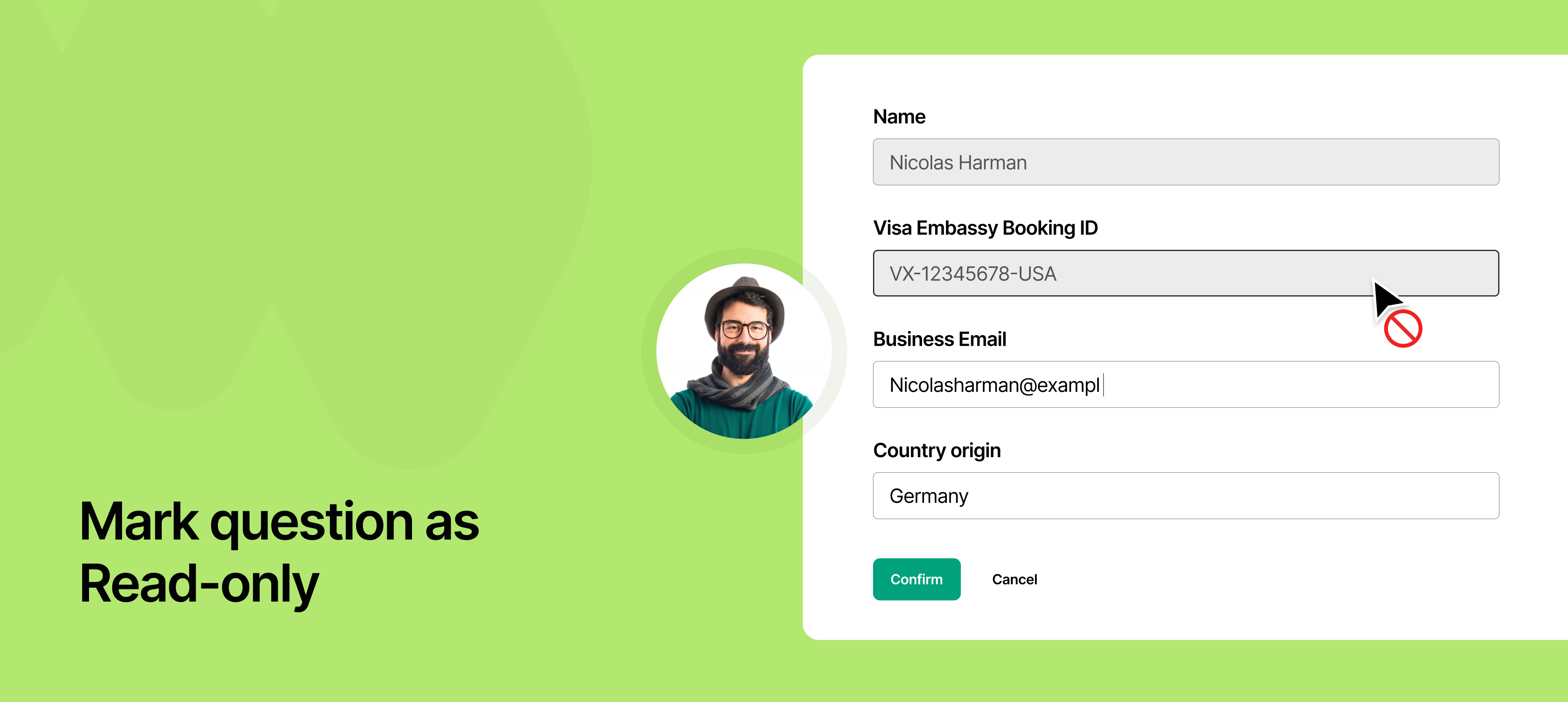

Mark question as Read-only.png

Previously, all form fields in a scheduling link were editable by the client. Now, with the Read-only option, you can mark specific questions as Read-only to keep pre-filled information unchanged when sharing scheduling links.

This is useful for protecting sensitive details like ID numbers, emails, or official records for Embassies, HR teams, healthcare professionals that need to maintain data integrity.

To learn more about how to use this feature, read our help article.
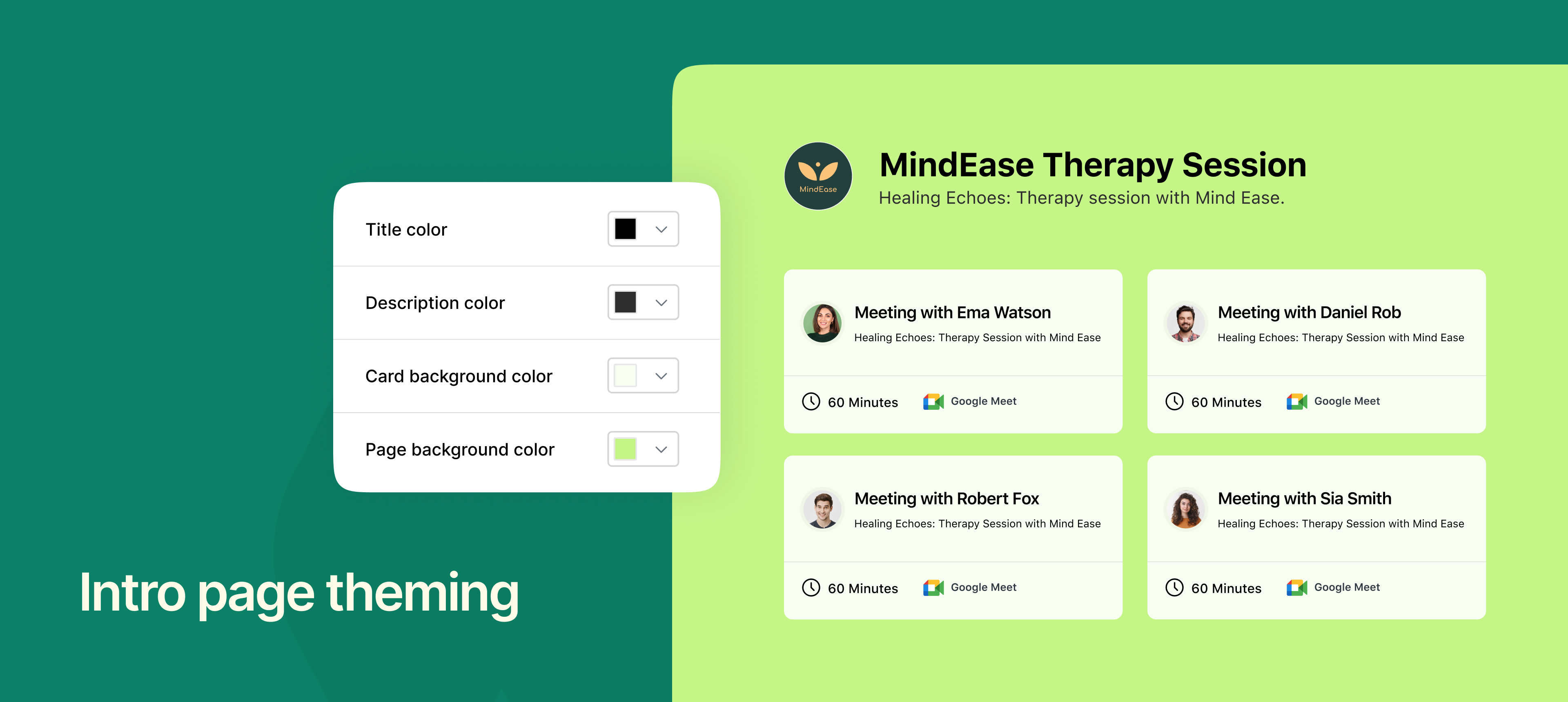

Intro page theming.png

NeetoCal lets you create multiple intro pages. Each intro page acts as a central hub where you can showcase a curated selection of your meetings. This allows clients to easily browse and choose the meeting that best fits their needs.

You can now customize your Intro Pages to match your brand by choosing colors for titles, descriptions, and backgrounds. This creates a more professional and visually appealing experience for your clients.

With Intro page theming business

  • Set brand colors for titles and descriptions.

  • Customize background colors for meeting cards.

  • Create different themed Intro Pages for different teams or services.

To learn more about how to use this feature, read our help article.
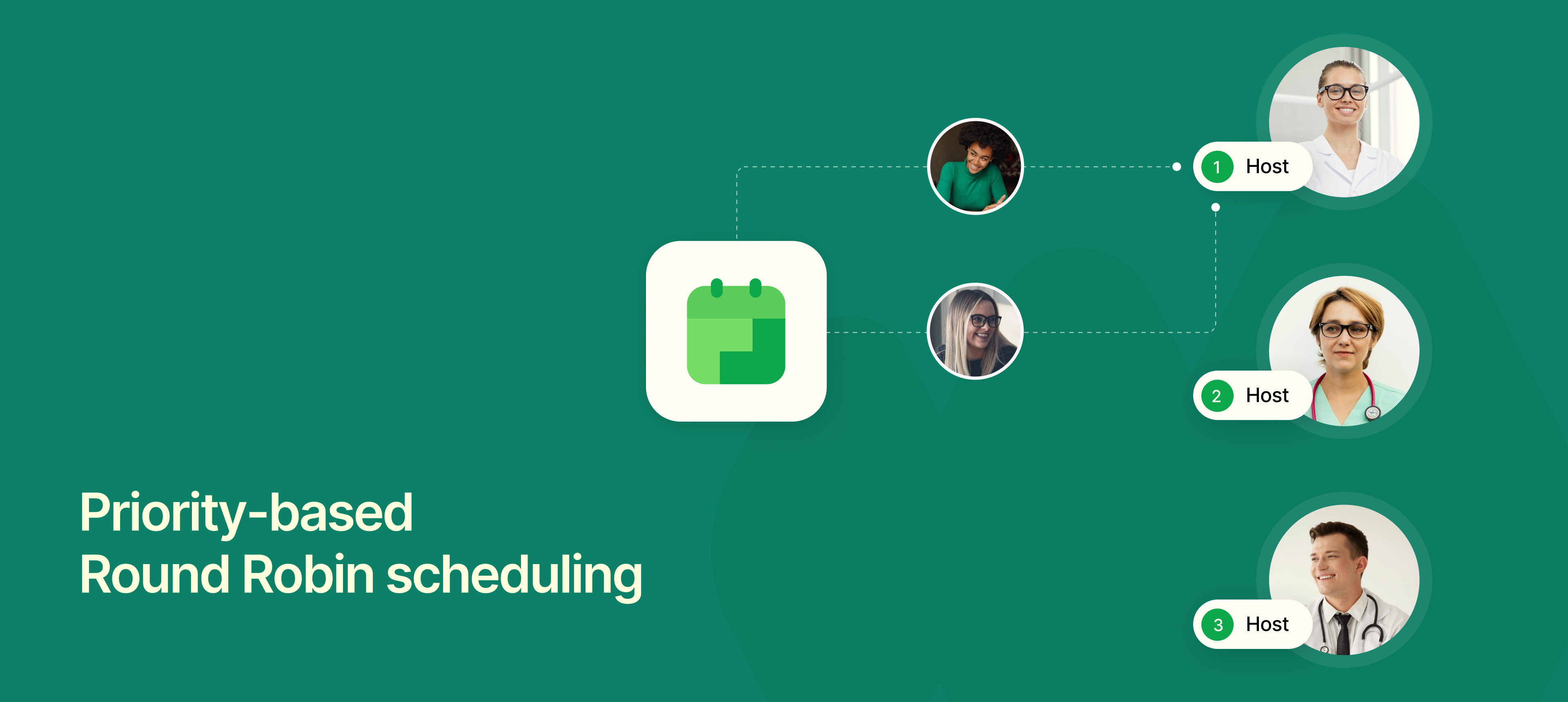

Priority-based Round Robin scheduling..png

Previously, all hosts in a round-robin setup were treated equally, and meetings were assigned in strict rotation based on their workload.

Now, you can set priorities for your round-robin hosts. If multiple hosts are available for a time slot, the meeting will be assigned to the host with the highest priority until the host is fully booked or unavailable, instead of being randomly distributed.


For example:

  • Lily and James both are available from 9:00 AM - 5:00 PM.

  • Lily has a higher priority than James.

  • When a client books a meeting, Lily will be assigned first until she becomes fully booked or unavailable.

  • Then James will start getting meeting bookings.

It helps businesses give the best service while keeping scheduling fair and automatic.

To learn more about how to use this feature, read our help article.
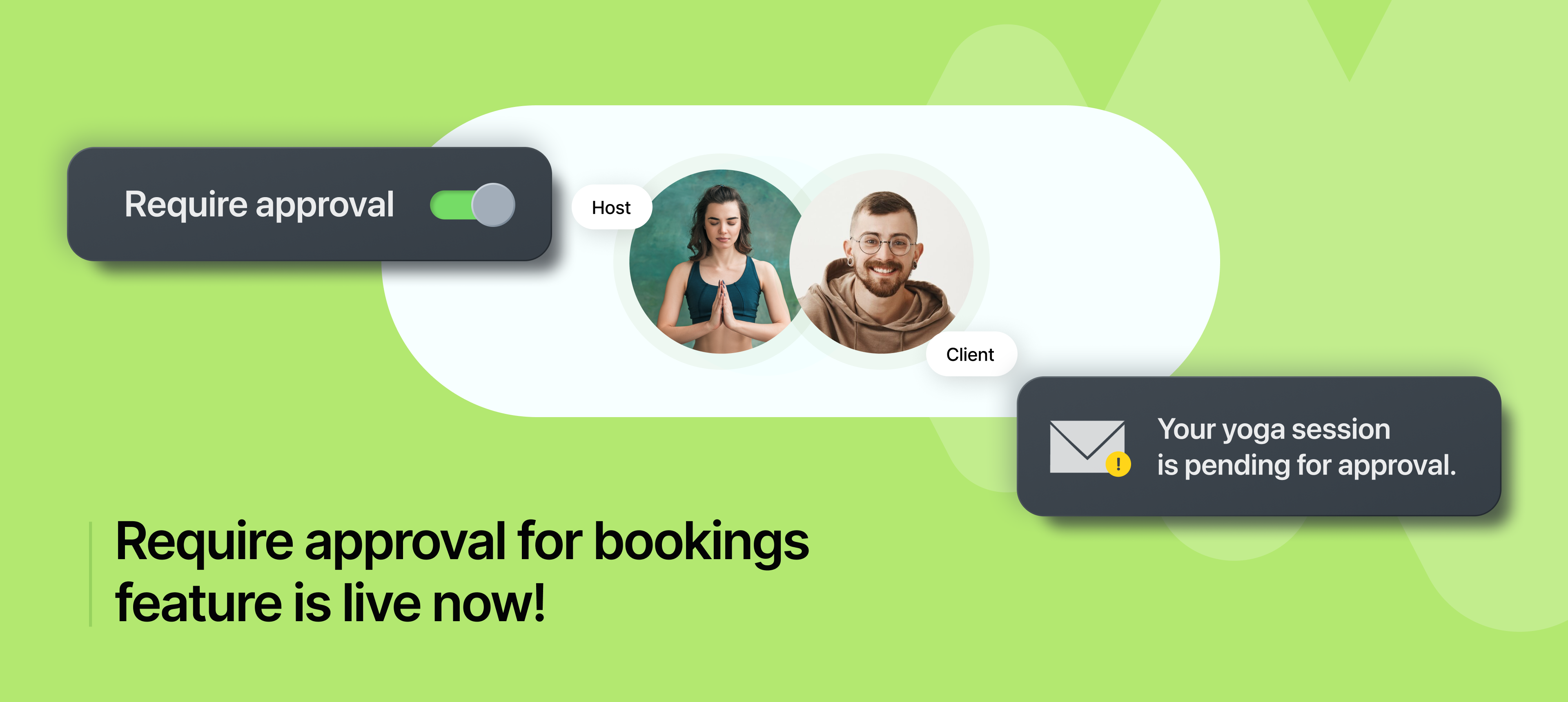

Require Approval.png

Previously, all bookings were automatically confirmed as long as available slot was selected. Now, with the Require Approval setting, you can review and approve or reject bookings before they’re confirmed, ensuring only necessary appointments make it to your calendar.

For example:

  • A client requests a meeting with you at 2:00 PM.

  • Instead of being confirmed right away, you get a notification to review it.

  • You can approve or reject the request based on your needs.

  • If approved, the meeting is added to your calendar. If rejected, the client is notified and can choose a different time.

This prevents unwanted bookings and keep your calendar clutter free.

To learn more about how to use this feature, read our help article.

Upgrade to pro plan.png

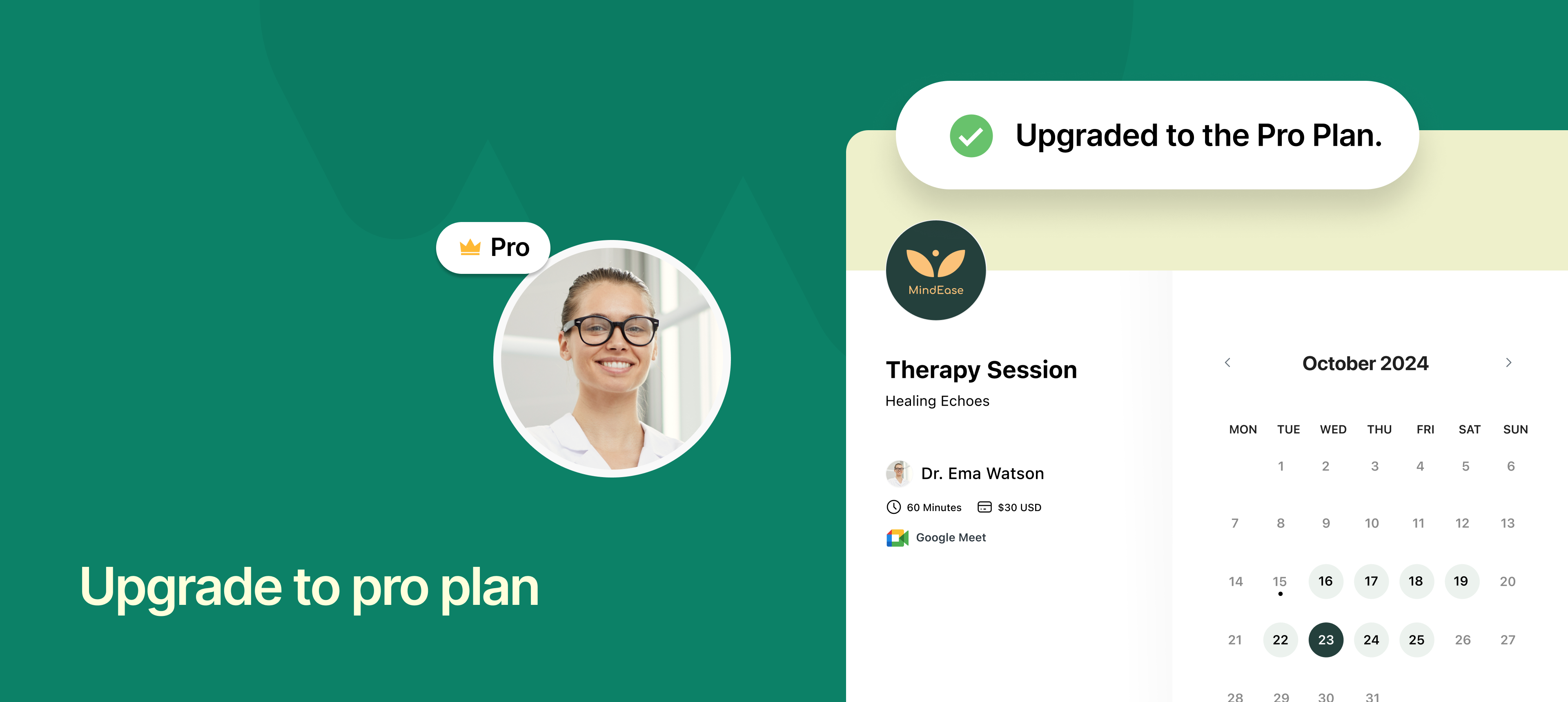
Now you can upgrade to the Pro plan in NeetoCal anytime. Enjoy advanced features and remove branding by upgrading yourself directly from your account.

To learn more about how to do this, read this help article.


Override global calendar preferences.png

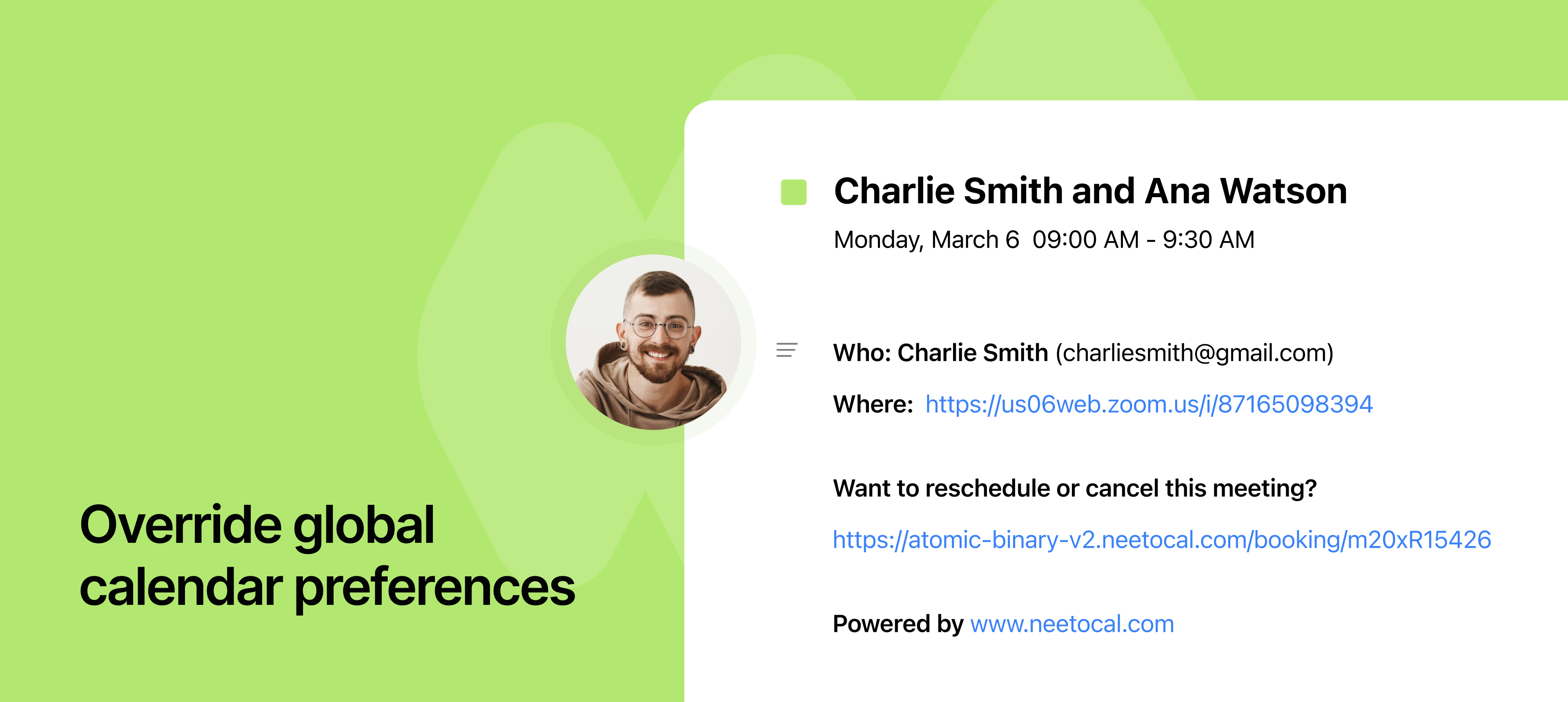
You can now customize calendar settings for specific scheduling links instead of applying the same global preferences to all meetings. This is especially helpful if you manage multiple calendars and want better control over where meetings are scheduled.

Let’s say you have two calendars, one for business and another for personal use.

  • Previously: All meetings were added to your default calendar.

  • Now:

    • Client meetings can be assigned to your business calendar while keeping personal events separate.

    • Both calendars can be checked for conflicts to avoid double bookings.

    • You can set custom meeting names and colors to easily identify different events.

This feature helps keep your calendar organized, prevents scheduling conflicts, and makes it easier to manage work and personal commitments separately.

To learn more about how to use this feature, read our help article.