What's new in NeetoCal


image_EGTYx8Z4z.png

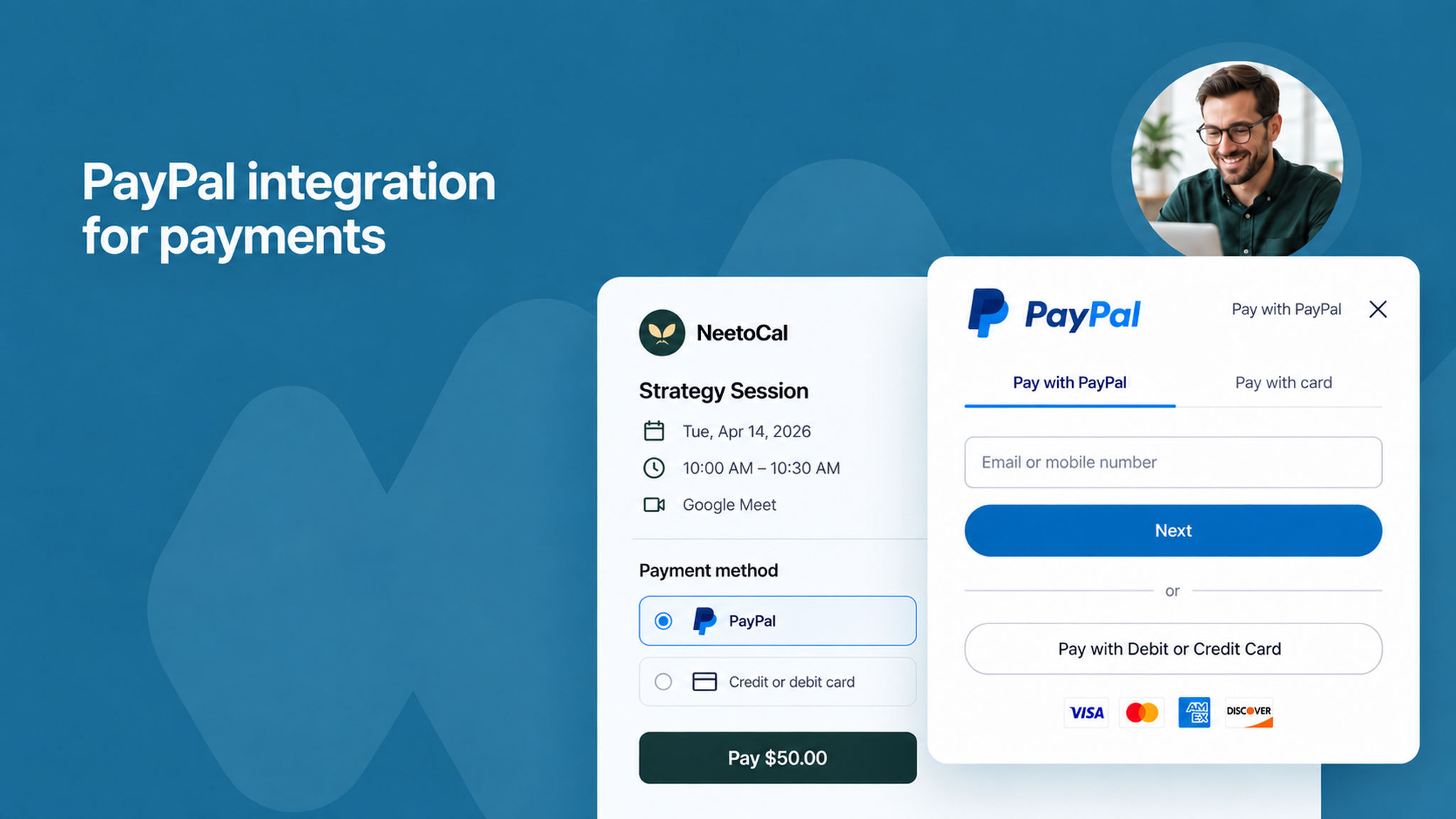
You can now accept payments through PayPal for your scheduled meetings in NeetoCal. Clients can pay using their PayPal account or directly with a credit or debit card. No PayPal account required on their end. Simply connect your PayPal account from the Admin Panel under Payment integrations using your Client ID and Client Secret, and you're ready to collect payments on your booking pages.

To learn how to set this up, read our help article.

image_WWDEN3ufV.png

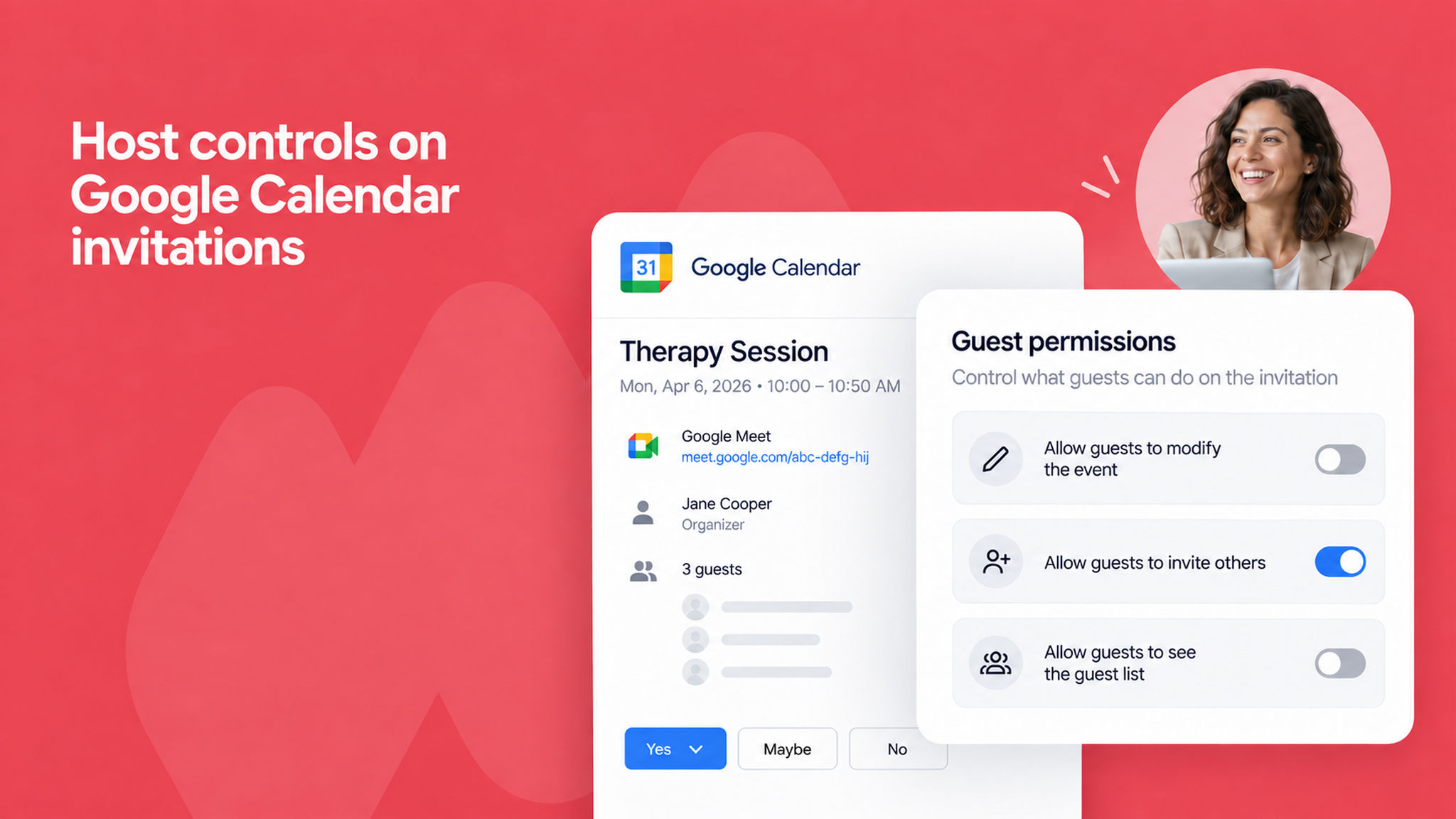
You can now control guest permissions on Google Calendar invitations sent through NeetoCal. This allows hosts to manage whether guests can modify the event, invite others, or see the guest list on calendar invitations. These controls give you more authority over how your meeting invitations behave in Google Calendar, ensuring a more professional and controlled booking experience.

To learn more about calendar invitations, read our help article.


image_LnZH8sXI-.png

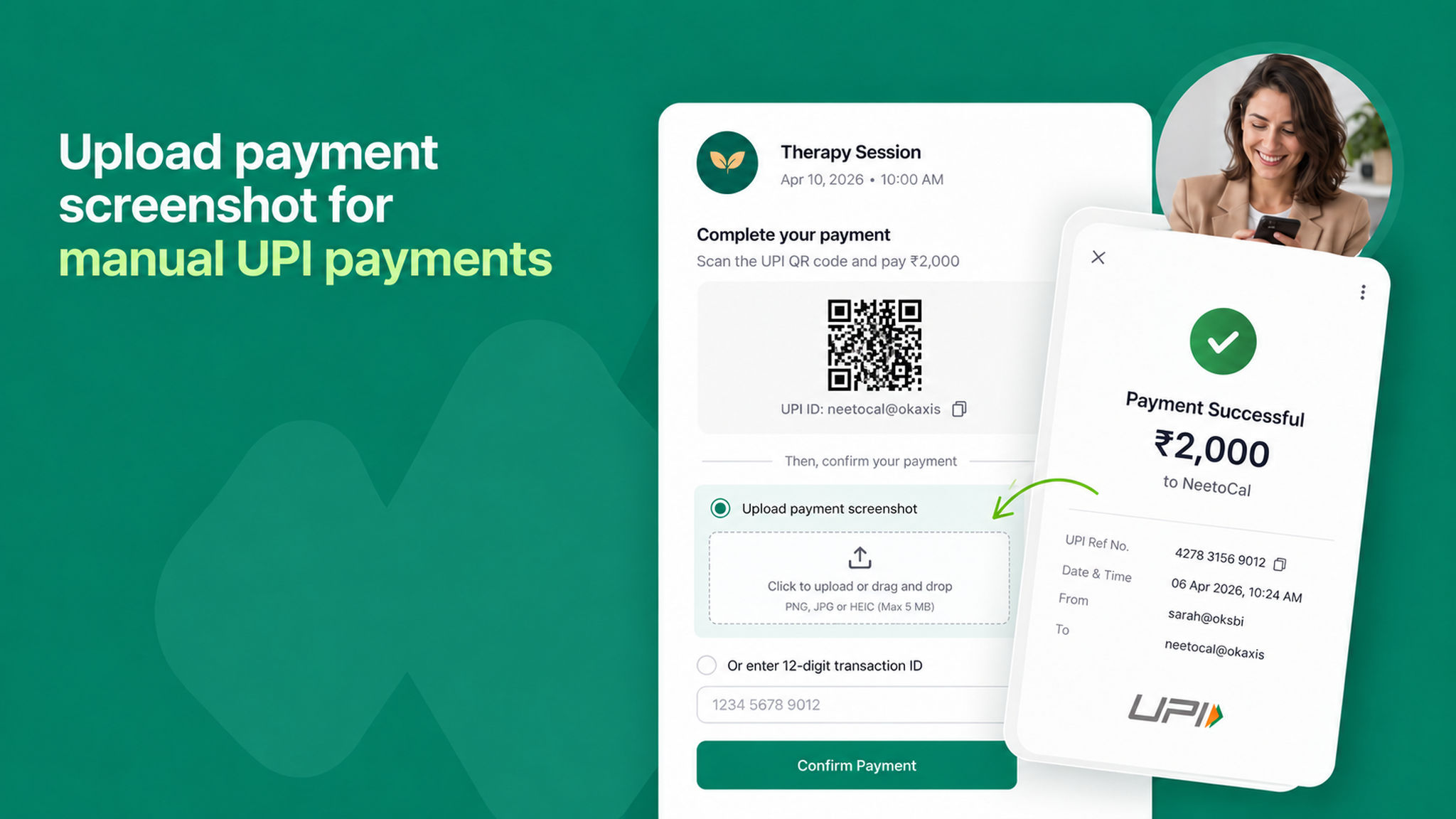
Previously, clients had to manually enter the 12-digit transaction ID after completing a UPI payment.

Now, they can also upload a screenshot of the payment as proof. Clients can choose either option, enter the transaction ID or upload a screenshot, making the process faster and more convenient. It also helps hosts verify and reconcile payments more easily, reducing back-and-forth.

To learn more about manual UPI payments, read our help article.


image_7YqxiDpTp.png

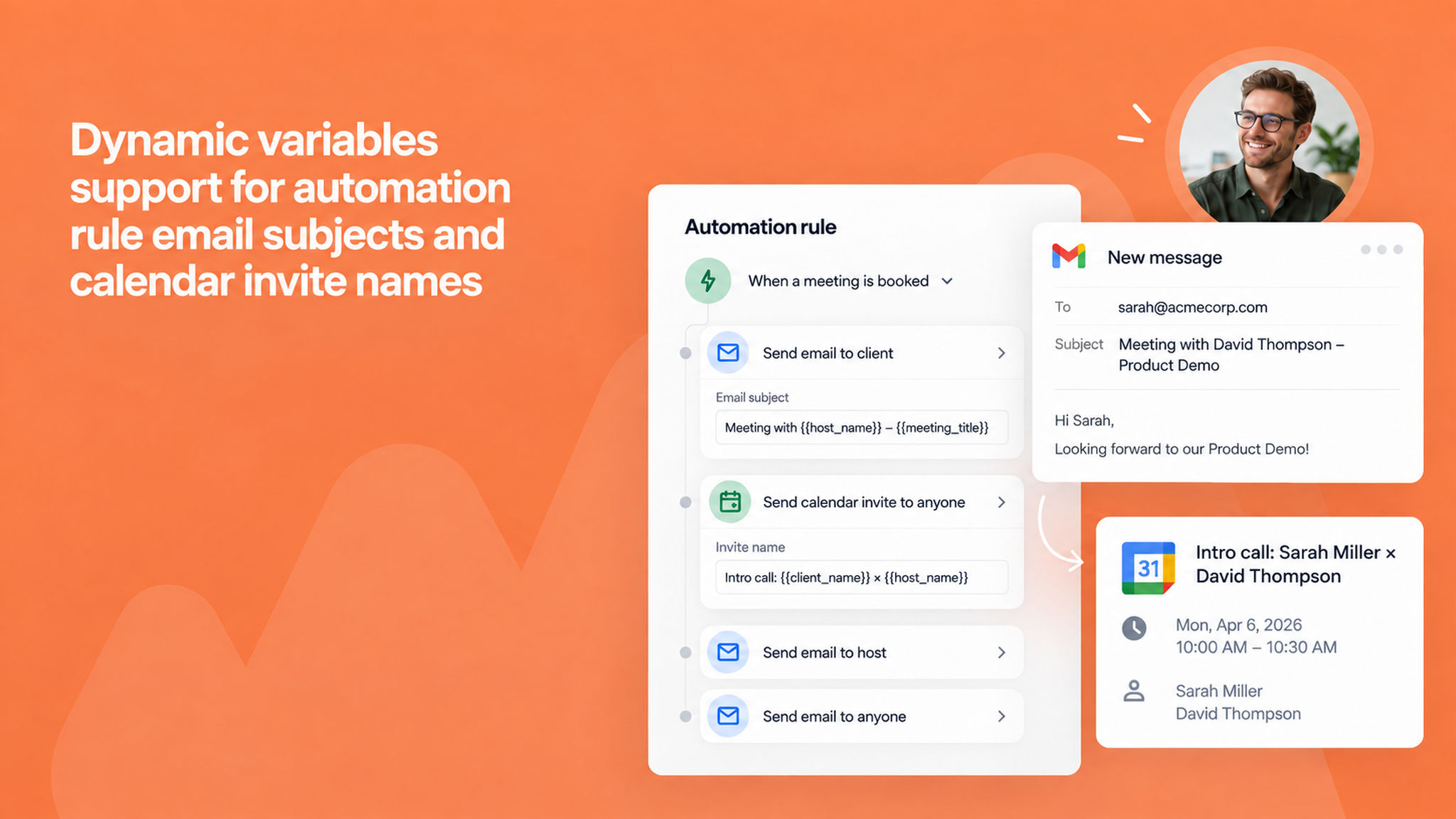
You can now use dynamic variables such as host name, client name, and meeting title in the email subject lines and calendar invite names for your automation rules. This applies to all automation actions like send email to client, send email to host, send email to anyone, and send a calendar invite to anyone and gives you fully personalized communication at every step.

To learn more about dynamic variables, read our help article.


image_V_mJGDOfV.png

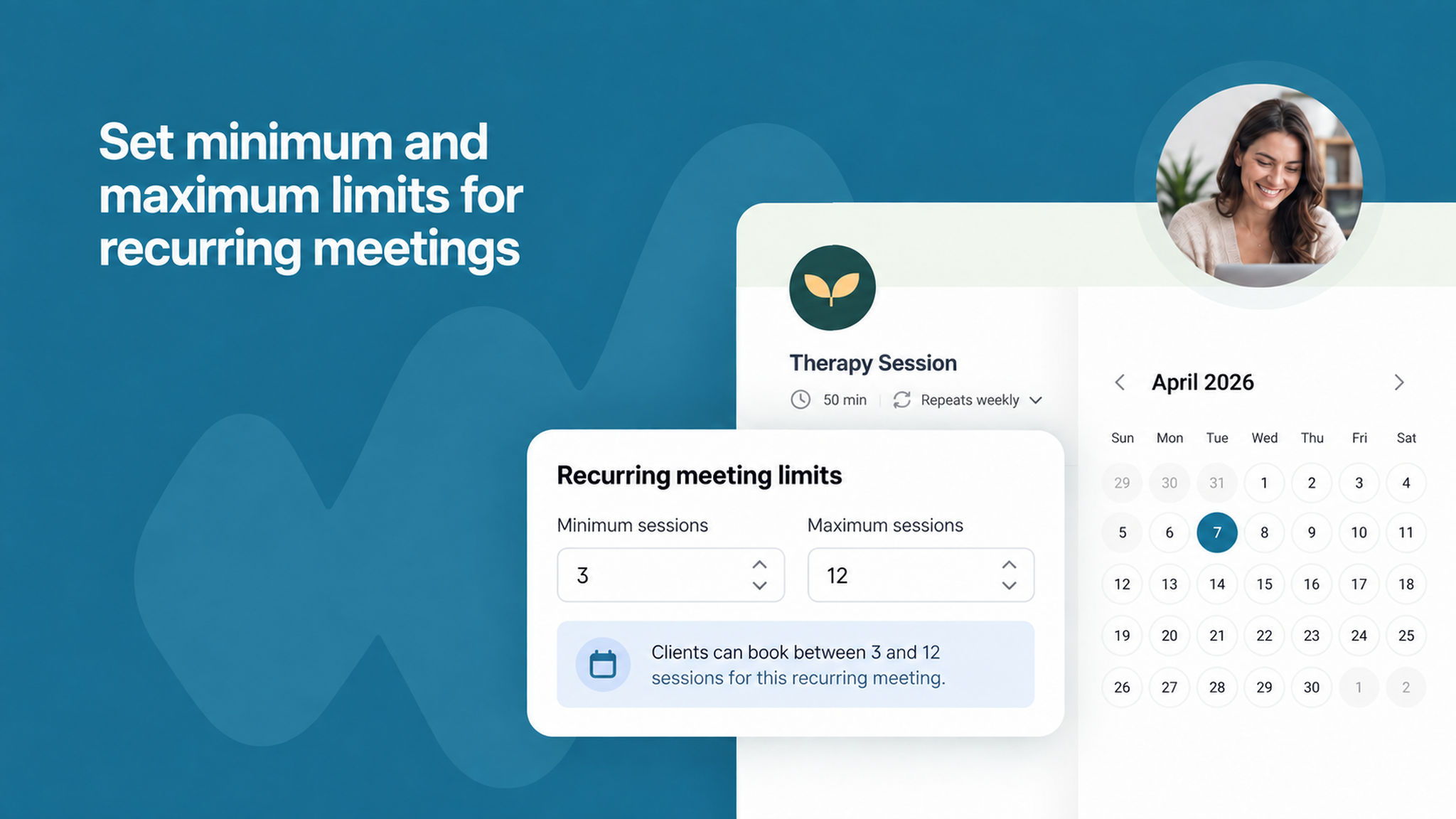
You can now set the minimum and maximum number of sessions a client can book for a recurring meeting. This gives you better control over how your sessions are scheduled.

For example, if you want clients to book at least 3 sessions but not more than 12, you can set the minimum to 3 and the maximum to 12. If you want a fixed number of sessions, simply set both the minimum and maximum to the same value.

To learn how to use this feature, read our help article.


image_xCBxkW57w.png

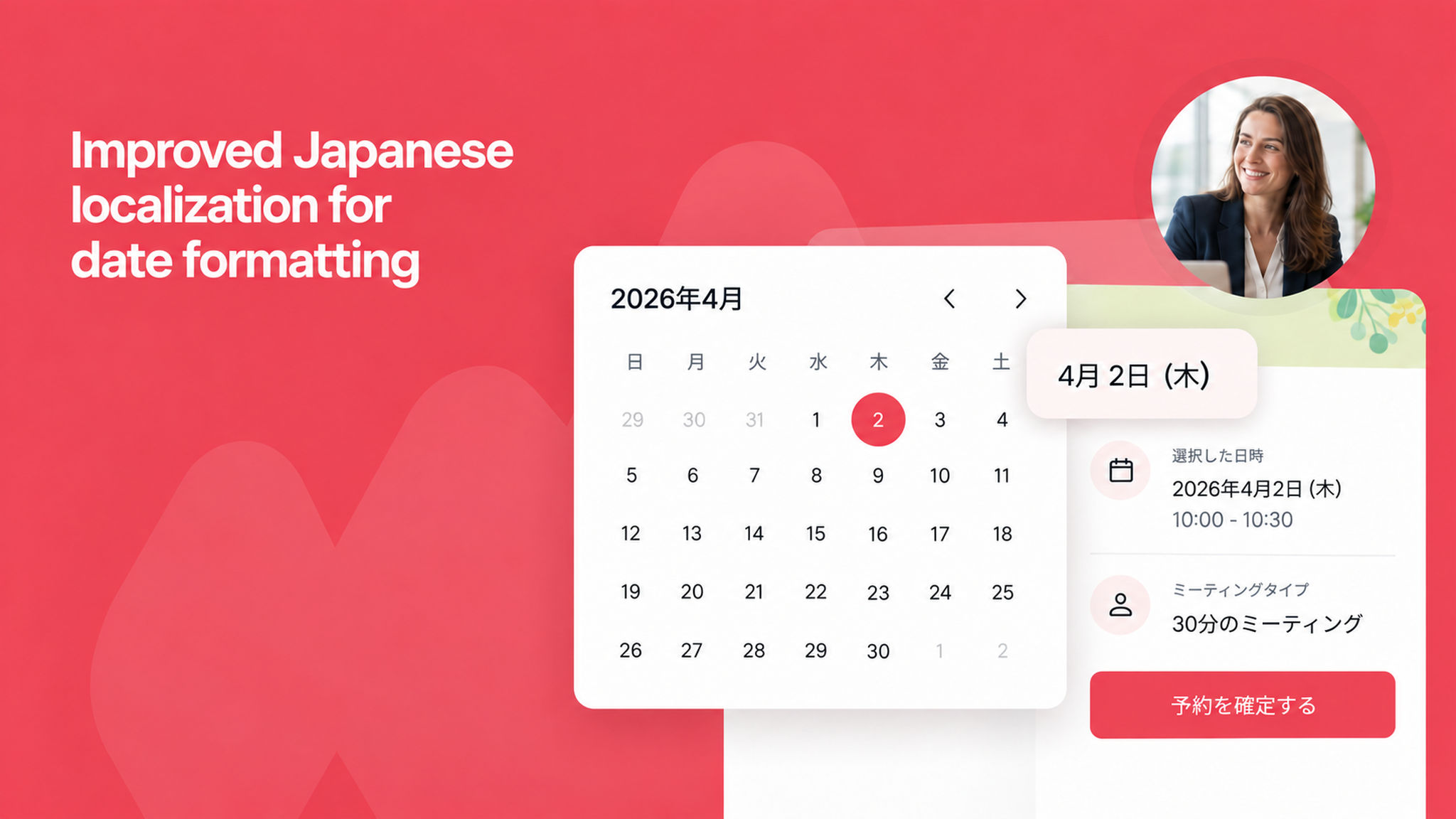
We fixed several date formatting issues for the Japanese locale (lang=ja). Date pickers now show plain numeric dates without ordinal suffixes, matching standard Japanese calendar conventions. All other date surfaces, including overview pages, booking summaries, confirmations, and emails, now use proper Japanese suffixes (年 / 月 / 日).

Full dates with day of week follow the standard [M]月 [D]日 ([曜日]) format. The lang parameter is now correctly respected on custom domains as well.


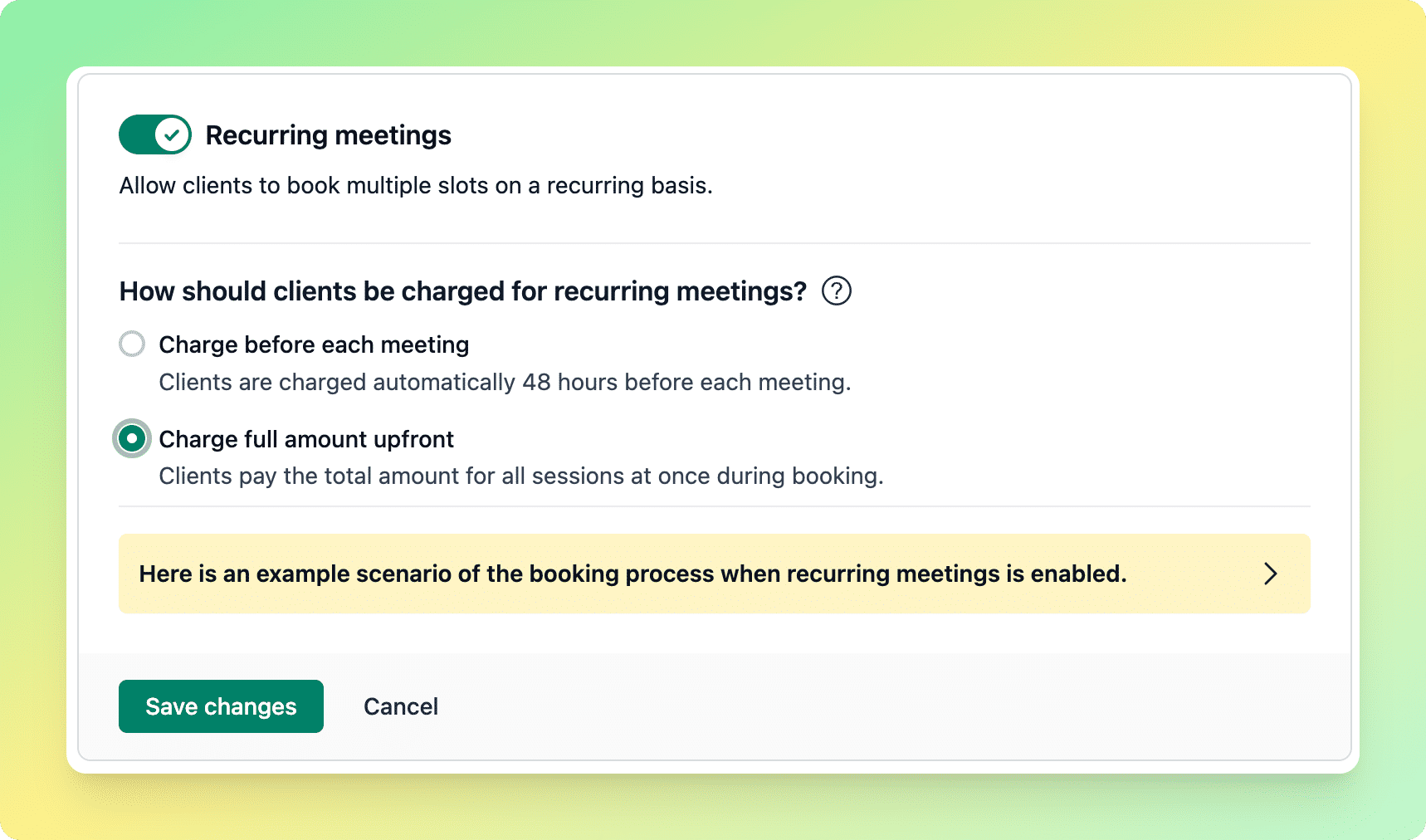
You can now collect the full payment upfront when clients book recurring meetings. Instead of charging per session, NeetoCal calculates the total cost for all sessions and collects it at the time of booking. This works with any connected payment provider and simplifies the payment flow for both you and your clients.

To learn how to use this feature, read this help article.

image

image_grsz7v_hc.png

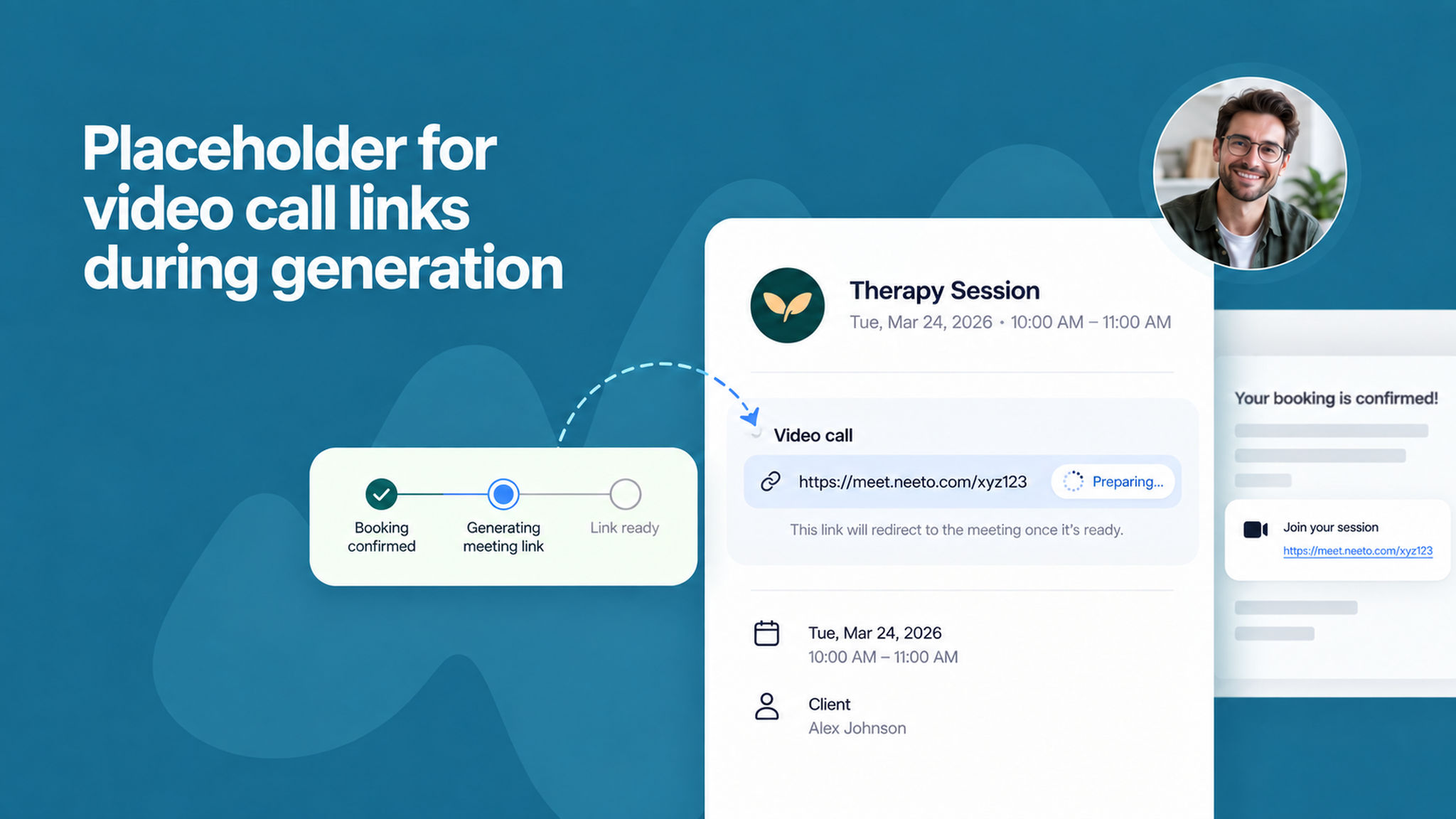
When a video conferencing link takes a moment to generate, NeetoCal now shows a placeholder link instead of leaving the field empty. This placeholder automatically redirects to the actual meeting link once it's ready, so your clients always have a working link in their confirmation emails and calendar invites — even if the video provider is slow to respond.

To learn more about how this works, read our help article.


image_BQ2sYHWcC.png

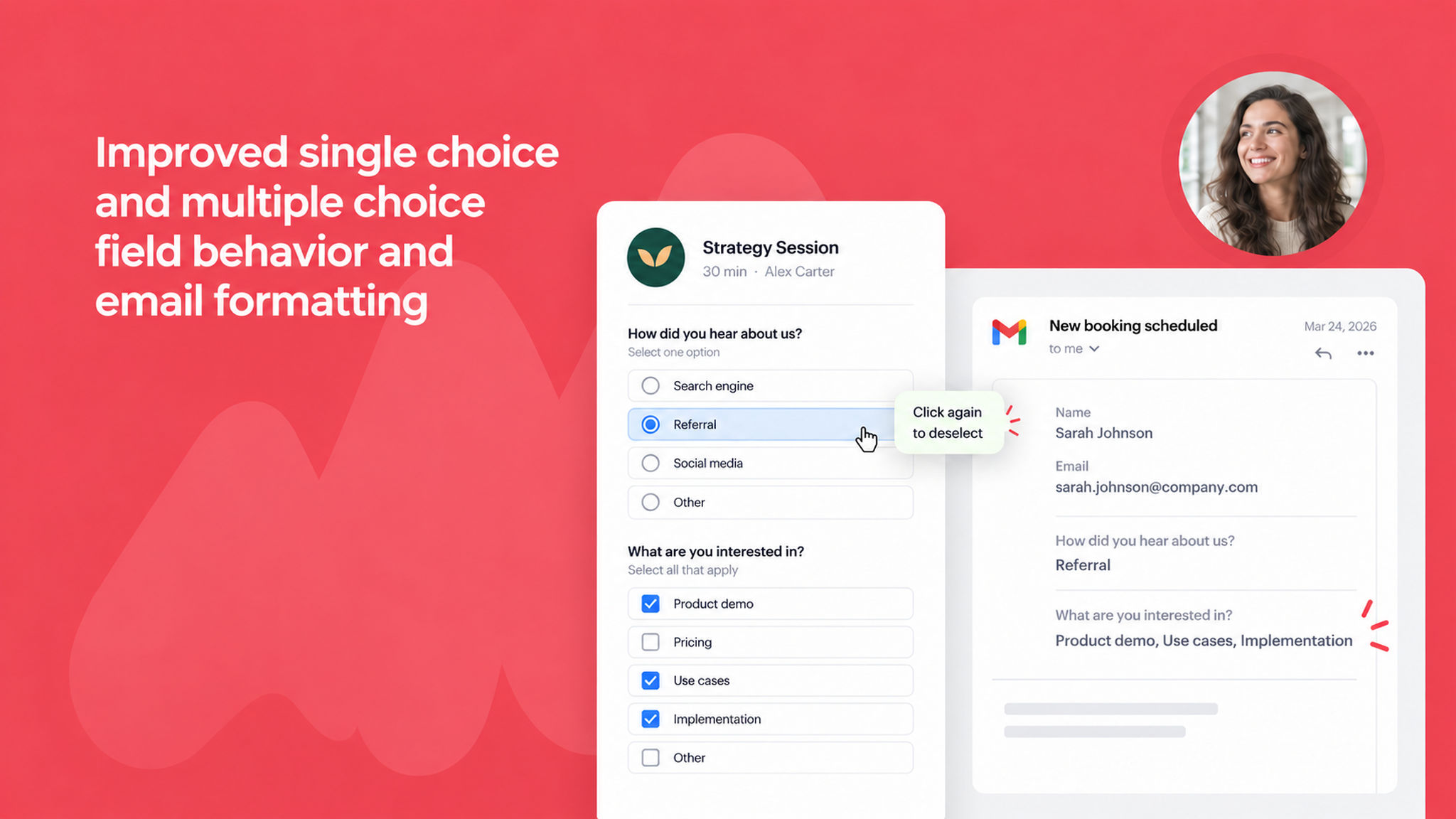
Single choice fields now allow you to deselect a previously selected option when the field is not required, giving clients more flexibility when filling out booking forms. Additionally, multiple-choice field responses are now displayed cleanly in notification emails; all selected options appear on a single line rather than being split into separate question-answer pairs.

To learn more about adding options to choice fields, read our help article.