What's new in NeetoCal


Customize_colors_in_Gallery_and_Map_sections_HjIn0CZAV.png

You can now customize the colors in the Gallery and Map sections of your intro pages. This gives you more control over how these sections look, so they match the rest of your page and your brand.

Earlier, these two sections used fixed colours that could clash with your chosen theme or look awkward against your background. Now you can set the colors that work for you.

Adjust them from the intro page editor, right where you build the rest of your page.

A consistent, on-brand intro page makes a stronger first impression on your clients and helps your booking experience feel polished from the very first screen.

To learn more, read our help article.

control-who-can-change-a-bookings-host_pVtyiwjJm.png

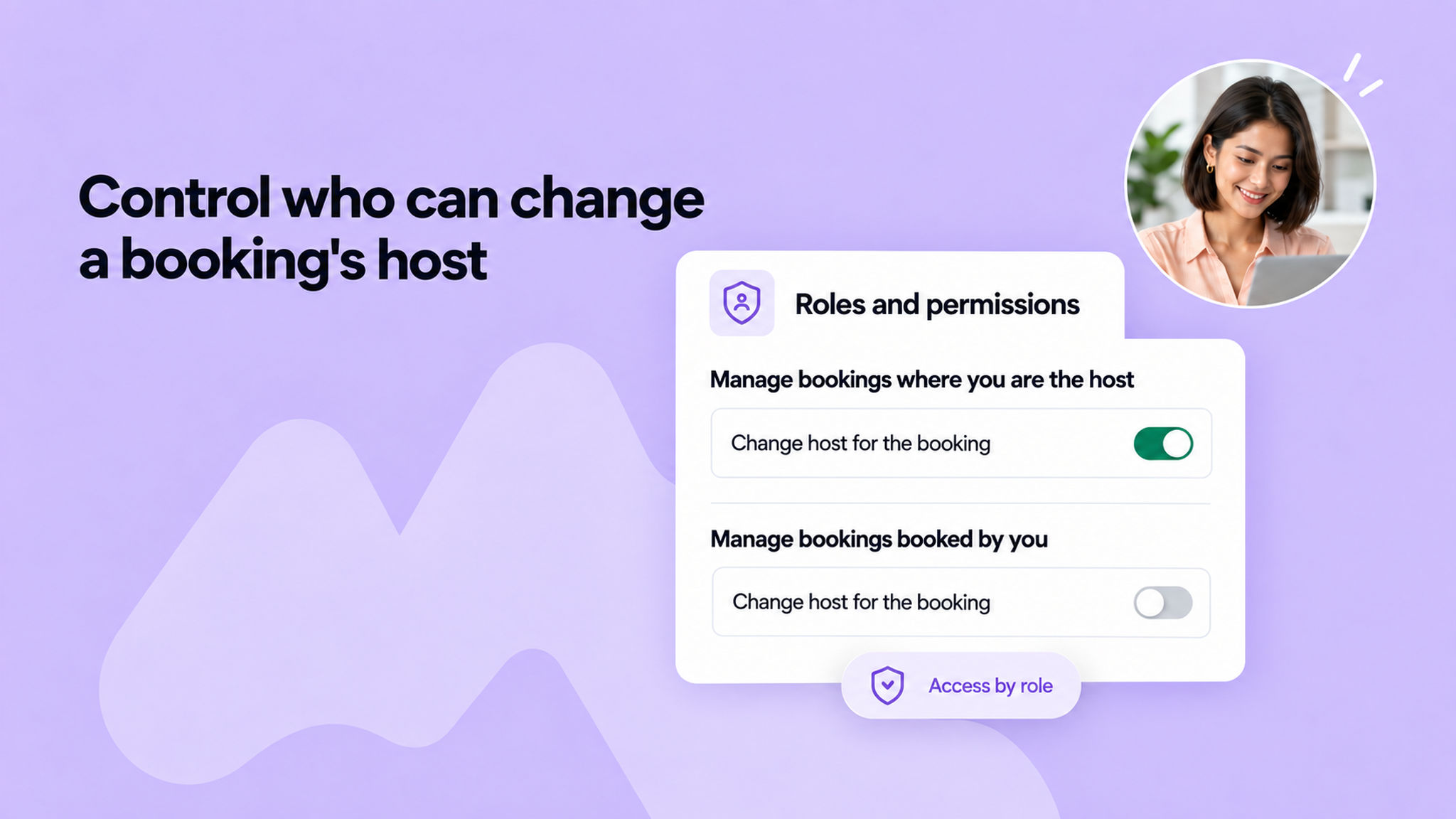
You now have finer control over who can reassign a booking to a different host. A new "Change host for the booking" permission lets you decide exactly which team members are allowed to do this.

Earlier, anyone who could manage a booking could also change its host. That was not always what you wanted, especially when you needed hosts to manage their meetings without being able to hand them off to someone else.

The permission is available in both places bookings are managed: under Manage bookings where you are the host, and under Manage bookings booked by you. This closes a gap where someone could otherwise change the host on a booking they made, even when the feature was turned off for hosts.

Turn it on for the roles you trust with reassignment, and leave it off for everyone else.

This gives you tighter control over your team's bookings and keeps hosts focused on their own meetings.

To learn more, read our help article.

Restore_video_links_after_reconnecting_video_tool_-RVy3u5dv.png

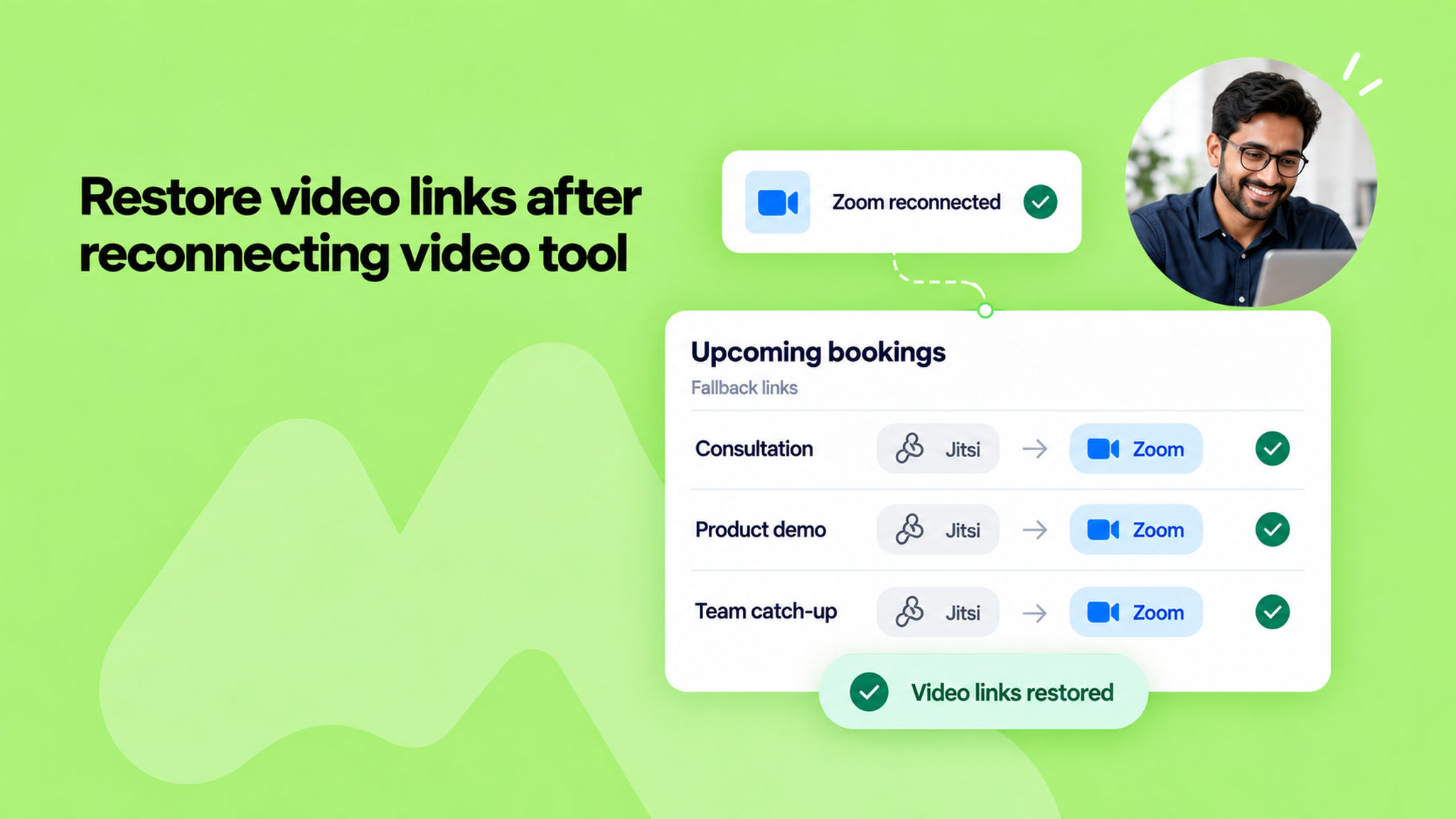
When your video platform disconnects, NeetoCal falls back to a Jitsi link so that it will not break your scheduling flow and your clients should be able to connect with you.

Earlier, bookings that got a Jitsi link during the disconnection kept it even after you reconnected Zoom, so you had to fix each one by hand. Now NeetoCal does it for you.

As soon as you reconnect, every already scheduled upcoming booking that fell back to Jitsi because your platform was disconnected is updated to your connected video link. This includes bookings that were created or rescheduled while it was down. The calendar events and booking pages are updated with the new link.

Bookings in the past, and bookings where Jitsi was chosen on purpose, are left exactly as they are.

There is nothing to review or click, and NeetoCal does not send extra "meeting location updated" emails for these changes, so your hosts and clients are not flooded with notifications.

This means fewer broken links and less manual cleanup after a reconnection, so your meetings run on the platform you actually intended.

To learn more, read our help article.

webhook-for-video-link-or-meeting-place-changes_fqIFvxhiD.png

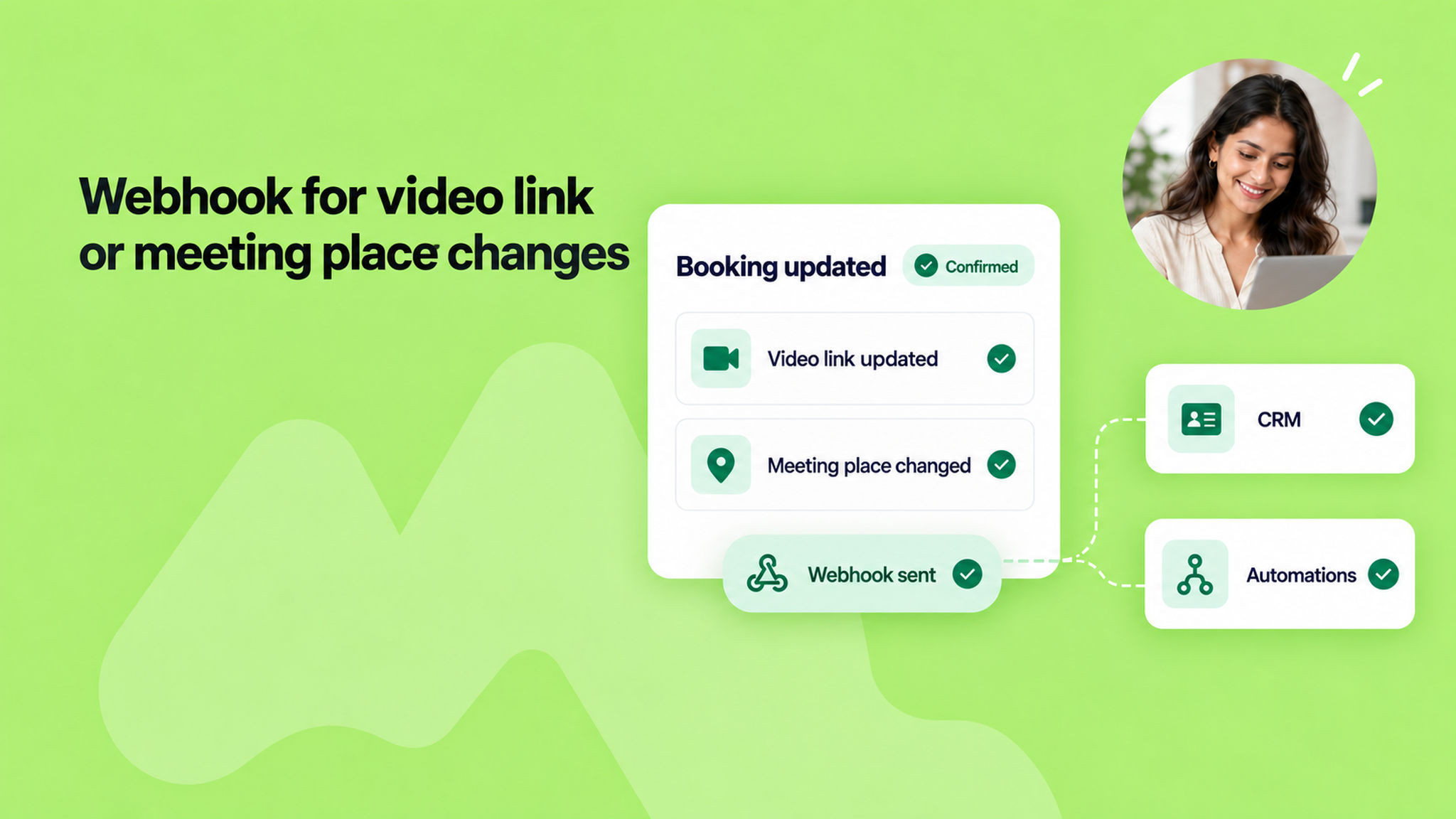
Your webhooks can now tell you when a booking's video link or meeting place changes. A new event, "Video link or meeting place changed", fires whenever the link or location is updated on a confirmed booking.

Earlier, changing the meeting place or video link sent no webhook at all, so your integrations were left out of the loop even though the host, the customer, and the calendar were all updated. Now your connected tools stay in sync too.

The event fires in every case that changes the link or place: the "Change video link or meeting place" action, a host change, and the regenerate video link action. The payload carries the old and new places along with the new video link.

We also added the video link to the "Host updated" event, so changing the host no longer stays silent about the new link it generates.

The new event arrives switched off, so turn it on from your webhook settings whenever you want to start receiving it.

This keeps your automations, CRMs, and downstream systems accurate, so nobody joins the wrong link or shows up at the wrong place.

To learn more, read our help article.

2026-09-22-offer-add-on-services-on-group-meetings_jQHinH3mI.png

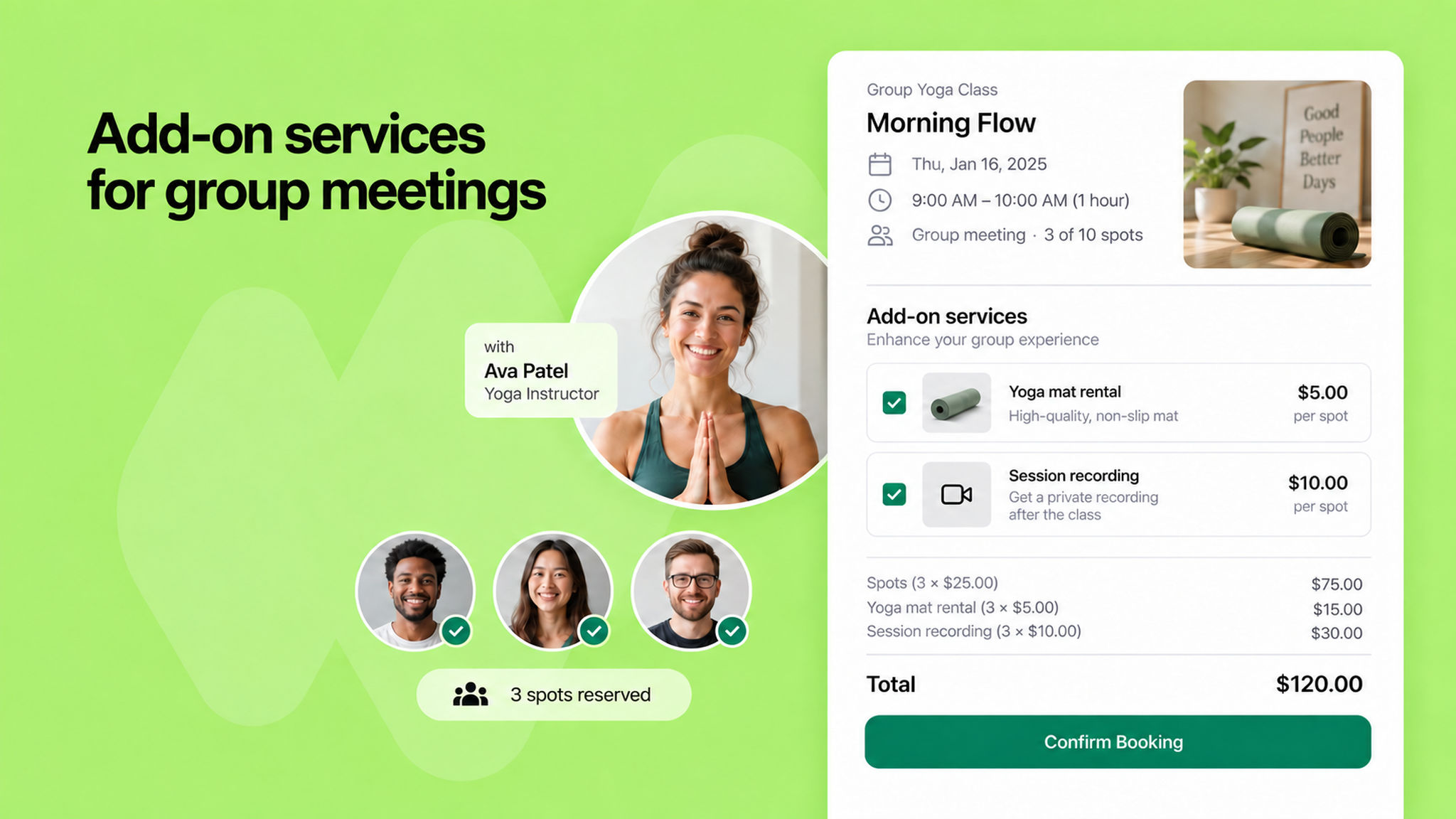
Add-on services used to be limited to one-on-one, round-robin and multi host meetings. You can now offer them on group meetings too: a cooking class can sell an ingredients kit, a yoga studio can hire out mats, and a webinar can offer the recording afterwards.

Services on a group meeting have no duration, because everyone shares the same slot. Everything else works as before: set them up under Add-on services in the scheduling link and mark them free or paid.

Each client picks their own services while booking and pays for them with the booking. If they book more than one spot, each service is charged per spot, and the breakdown shows on the payment screen so they can see how the total is made up.

The services a client chose appear against their name in the booking details, so you know what to prepare for each attendee before the meeting starts.

To learn more, read our help article.


2026-09-18-track-and-optimise-your-meta-ads-with-meta-pixel_a-kCwNbqM.png

If you run Facebook or Instagram ads that point at your scheduling links, you can now connect your Meta Pixel to NeetoCal and see which ads turn into bookings.

The pixel reports every step of a booking, from the page viewed to the booking completed. Each event carries the details around it, such as the scheduling link, amount, and currency, so that you can filter reports based on the details that matter to you.

You can also attach the client's name, email, and phone number to each event, hashed in their browser, so Meta can match more bookings back to the ads that caused them.

Connect a pixel for the whole workspace by pasting your Pixel ID under Admin panel → Other Integrations → Meta Pixel, or give a single scheduling link or intro page its own. Bookings made inside an embed are counted as well, as long as your website uses the same Pixel ID.

To learn more, read our help article.

2026-09-18-track-your-whole-booking-funnel-in-google-analytics_s1aFqHDgb.png

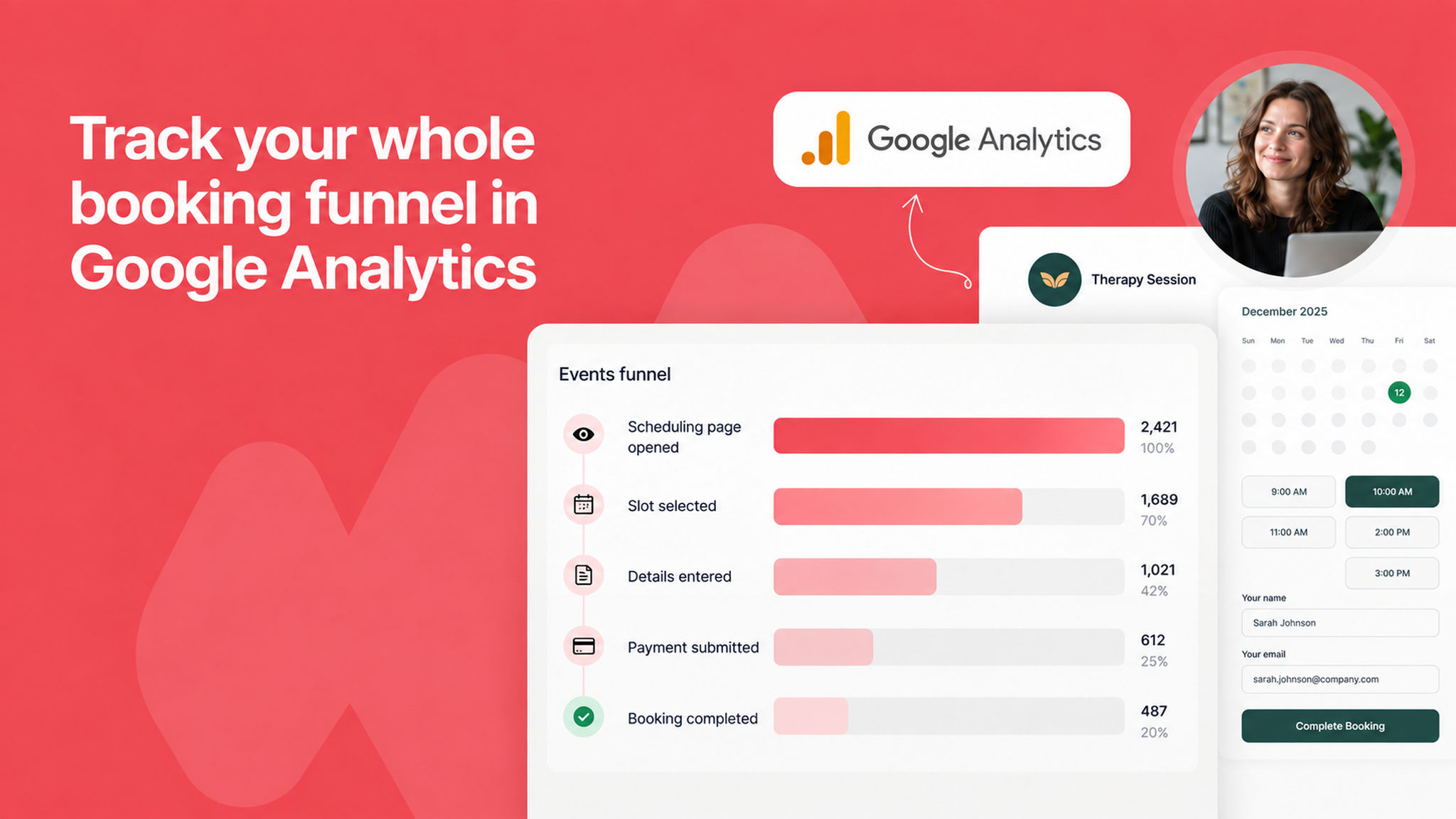
Google Analytics used to report page views from your scheduling pages and nothing more. Turn on Send booking events to Google Analytics and every step of a booking is reported too: link opened, slot picked, details filled in, payment submitted, and booking completed. That is enough to see where clients drop off.

Each event also carries the details around it, such as the scheduling link, the amount, the currency, the discount code, and the payment method, so that you can filter reports based on the details that matter to you.

Bookings made inside an embed are counted as well, as long as your website uses the same Measurement ID.

Connecting is now a single step: paste your Measurement ID under Admin panel → Other Integrations → Google Analytics. Booking events stay off until you turn them on.

To learn more, read our help article.

2026-09-16-customize-your-pay-later-message_cRPhdLVwv.png

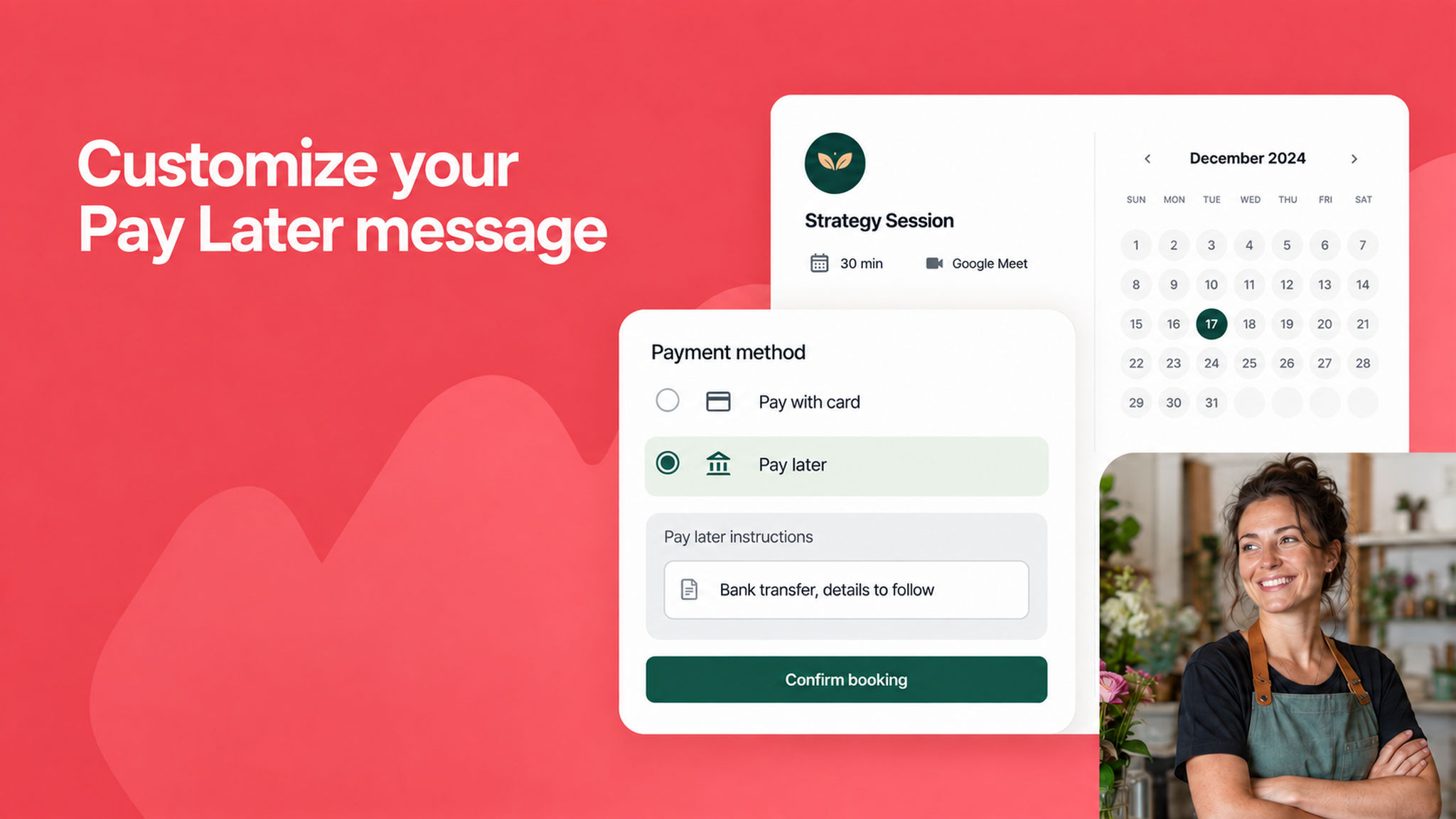
The Cash payment option is now called Pay later, and you can customize the message clients see when they choose it.

Pay later lets clients book now and pay you outside NeetoCal, whether that is cash at the meeting, a bank transfer, or any method you accept. The new name makes that clearer, since it was never limited to cash.

Now you can tell clients exactly how and when you would like to be paid. Set your own message, such as "Cash or cheque on the day" or "Bank transfer, details to follow", so there is no confusion at checkout.

If you do not set a message, clients see a sensible default, so this works out of the box and improves only when you want it.

Clearer payment instructions mean fewer questions and a smooth booking experience for your clients.

To learn more, read our help article.

2026-09-16-booked-by-me-tab-for-bookings_6HHE4-eiq.png

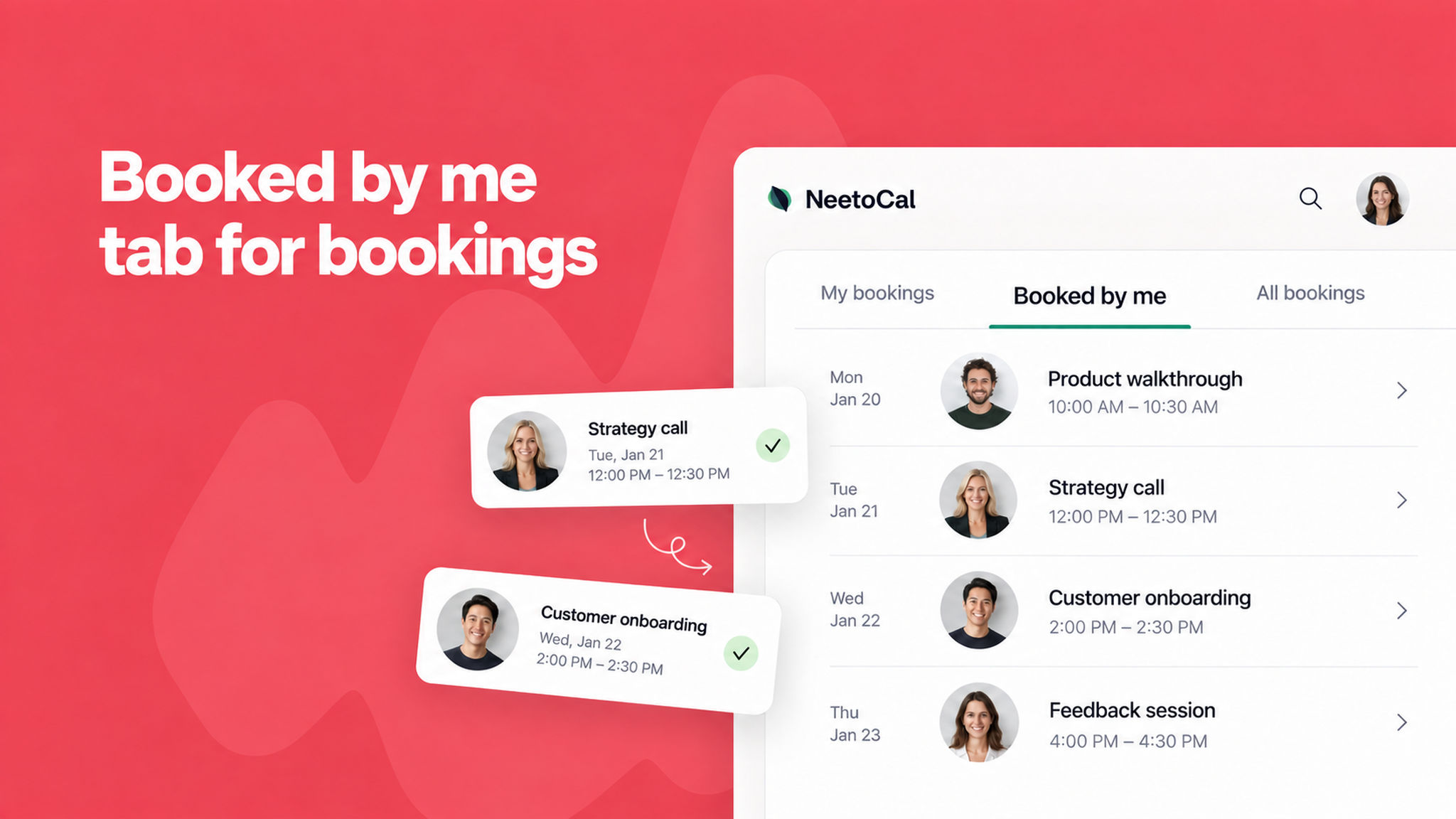
Team members can now manage the bookings they made on behalf of clients. A new Booked by me tab sits alongside "My bookings" and "All bookings" on the Bookings page.

When someone on your team books a meeting for a client, that booking is now captured against them. The Booked by me tab gathers all of those in one place, so they can find and manage the meetings they arranged without needing access to everyone else's bookings.

A new related permission is also introduced to keep the access clean. This is ideal for assistants and coordinators who book on behalf of others. They get a clear, focused view of their own work, while the rest of your bookings stay private to the people who own them.

The result is less back-and-forth and cleaner handoffs, since whoever made a booking can look after it directly.

To learn more, read our help article.


2026-09-09-book-any-slot-without-restrictions_t046L8rCEE.png

Admins and hosts can now override availability rules and book any slot they want. When you are creating or rescheduling a booking, a new option lets you place it at any time, even one that would normally be blocked.

With it turned on, NeetoCal skips the usual checks: availability schedules, existing bookings, calendar conflicts, lead times, booking limits, and group seat caps. You stay in control of your own calendar for those cases that do not fit the standard rules.

This is built for the real world. A client calls and wants a time that is technically full, a VIP needs squeezing in after hours, or you are moving a booking as a favor. Instead of reshuffling your settings, you just book it.

For round-robin and multi-host meetings, you pick the host yourself when overriding, since the usual "find an available host" step no longer applies.

The result is fewer moments where the tool says no when you need to say yes, so you can accommodate clients without fighting your own availability rules.

To learn more, read our help article.