What's new in NeetoCal


customize-approval-and-rejection-emails.png

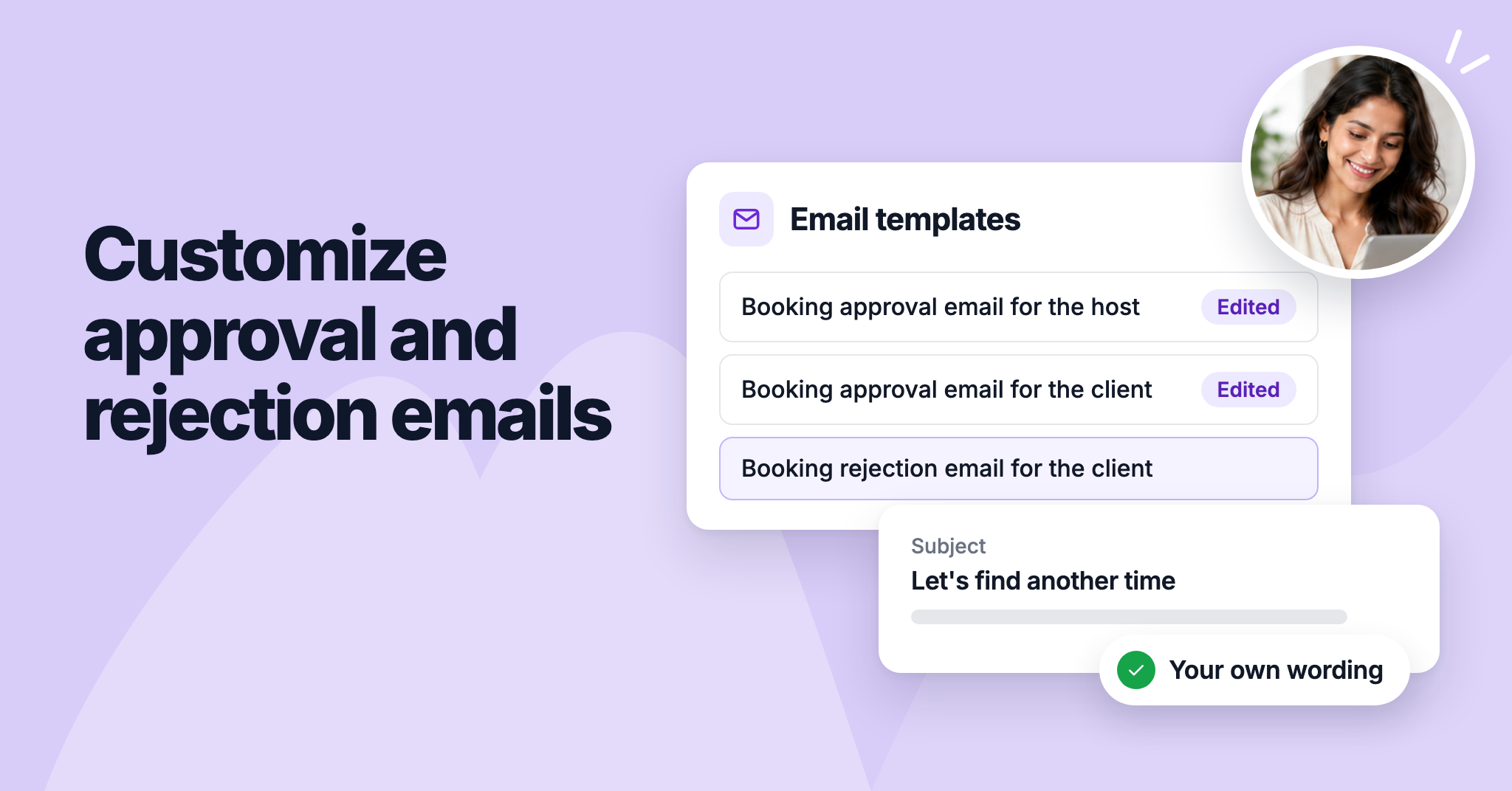
You can now customize the emails NeetoCal sends for bookings that need your approval: the approval request to the host, the pending email to the client, and the rejection email. Change their subject and message to match your other booking emails.

Edit them for the whole workspace under Admin Panel > Email templates, or for a single scheduling link. The rejection email can also include the reason you declined the request.

To learn more, read our help article.


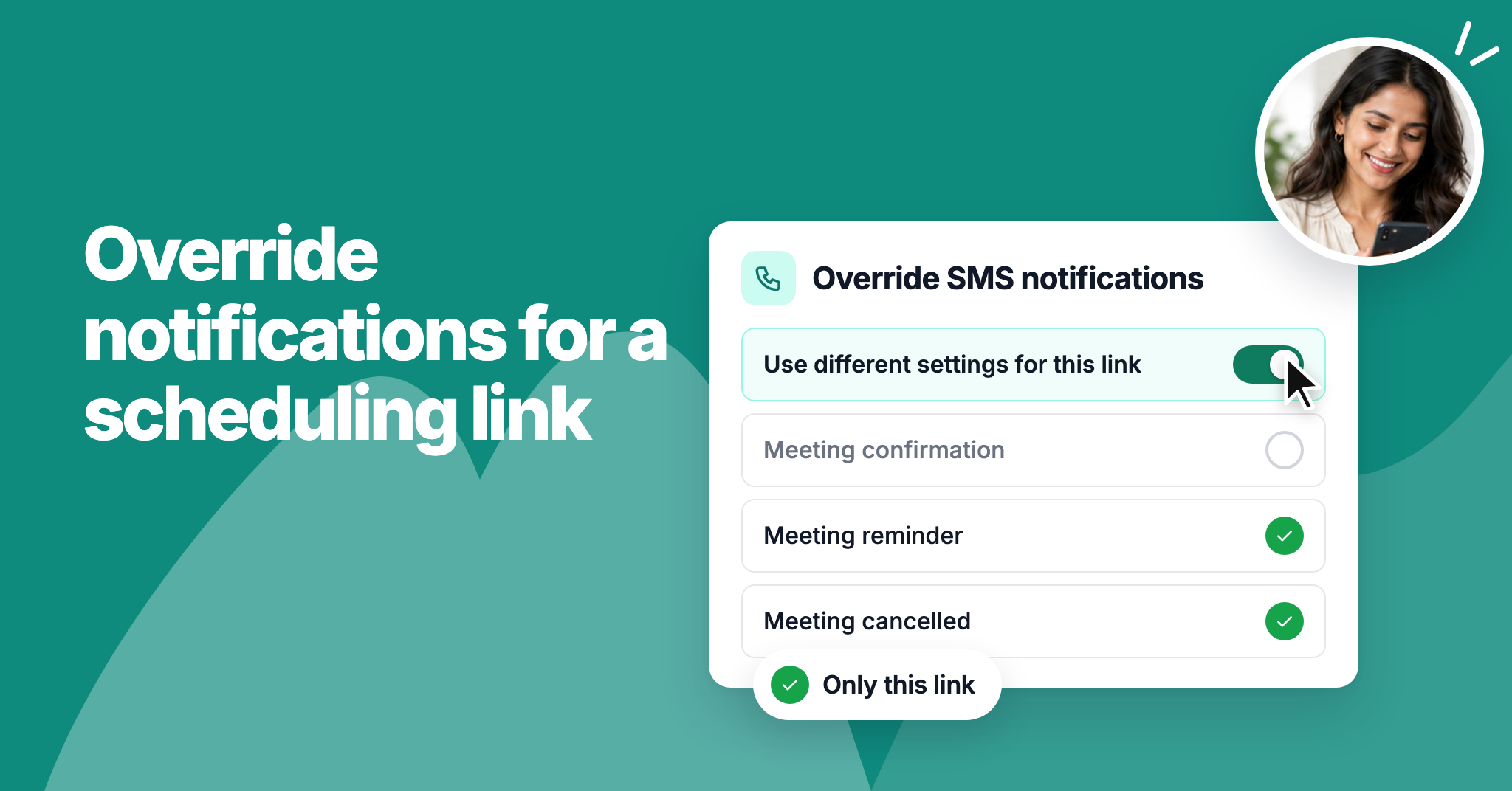
cal-changelog-override-notifications.png

You can now choose which emails and SMS each scheduling link sends. For example, you can stop confirmation SMS on one link while your other links keep sending them.

Open a scheduling link's Settings tab and turn on Override email notifications or Override SMS notifications. We've also added an SMS notifications page in the Admin panel, so you can turn off any booking SMS for your whole workspace, just as you already could for emails.

To learn more, read our help article.


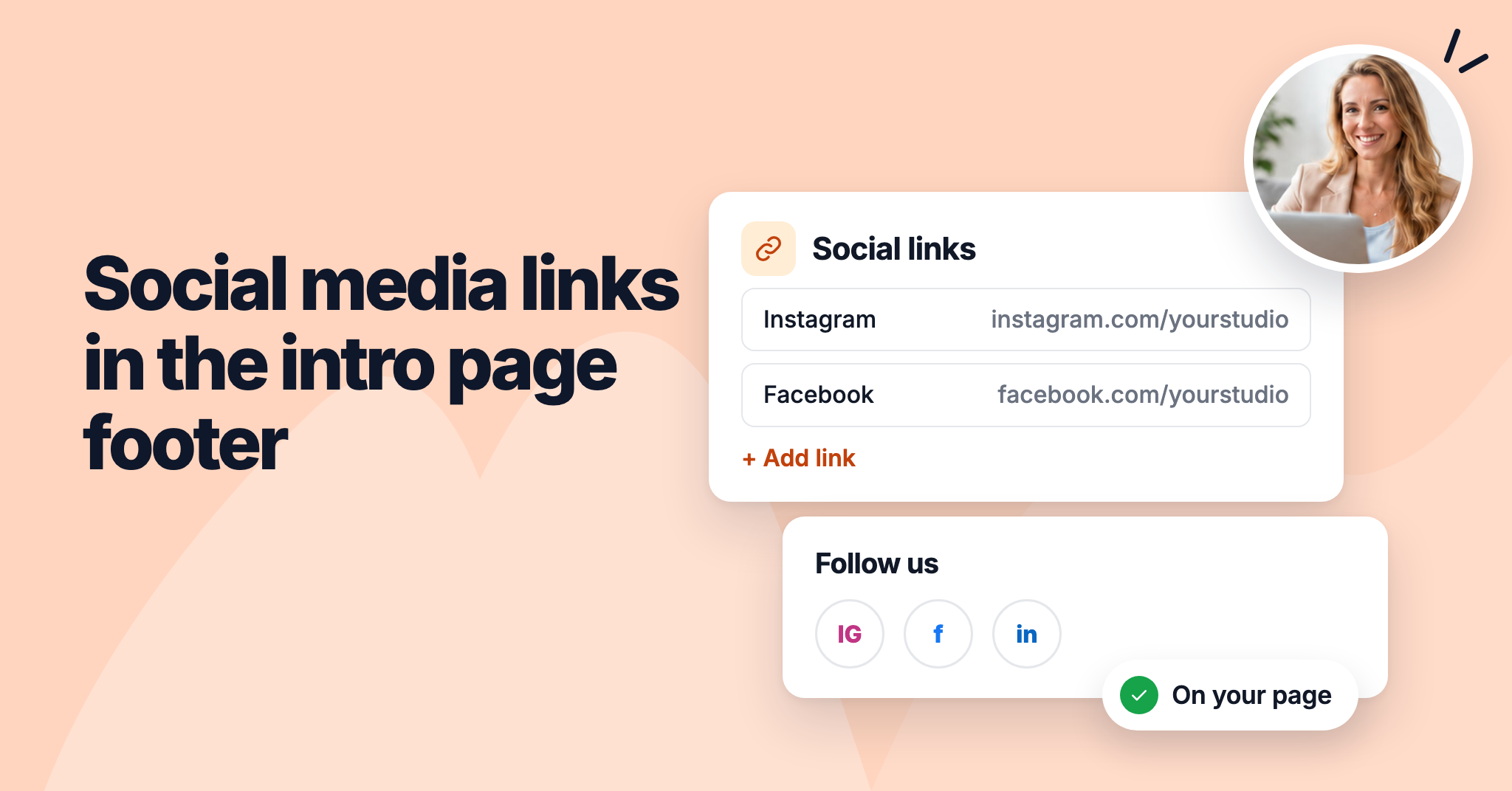
social-media-links-in-the-intro-page-footer.png

You can now add links to your social media profiles in the footer of your intro page. Customers who want to follow you or see more of your work can open your Instagram, Facebook, LinkedIn, or Twitter profile in one click.

Choose the third footer variant and paste your profile links. Platforms you leave without a link don't appear on your page, and you can add other platforms with your own icon.

To learn more, read our help article.


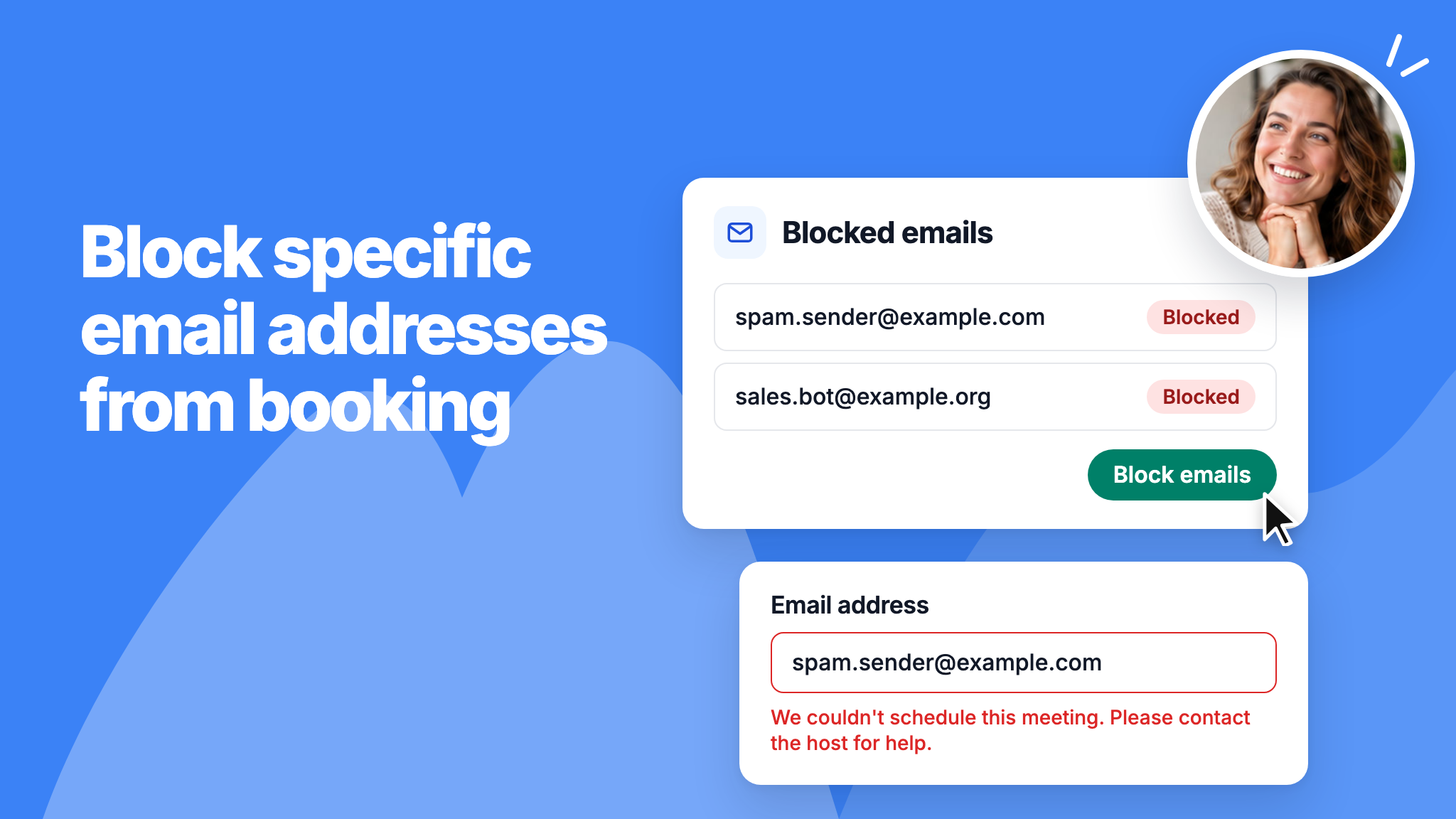
cal-changelog-blocked-emails.png

You can now block individual email addresses from booking meetings or buying packages in your workspace. Until now you could only block whole email domains, which doesn't help when the person uses Gmail or another common provider.

Add addresses under Admin panel > General > Blocked emails, or block a client straight from their booking. Blocked addresses can't book any scheduling link, and the bookings they already have stay as they are.

To learn more, read our help article.


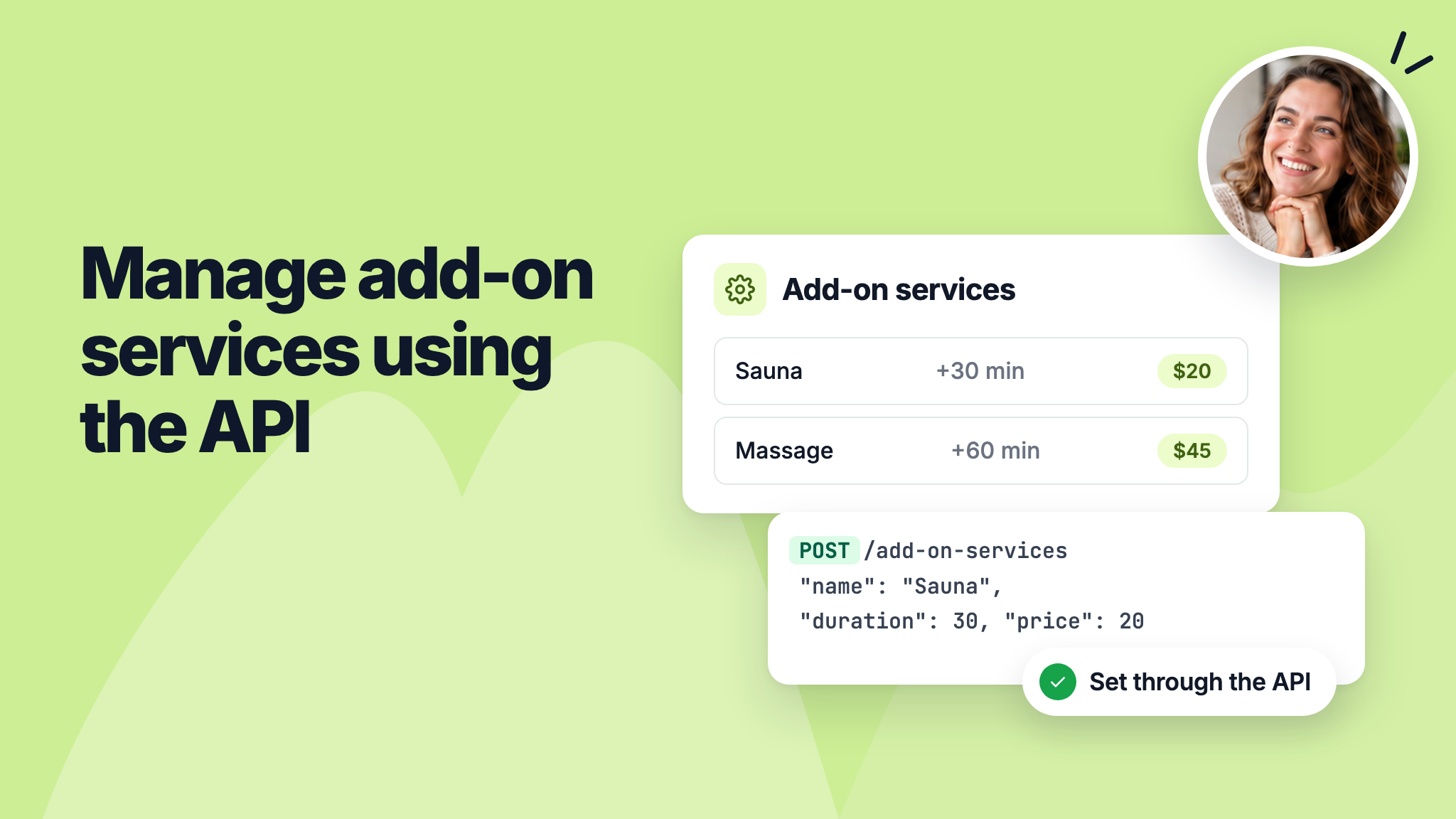
manage-add-on-services-using-the-api.png

You can now manage a scheduling link's add-on services through the NeetoCal API. You can list, create, update and delete them, including each one's name, description, duration and price.

When you create a booking through the API, you can also include the add-on services the person chose. Images for add-on services can still only be added in NeetoCal.

To learn more, read our API documentation.


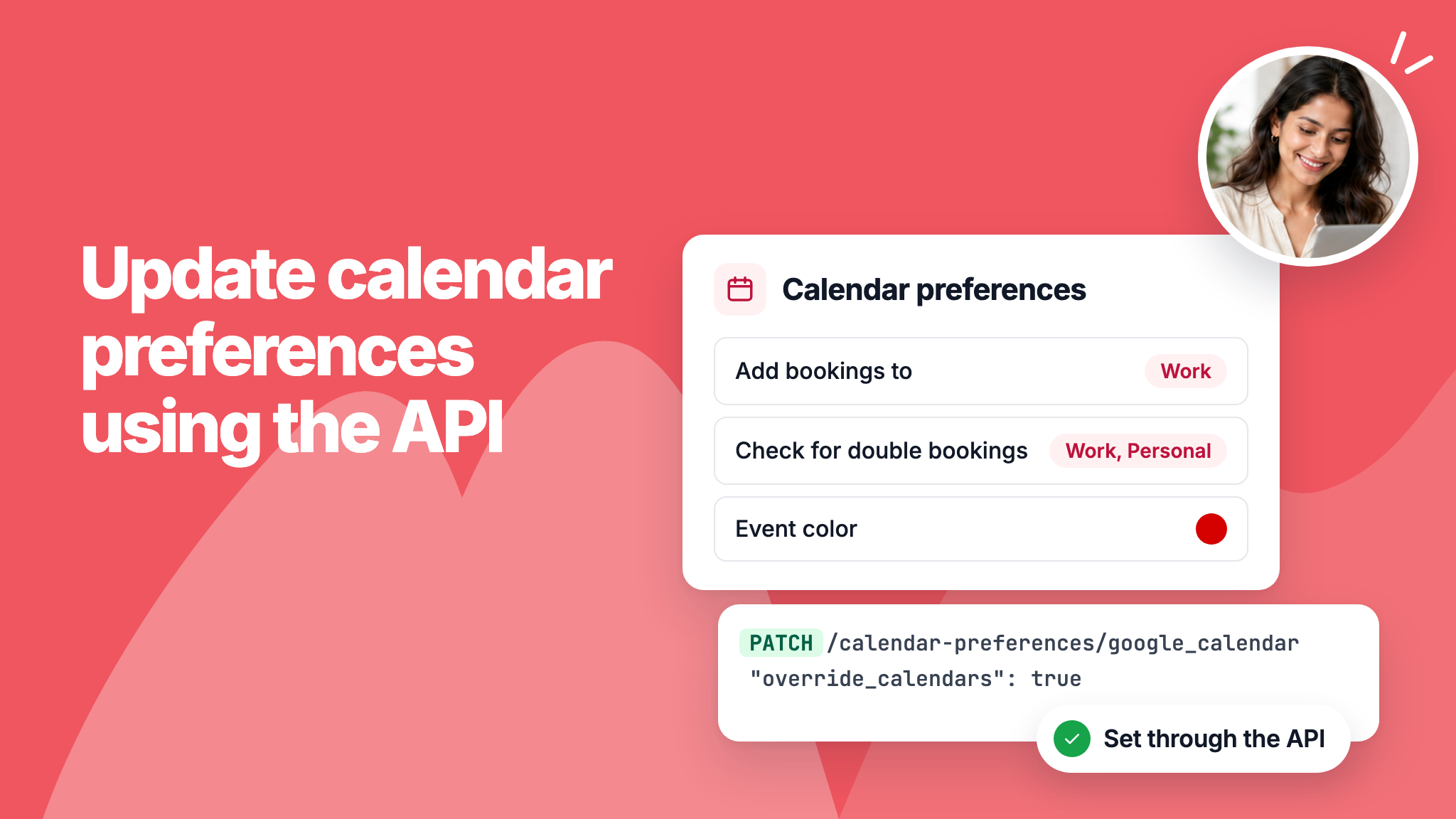
update-calendar-preferences-using-the-api.png

You can now change a scheduling link's calendar preferences through the NeetoCal API. If you create scheduling links from your own system, you no longer need to open each one in NeetoCal to pick the right calendars.

For Google Calendar, Outlook, and iCloud, you can choose the calendars bookings are added to, the calendars checked for double bookings, and how the booking appears in the calendar. The response also lists the host's calendars, so you can find the ones to use.

To learn more, read our API documentation.


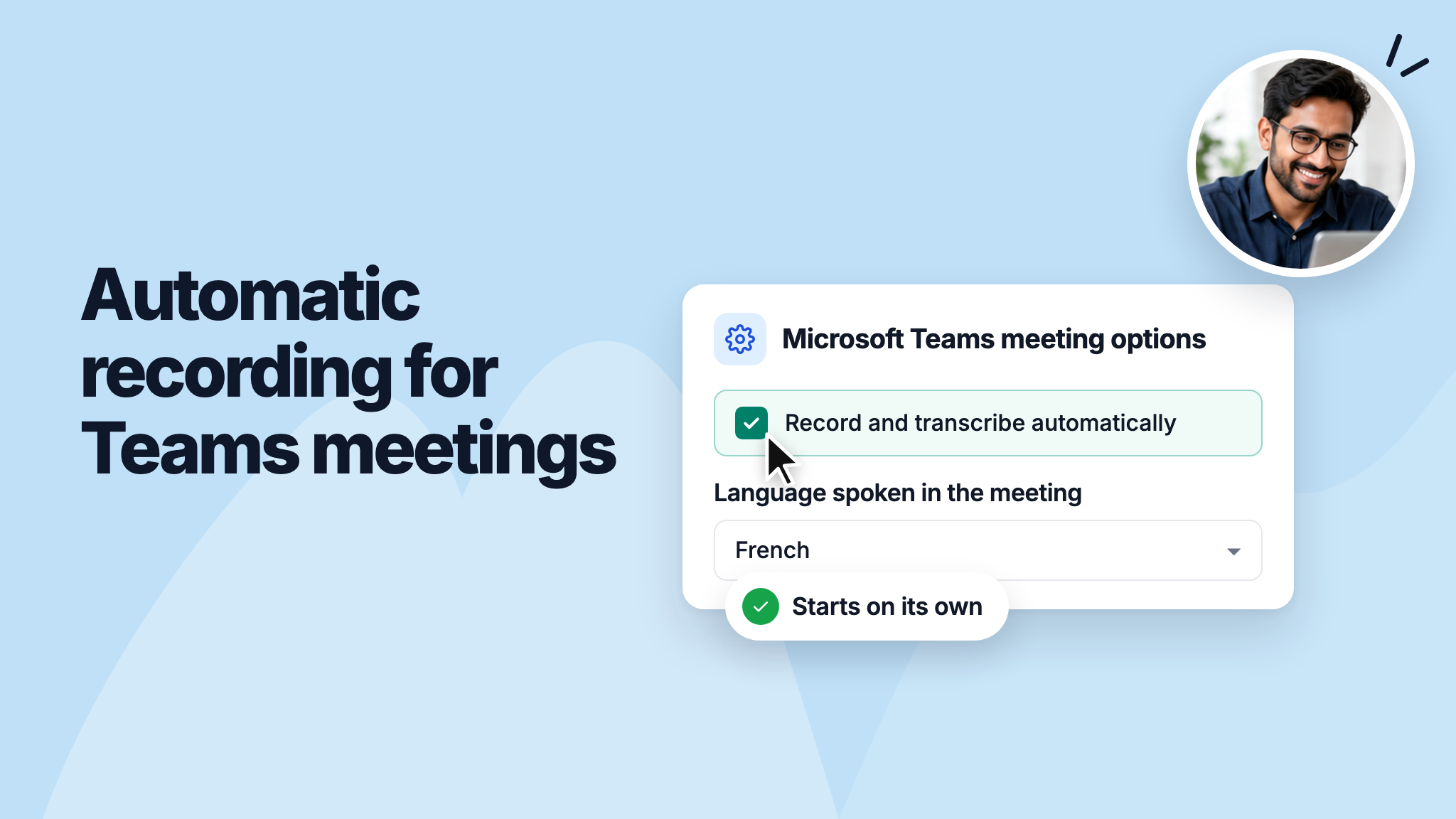
automatic-recording-for-teams-meetings.png

You can now have Microsoft Teams meetings booked through a scheduling link start recording and transcribing as soon as they begin. You can also choose the language spoken in the meeting, which Teams uses for the recording and transcript.

You set this once on the scheduling link, so you no longer have to change the meeting options in Teams after every booking.

To learn more, read our help article.


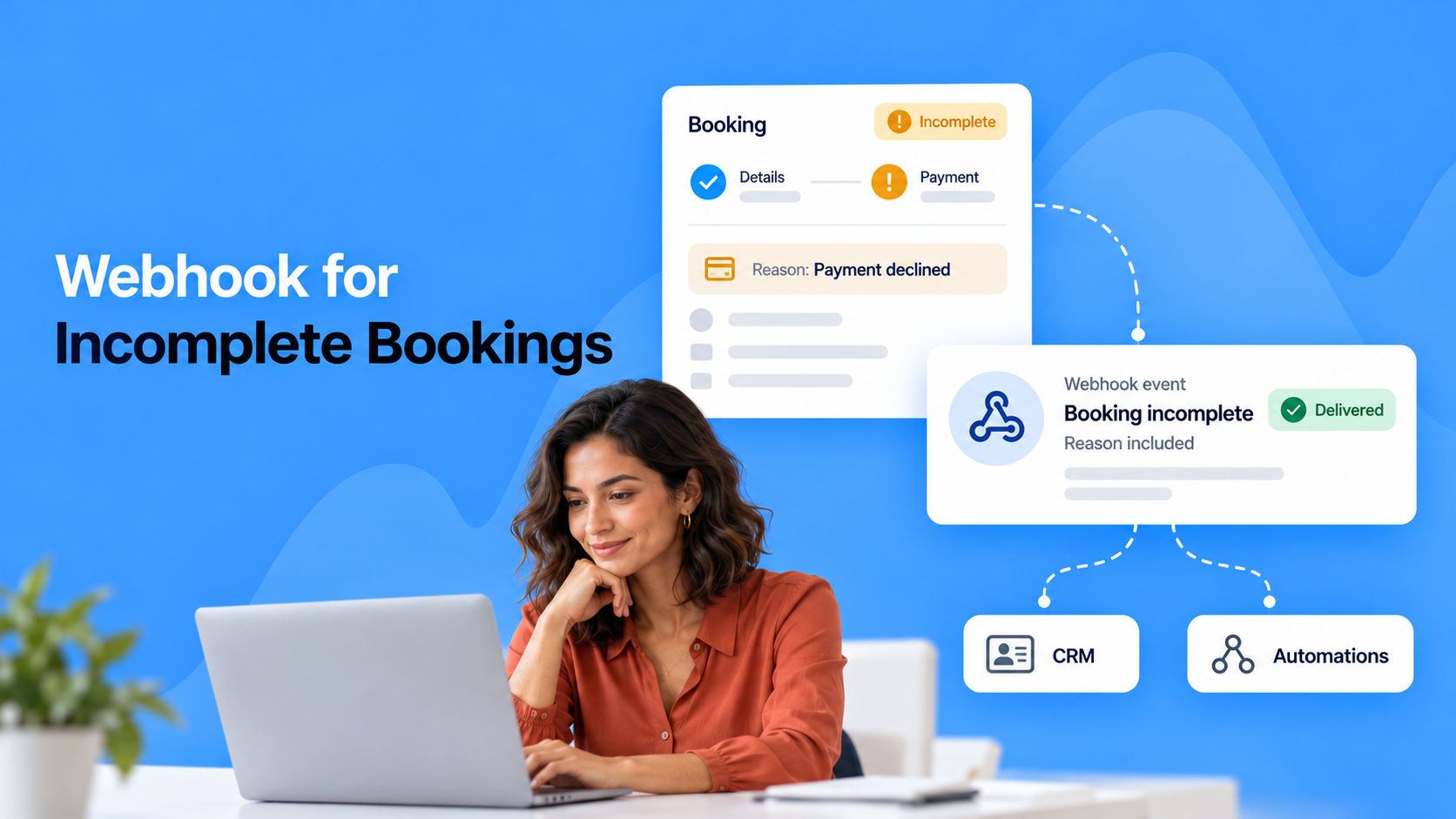
image_IQwNFMHgn.png

Your webhooks can now tell you when a booking is started but not completed. A new event, "Booking incomplete", fires for every booking that lands in your Incomplete tab.

Until now, a paid booking only notified your integrations once payment went through. If the customer dropped off or their payment failed, your connected tools heard nothing, so you had no way to act on it.

The new event closes that gap, and the payload tells you the reason, such as the customer leaving before paying, a declined payment, or the slot being taken by someone else.

This lets you follow up on drop-offs, recover lost bookings, and keep your records accurate.

To learn more, read our help article.


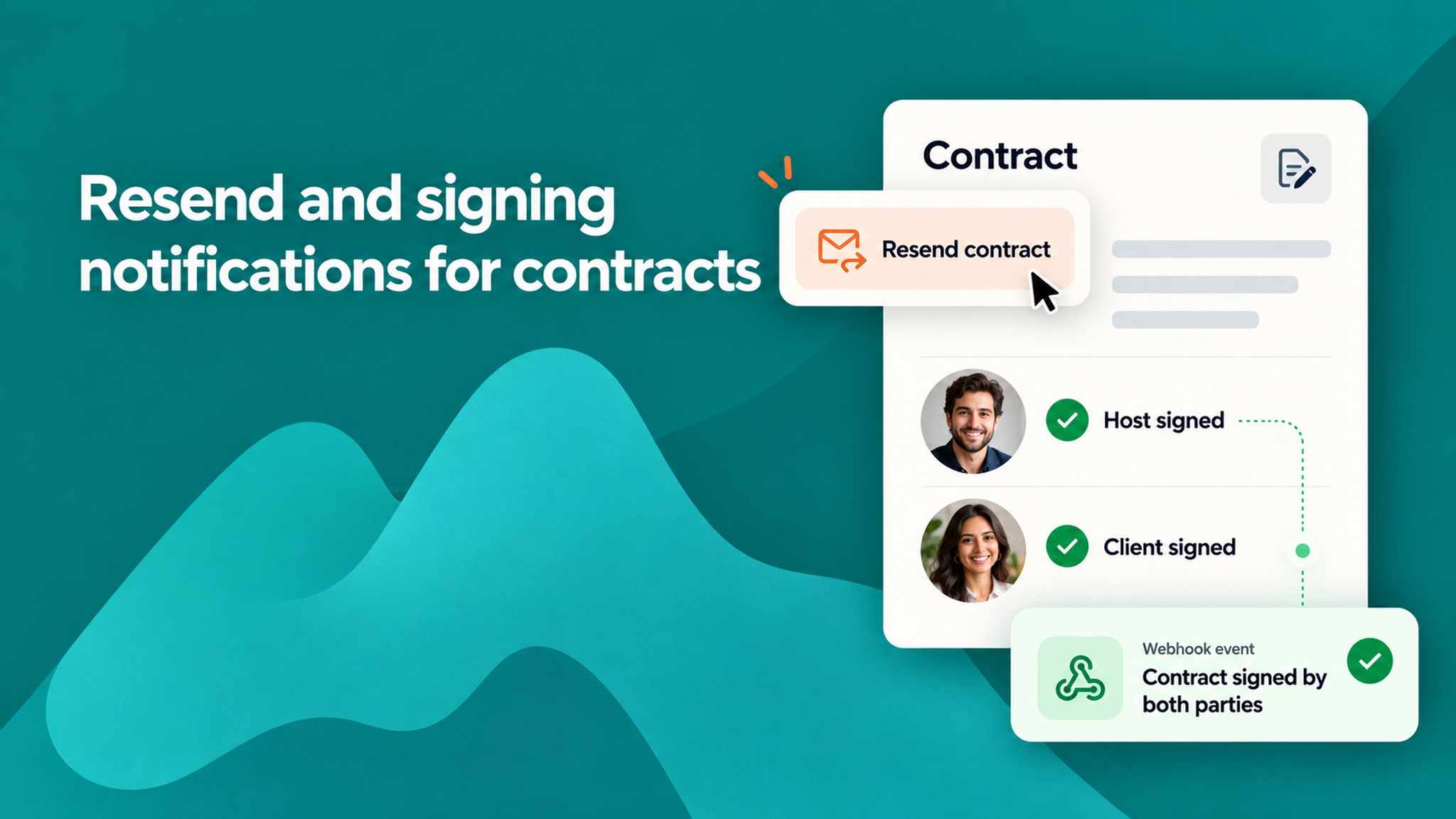
Resend_and_signing_notifications_for_contracts_yYFytNi14.png

We have made working with contracts smoother with two improvements.

Resend a contract. You can now resend a contract to a client whenever you need to. This is handy when a client missed the original email, cannot find it, or needs a fresh copy to sign. Earlier, if a contract was not signed, there was no easy way to send it again. Now you can trigger it right from the booking, so you spend less time chasing signatures.

Get notified when a contract is signed. A new webhook event, "Contract signed by both parties", fires once the host and the client have both signed. Until now, nothing left NeetoCal when a contract was signed, so the only way to know was to open the Contracts page and check.

With this event, your connected tools find out the moment a contract is fully signed. This is ideal when signing decides what happens next, such as allocating a team member or kicking off the next step in your process, so your workflow can move forward on its own.

The new event arrives switched off, so turn it on from your webhook settings when you want to start receiving it.

To learn more, read our help article.

reschedule-by-moving-the-event-in-your-calendar_aVxNcZD5x.png

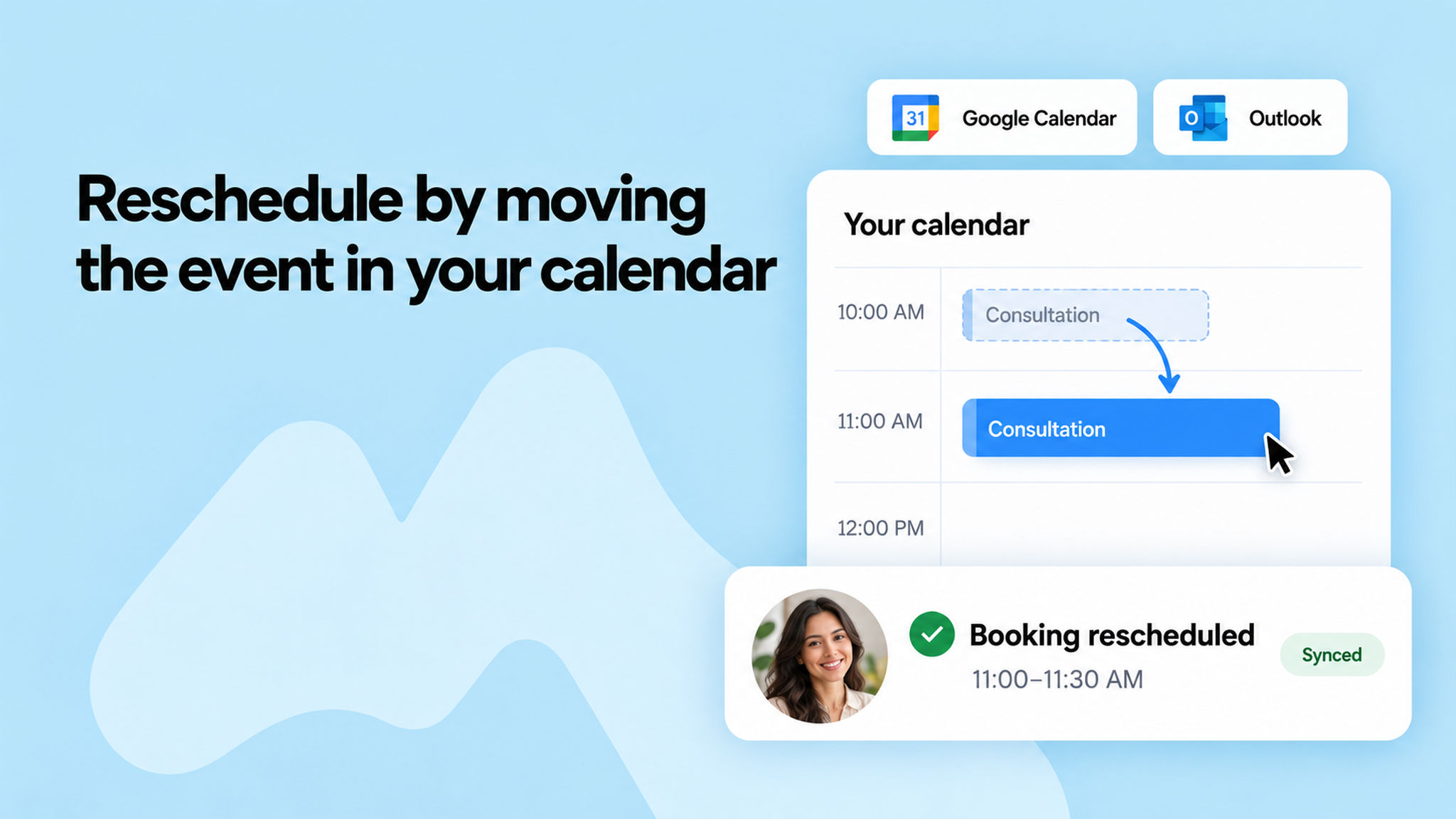
You can now reschedule a booking straight from your connected Google or Outlook calendar. Just move the event to a new time, and NeetoCal picks up the change and reschedules the booking to match.

Earlier, rescheduling meant going back into NeetoCal even if you had already moved things around in your calendar. Now your calendar and your bookings stay in step, so you can manage your day from wherever you already work.

This works for changes to both the time and the duration of a meeting. Everything is kept in sync, so your client sees the updated time and the booking reflects it too.

A couple of things to note. Group meetings are not included in this change, so moving a group session's event in your calendar leaves the booking untouched. This is for one-on-one style bookings.

By letting you reschedule from the tool you live in all day, this saves you a trip back into NeetoCal and keeps everyone on the same page.

To learn more, read our help article.